
How to Read JetBrains AI Assistant Chat History Outside the IDE
Export JetBrains AI Assistant chats to markdown, keep them portable across devices, and re-read them in a proper reader instead of a code sidebar.
JetBrains AI Assistant lives inside your IDE, and that is exactly why its chat history is so awkward to revisit. The panel is a sidebar, not a reader. Scroll up far enough and yesterday's design conversation blurs into last week's null-pointer chase. The code blocks look right, the prose looks fine, but nothing about the surface is built for the way you re-read work: on the couch, on a tablet, or three weeks later when a bug reminds you that you already solved this exact thing. This guide walks through where JetBrains stores that history, how to pull it out cleanly, and how to render it somewhere that treats each session like a document instead of a scrollback buffer. The goal is not to abandon the IDE panel. The goal is to keep the panel for writing and hand the reading job to a tool built for reading.
Where JetBrains AI Assistant stores your chats
The AI Assistant plugin persists conversations per project, tucked inside the IDE's config directory. On macOS you will find them under ~/Library/Application Support/JetBrains/<ProductVersion>/ and on Linux under ~/.config/JetBrains/<ProductVersion>/. The exact plugin folder shifts release to release, so the reliable move is to open the AI Assistant tool window, right-click a conversation, and use "Export to Markdown." That gives you a clean .md file with role labels, code fences, and language hints already in place. From there you own the file, and the IDE stops being a bottleneck between you and your own history.
If you want to grab everything at once, JetBrains ships a bulk export in recent builds under the AI Assistant settings pane. Older builds required a manual copy per chat, which is tolerable for a handful and painful for a hundred. Check the official JetBrains AI docs for the current path, since the plugin ships behind a feature flag on some products and the UI moves around. The good news is that whichever export path you use, the resulting markdown is portable to any reader that understands the standard spec. That portability is the whole point of the exercise.
One quirk worth knowing: the exported markdown is faithful to what you saw in the panel, including the collapsed diff blocks and the tool-call summaries. That is a good thing, because it means the export is not lossy. A proper reader can render every piece exactly as the model produced it. If you plan to keep these files around for months, that fidelity pays off the first time you need to reconstruct a decision from context you would otherwise have forgotten. It also means the export is friendly to diffing later versions of the same conversation.
Why the IDE sidebar is the wrong place to re-read
Reading long AI answers inside an editor gutter is a compromise the editor was never designed to make. Line height is tuned for code, not prose. The font stack defaults to a monospace across the whole panel, which is great for a snippet and exhausting for three paragraphs of reasoning. Wrapping is aggressive, headings blur into body text, and Mermaid diagrams either render as raw fences or not at all. None of these are bugs in the IDE. They are simply the consequence of asking a code editor to double as a book.
The bigger cost is context switching. Re-reading a two-hour refactoring session while your IDE is open means you are one accidental click away from opening a file, editing it, and forgetting which branch you were on. Separating the read surface from the write surface is the same discipline that makes people print RFCs before reviewing them. It is also why long-form review workflows tend to migrate to tablets and e-readers over time. Related reading: the case for a dedicated markdown reader for AI content. Treat the sidebar as a scratchpad, not an archive, and the tension resolves itself.
Turning JetBrains exports into readable documents
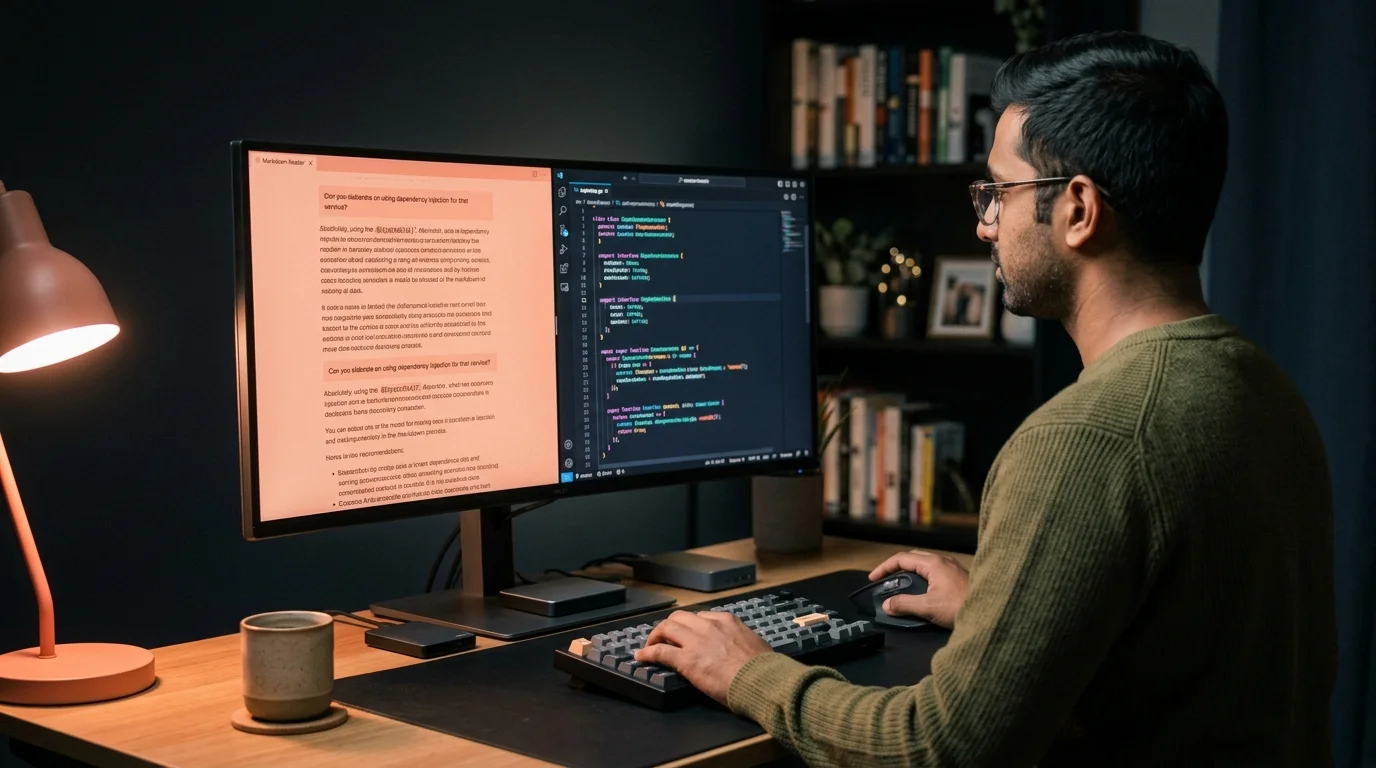
Once you have the exported markdown, the workflow is the same one that already works for other AI transcripts. Drop the file into a folder you sync across devices, open it in a reader that understands GitHub-flavored markdown, and let the reader handle code highlighting, math, and diagrams. Prism MD is built for exactly this use case: it treats each conversation as a first-class document, renders monospace code with a real code font, and keeps prose in a variable-width face that your eyes will thank you for. The difference between a good reader and a passable one is most obvious on the third read of a long answer, not the first.
If your JetBrains chats include math, and they will if you use AI Assistant for anything algorithmic, you want KaTeX rendering rather than raw dollar-sign noise. If they include architecture sketches, you want Mermaid rendered as diagrams rather than fenced blocks. See render math and Mermaid in markdown for why those two features carry more weight than they sound like they should. A conversation about a graph algorithm without rendered math is a conversation you will avoid reopening. A rendered version is one you will file next to your design docs.
A small trick that pays off: rename each exported file with the date and a two-word summary. 2026-07-14-oauth-refactor.md beats chat-export-3.md every single time you scan the folder. This is the same pattern that works for Cursor transcripts and Copilot chats, and it composes cleanly with any sync layer you already trust. A stable naming rule turns a folder of exports into a searchable archive without any extra tooling. It also means your future self does not need to remember which project a given chat belonged to.
What to do with the transcripts you keep
Most JetBrains AI sessions fall into three buckets, and each one wants a different afterlife. Debugging sessions are worth keeping for a month, then culling once the fix has settled in production. Design conversations, the ones where you and the model argued about a data model or an API shape, are worth keeping for as long as the project lives. Quick lookups are worth deleting the moment the answer is committed to code, because they add noise without carrying context. Being honest about which bucket a chat belongs to is the difference between a useful archive and a graveyard. A rough triage rule that holds up in practice comes down to three lines you can pin above your desk, and they cover almost every case you will hit in a normal week of AI-assisted work:
- Keep any conversation that produced a decision you cannot easily rederive from the diff.
- Keep any conversation where the model was wrong in an interesting way, because those become future prompts.
- Delete anything that was a one-liner you would have googled two years ago.
Pair this with the habit of extracting action items from AI conversations at the end of each session, and your JetBrains history stops being a scrollback and starts being a lightweight engineering journal. The overhead is a minute per session, which sounds trivial and adds up faster than most habits. The payoff is measured in the debugging hours you skip six months later. Teams that adopt this pattern usually notice the difference around the third or fourth month, when a search across the archive returns an answer that would otherwise have cost half a day. The compound interest on a well-kept archive is the reason senior engineers keep journals in the first place.
FAQ
Does JetBrains AI Assistant sync chats across machines? Not by default, since history is local to the IDE install. If you want cross-device access, export to markdown and sync the folder yourself through iCloud, Dropbox, or a Git repo. Any of those three will work, and each has its own tradeoffs for privacy and version history. Git is best if you care about diffs, iCloud is easiest if you already live in the Apple ecosystem, and Dropbox is the least opinionated of the three.
Can I search across all my exported JetBrains chats at once? Yes, once they are markdown files in one folder, since plain text is the friendliest format for search. Any reader with full-text search, or a simple ripgrep command, will index them without needing a database. This is one of the quiet advantages of plain-text formats over proprietary chat stores. The moment you commit the folder to Git, you also get history-aware search across every version of every chat.
Will exports include the file context the model saw? The exports include the file names and snippets the model referenced in its answer. They do not embed the full file contents at that point in time, which keeps the export size reasonable. If you need the full context later, the git commit at that timestamp is your source of truth, and pairing the chat with the commit hash is a small habit worth building. Some teams add the commit hash to the filename for exactly this reason.
Is there a way to auto-export every JetBrains AI chat? Not officially yet, and this is one of the top requested features on the AI Assistant tracker. A common workaround is a small script that watches the plugin's storage directory and converts new sessions on save. Until JetBrains ships this natively, manual export at the end of a session is the reliable path, and it takes about ten seconds per chat. The habit is easier to build than most people expect, especially if you pair it with your existing end-of-day commit routine.
Read your AI transcripts the way they deserve
Free to start — no credit card.
Related reading


Ready to read your own AI documents?
Open ChatGPT, Claude, Gemini, or any markdown file in the reader built for the way models write.
- ✓Renders code, math & Mermaid out of the box
- ✓Works offline once you've opened a doc
- ✓Free forever for personal reading