
Read Cursor Chat History and Composer Transcripts Outside the IDE
Cursor stores every AI coding session in a local database. Here is how to export it, read it like a design doc, and keep the decisions that matter.
Cursor writes some of the best AI code you will ever ship, but the conversations that produced that code live inside the IDE, wedged into a sidebar that was designed for chat and not for reading. When you want to review what the model decided, or share the reasoning with a teammate, the sidebar starts to fight you. Line wrapping breaks around function signatures, code blocks scroll horizontally, and the Composer transcript scrolls past faster than you can trace a thought. A dedicated reader fixes that in about a minute, and the payoff compounds every time you revisit a past session. This guide covers where Cursor stores its chat and Composer history, how to pull those transcripts out cleanly, and how to read them the way you would read a technical document instead of a live stream.
Where Cursor keeps your transcripts
Cursor stores chat history in a local SQLite database inside your user data directory. On macOS the path is ~/Library/Application Support/Cursor/User/globalStorage/state.vscdb, on Windows it sits under %APPDATA%\Cursor\User\globalStorage\, and on Linux under ~/.config/Cursor/User/globalStorage/. The database has several keys, but the ones you care about are the Composer sessions and the inline chat panes. Each session is a JSON blob with a title, a timestamp, and an array of messages with roles and content. Knowing the path matters because backups, syncs, and disk cleanups will silently take your history with them if you are not paying attention.
You do not need to touch the database directly for most work. Cursor added an official chat export in mid 2025, reachable from the Composer menu as Export Session, which drops a clean markdown file. That markdown file is what you feed into a reader, because it preserves fenced code blocks, keeps role labels intact, and skips the internal telemetry that clutters the raw JSON. The exporter also normalises file paths and diff blocks, so a session that touched twelve files still reads in order. If you have used the same export flow in Claude Code or in the ChatGPT web app, the output shape will look familiar.
Get the transcript out in a readable shape
Two paths work well depending on how much history you want to pull. If you only care about the session you are looking at right now, the built in Export Session command is the shortest route and takes about ten seconds. If you want everything, or you want to script the extraction across a team, a short SQLite query gives you a full dump you can pipe into markdown. Neither path requires a plugin, and both give you plain files that will still open in twenty years without any special software.
- Single session: open Composer, click the session menu, choose Export Session, save the
.mdfile to a folder you sync with your reader. - Full history: run a small script that opens the
state.vscdbfile with thesqlite3CLI, selects the JSON blobs under the composer keys, and writes each session to its own markdown file named after the session title and date.
Both paths give you the same shape of markdown, which matters because the same reader settings work for either. Roles come through as bold prefixes, code blocks stay fenced with their language tag, and file diffs show up as unified patches inside a diff block. Timestamps sit next to each message, which lets you reconstruct how long a session ran and where the model got stuck. If you have been reading AI coding agent transcripts from other tools already, this will feel familiar, and the same folder structure covers both.
Read the transcript like a design doc
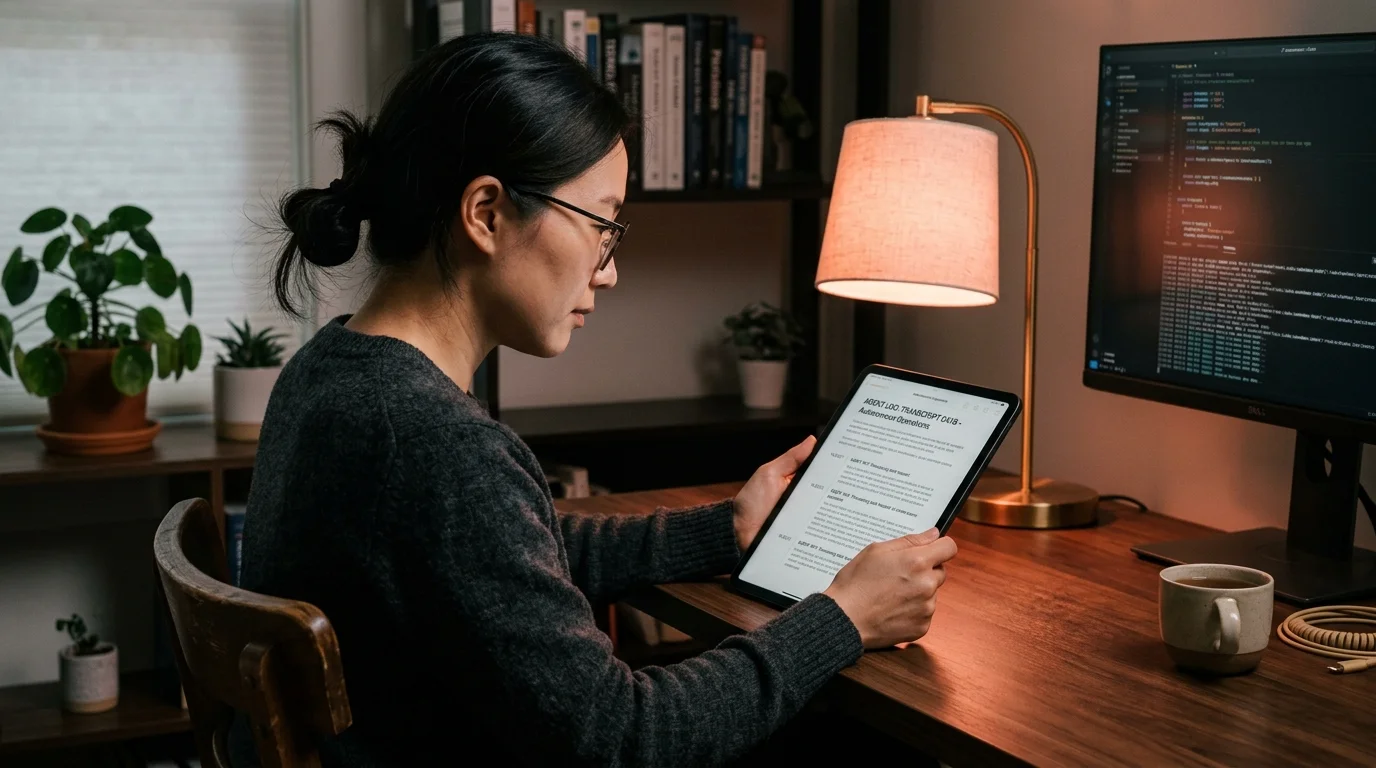
A Cursor session is not a chat, even though it looks like one. It is a small design document with alternating voices, and it rewards the same reading habits you use for an RFC or a postmortem. Set your reader to a comfortable measure of around 70 characters per line, pick a monospace font for code that renders ligatures cleanly, and use a serif for prose so the two channels never blur together. Prism MD ships with a coral accent on charcoal by default, which is what most engineers land on after a week of tuning. The result is a document you can read in a single sitting rather than skim in a panic.
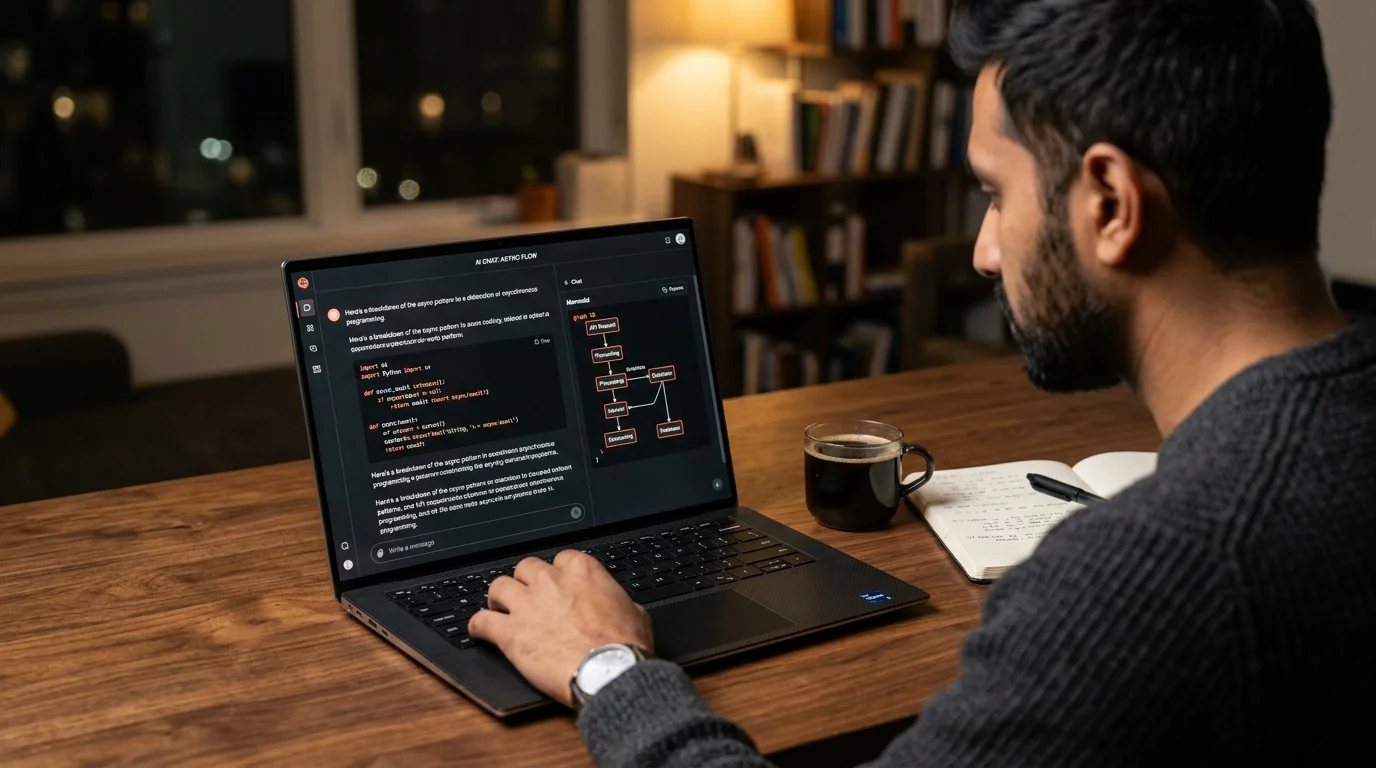
The biggest quality of life change is turning on soft wrap for long shell lines while keeping horizontal scroll for code blocks that would lose meaning if broken. That single distinction is the difference between skimming a session and absorbing it. Add a sticky table of contents pulled from the H2 headings that the exporter injects for each turn, and you get an outline you can jump around in. The same principle applies when you read long Claude conversations or when you sit down to compare ChatGPT, Claude, and Gemini answers side by side, because every long AI transcript benefits from being treated as a document rather than a stream.
Keep the artefacts, not the chatter
A Cursor session contains three kinds of content, and only two are worth saving long term. The first is the model reasoning, which is useful in the moment but rarely holds up a week later. The second is the code the model produced, which is already in your repo and does not need archiving twice. The third is the decisions, the file paths the model touched, and the constraints you gave it, and those are the durable artefacts. A reader with a good outline view lets you pull them out in one pass, which is the whole point of moving the transcript out of the IDE.
The habit that pays off is a five minute review right after the session ends. Scroll from top to bottom in your reader, mark the two or three decisions that matter, and paste them into your project notes. Anything that is pure model reasoning can be archived and forgotten without guilt. This is the same discipline that makes it worth learning to extract action items from AI conversations across every tool you use, and it is how a growing transcript archive stays useful instead of turning into landfill.
FAQ
Does exporting a Cursor session include the code Cursor wrote to disk? No, the export contains the conversation and any inline code blocks the model showed. Files that Cursor edited live in your repo and are captured by git, which is where they belong. Keep the two in sync by naming the export after the commit hash it produced, so you can trace a decision back to the exact code that landed. This small naming habit turns your transcript folder into a searchable audit trail for every change.
Can I read Cursor transcripts on a phone or tablet? Yes, once you have the markdown file. Drop it into a synced folder like iCloud Drive, Dropbox, or a Git repo, and open it in Prism MD on iOS or Android. The reader handles fenced code, KaTeX, and Mermaid without needing an internet connection, which matters on a train or a plane. Reading a session on a tablet also forces you to slow down and absorb it rather than skim.
Do I lose the Composer file diffs when I export?
No, the exporter preserves diffs as fenced blocks with the diff language tag. A reader that syntax highlights diffs will render additions and removals in colour, which makes them easier to scan than they were in the sidebar. Pair that with a monospace font at a comfortable size and long diffs stop being painful. The result is that you can review a twenty file change in the same time it takes to read a short email.
Is there a way to search across all my past sessions? Yes, once the sessions are markdown files in a folder, any text search tool works, from ripgrep to your reader's built in search. That is the main reason people move transcripts out of the IDE in the first place, because a searchable history turns a pile of chats into a knowledge base. Add a monthly cron job to re export any new sessions and your archive stays current without manual work. Over a year the folder becomes a personal record of how you learned to steer the model.
Read your Cursor history the way it deserves
Cursor is a fast IDE and a strong agent, and it is not a reading environment. It was never trying to be one, and asking it to double as one is unfair to both jobs. Move your transcripts into a proper reader and the sessions turn into a searchable, quotable record of how your codebase got built. The five minutes it takes to set up the pipeline is the highest return investment you can make in your own AI coding workflow this quarter.
Read your Cursor transcripts the way they deserve
Free to start — no credit card.
Related reading

Ready to read your own AI documents?
Open ChatGPT, Claude, Gemini, or any markdown file in the reader built for the way models write.
- ✓Renders code, math & Mermaid out of the box
- ✓Works offline once you've opened a doc
- ✓Free forever for personal reading