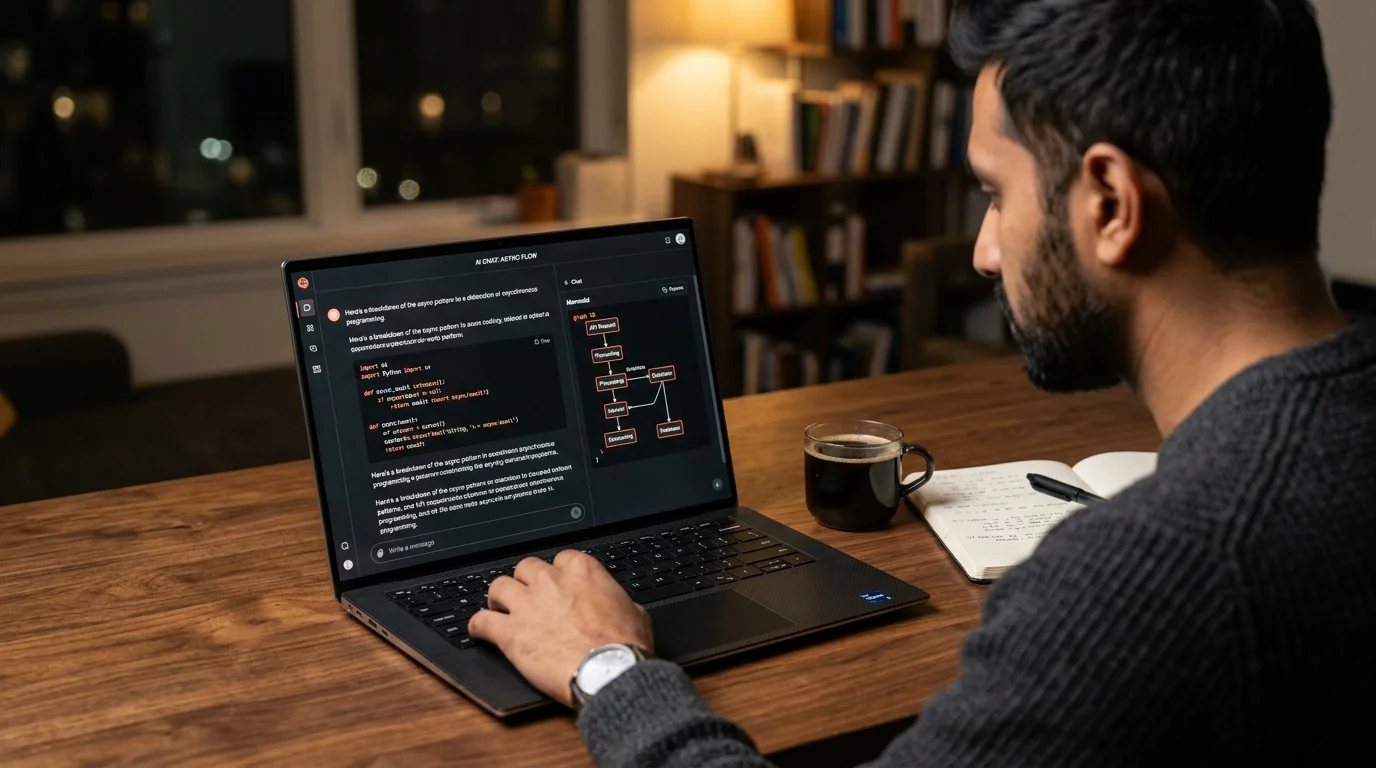
Read Continue.dev Chat History: Export, Archive, Reread
Where Continue.dev stores your VS Code chat sessions, how to export them to clean markdown, and how to reread long coding transcripts without pain.
Continue.dev is one of the most flexible open-source coding assistants around. You wire it into VS Code or JetBrains, point it at your model of choice, and it happily answers questions in a side panel while you code. The catch is that those side-panel conversations are gold, and the built-in reader is not built for the kind of long, revisit-later reading you want to do with a serious debugging session. Most developers I know treat the panel as ephemeral, close the window, and then curse a week later when they need the exact schema the model proposed at 2am.
If you have ever tried scrolling back through a 4,000-word Continue thread to find that one snippet where the model finally got the SQL right, you know the shape of the problem. The panel is narrow, the code blocks wrap awkwardly, the search is basic, and the moment you close the workspace the context feels gone even though the JSON is still sitting on disk. This guide walks through where Continue stores your history, how to export it cleanly, and how to read it in a tool built for long-form AI markdown. The whole workflow takes about twenty minutes to set up once and then costs you nothing per day after that.
Where Continue.dev keeps your chat history
Continue writes each conversation to a local JSON file under your home directory. On macOS and Linux the path is ~/.continue/sessions, and on Windows it lives under %USERPROFILE%\.continue\sessions. Each file is a single session with a UUID name, a timestamp, and the full message array including user prompts, assistant replies, tool calls, and file context snippets. There is also a small SQLite database that tracks session metadata, but you rarely need to touch it because the JSON files carry everything a reader would want.
The format is stable enough to script against. Continue has kept the schema roughly consistent since the 0.9 releases, and the Continue GitHub repository documents the session shape in its core package if you want the exact TypeScript type. That matters because it means you can write a small converter without worrying that next week's update will silently break your pipeline. Pin the fields you touch, add one defensive check for content being a string or an array of parts, and you are done.
Exporting a session to clean markdown
The fastest way to get one session into readable markdown is a short Node or Python script that reads the JSON, walks the history array, and prints headings for user turns and fenced blocks for assistant code. Keep it small on purpose. You want something you can rerun on any file without thinking, not a framework. A minimal Node version is around a dozen lines: import fs, parse the JSON, loop through raw.history, and write ## You for user messages and ## Assistant for assistant messages, followed by the message.content string. Pipe the output to a .md file, drop it in your reading folder, and you have a clean transcript with no panel chrome, no truncation, and no clipped code.
If you want tool calls preserved, add a small branch that renders them as fenced blocks with a tool language tag so your reader can style them distinctly. This same pattern works for reading Aider chat history and Cline transcripts, which is convenient if you jump between assistants during the week. The parser changes, the reader does not. Once you have written the script once, you can point it at any Continue session on any machine and get back the same clean markdown every time.
Reading the exported markdown well
Once you have the markdown file, the reader matters more than most people realize. A coding session often mixes prose, long code blocks, shell output, and the occasional inline math or Mermaid diagram. Reading that in a raw editor works in a pinch, but a dedicated markdown reader gives you proper syntax highlighting, KaTeX math rendering, and diagram rendering without any config. That last part is the difference between skimming and rereading.
Prism MD is built specifically for this kind of reading. Drop the exported file in, and it renders code with a monospaced stack tuned for long reads, keeps prose at a comfortable measure, and lets you bookmark the specific turns you want to come back to. If you have followed our note on why AI markdown deserves better typography, the same reasoning applies here in triplicate, because coding transcripts are the densest reading you will do all week. A good reader also handles the awkward mix of long lines and short quips without collapsing your rhythm.
Handling multi-file context and diffs
Continue often injects file context blocks into the conversation. When you export, those appear as fenced code with a filename comment on the first line, and you should keep them exactly as written. They are the difference between a transcript that reads like a debugging log and one that reads like disconnected quotes with no reference points. If you strip them for brevity, you will regret it the first time you try to reconstruct what the model was looking at three weeks ago.
For diffs, the Continue UI shows them inline with a red and green gutter. In exported markdown they become fenced diff blocks, which any good reader will color correctly. If you plan to reread a long refactor session a week later, this is what makes the session useful rather than a wall of green text. Keep the surrounding two or three lines of prose from the assistant so you know why the diff was proposed in the first place, and you will thank yourself the next time you page through the archive.
A minimal nightly workflow
The setup that tends to stick is small and boring, which is exactly why it survives contact with a busy sprint. You want a job that runs while you sleep, produces one file per session in a predictable folder, and never asks you to remember a command. The five moves below cover a full week of coding output without any manual bookkeeping. Everything else is optional polish you can add once the base habit is in place.
- Run the export script at 2am via cron or launchd against every JSON file modified in the last day.
- Name the output files
YYYY-MM-DD-short-topic.mdso a directory listing reads like a diary. - Drop them into a single reading folder synced across devices with iCloud, Dropbox, or Syncthing.
- Skim the week on Sunday morning with coffee, tagging the two or three sessions worth keeping.
- Archive the rest into a quarterly folder you never open but never delete.
Once you have exported a stack of Continue sessions this way, treat the folder like a small personal knowledge base. Any tool that indexes markdown works well: ripgrep from the terminal for a fast literal search, Obsidian if you want backlinks and graph view, or a purpose-built reader with search built in. The MDN article on IndexedDB search patterns is a decent primer if you want to build a tiny web-side index yourself for browser-based reading. You will be surprised how often a solution from three weeks ago answers today's question in one line.
FAQ
Does Continue.dev have a built-in markdown export? Not a first-class one as of the current release. You can copy individual messages from the side panel, but for whole sessions the JSON on disk is the reliable source. A five-line script gets you the rest, and it will keep working across most minor updates. The maintainers have discussed a proper export feature in issues, so this may improve over time.
Will exporting break if Continue updates?
The session schema has been stable across recent releases, but pin your script to a known field shape and add a defensive fallback for message.content being either a string or an array of parts. Log any unknown roles instead of crashing so you notice new message types on the next run. Keep a small test file from a known good session and rerun it after any Continue upgrade. That five-second check saves an hour of debugging later.
Can I do this with team or shared sessions? Continue sessions are local by default, so the same script works without change on your machine. If your team uses the hub features, check the shared sync location and adjust the input path. Remember to strip any sensitive file context before sharing an export outside the team. A one-line grep for API keys or tokens as part of the export pipeline is worth the paranoia.
What if my sessions have images from vision models?
Content parts with image URLs export fine as markdown image tags. A reader with proper image support will inline them at the right place in the flow so you do not lose the visual context of the answer. If you use local image paths, keep them next to the markdown file or your reader will show broken links. A relative ./images/ folder per session is the least painful convention.
Read your AI coding sessions the way they deserve
Free to start — no credit card.
Related reading


Ready to read your own AI documents?
Open ChatGPT, Claude, Gemini, or any markdown file in the reader built for the way models write.
- ✓Renders code, math & Mermaid out of the box
- ✓Works offline once you've opened a doc
- ✓Free forever for personal reading