How to Read AI Conversations Split-Screen With Your Code Editor
Set up a stable split-screen workflow: a dedicated markdown reader on one side, your editor on the other. Ten-minute setup that actually sticks.
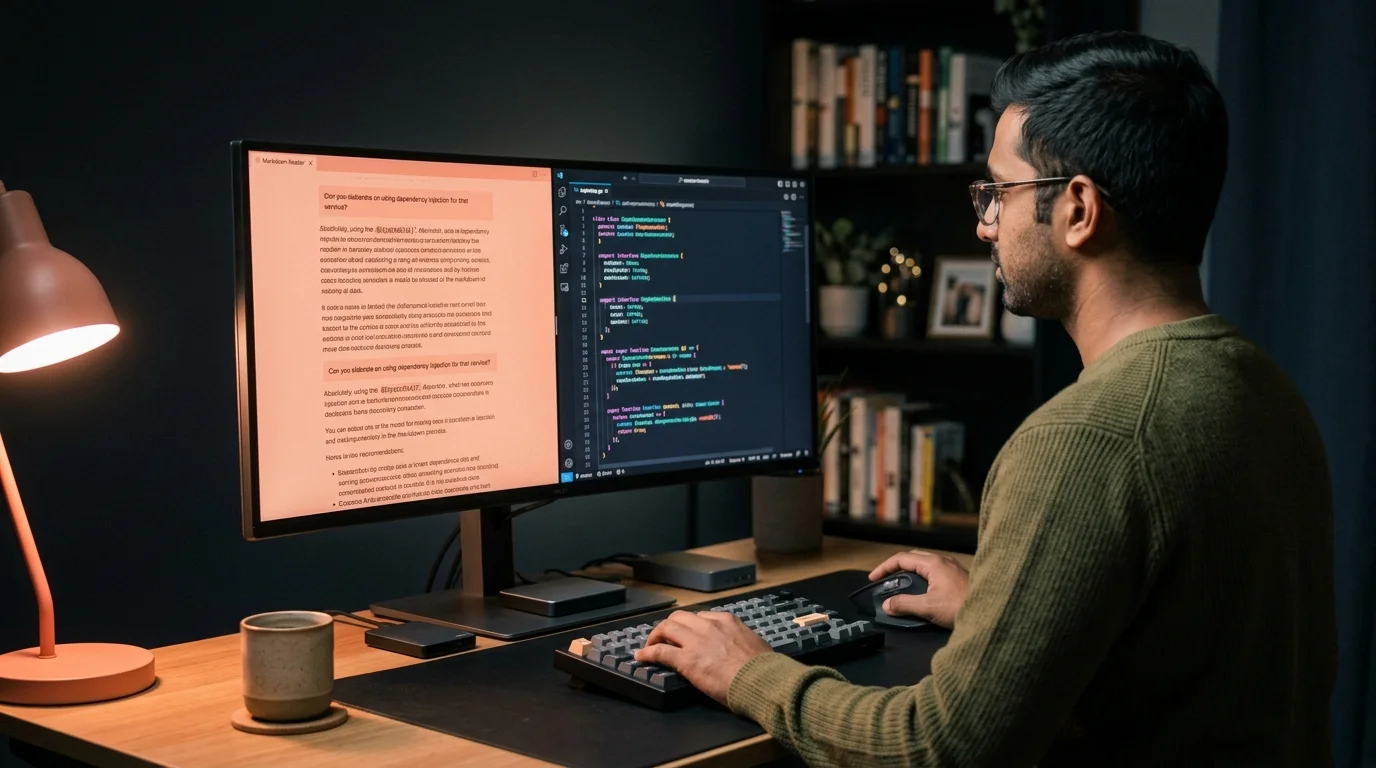
Working through a long AI answer while writing code is a two-window problem. You need the conversation open on one side and the editor open on the other, and neither should fight for focus. Most people default to a browser tab plus their editor, then spend the next hour tabbing back and forth, losing their place in the answer every time they switch. A split-screen workflow with a dedicated markdown reader fixes that specific pain, and it takes about ten minutes to set up on any modern machine. This guide walks through the layout, the reader, the shortcuts, and the small habits that make it stick.
Why a browser tab is the wrong left pane
Chat UIs are built for the next message, not for the last answer you want to reference. They collapse code blocks after a scroll or two, they lose your position on refresh, and they render math and diagrams inconsistently across ChatGPT, Claude, and Gemini. When you park a chat tab next to your editor, you also park all the sidebar chrome, the composer, and the model picker, which eats horizontal pixels you need for reading. Worse, most chat apps repaint the DOM when a new token streams in from another tab, which yanks your scroll position on a live conversation. A dedicated reader treats the answer as a document, so it stays put while you work, and that stability is what makes a split pane worth committing to.
The other issue is typography. Chat interfaces optimize their line height and font size for a narrow center column, which reads fine at full width but cramped inside a half-monitor pane. Reading a 4000-word answer in a squeezed chat column is genuinely slower than reading the same content in a tuned markdown viewer, and you will feel the eye strain by the end of the session. Swap the browser tab for a proper markdown reader and the pane becomes something you can live inside for an hour. The reader also removes distractions like the composer autofocus stealing your keystrokes when you meant to search the answer.
The layout that works on every screen size
The goal is a stable 50-50 split with the reader on the left and the editor on the right, or the reverse if you write left to right and prefer the code on the visual anchor side. On macOS, hover the green traffic-light button and pick Tile Window to Left of Screen, then Cmd-Tab to your other app and mirror it. On Windows 11, use Snap Layouts by hovering the maximize button, or press Win-Left and Win-Right for the same result. On Linux with GNOME or KDE, Super-Left and Super-Right have done this for years, and tiling window managers like i3, Hyprland, and yabai make it the default state instead of an opt-in gesture. Pick whichever gesture your hands already know and use it every session, because the whole point is to remove the choice.
For laptops under 15 inches, a true 50-50 split cramps both panes past the point of usefulness. Better to run the reader on your laptop screen and the editor on an external monitor, or use a floating overlay reader on a second desktop and swipe between them with a three-finger gesture. If you use an iPad as a second display through Sidecar or Universal Control, that also works, and the reader stays legible even at 11 inches. The point is not the specific tiling command but the habit of committing one physical region of your workspace to the AI answer and refusing to let anything else claim it. That physical commitment is what turns a nice idea into a workflow you keep.
Getting the AI answer into the reader
The friction most people hit is getting the conversation out of the chat app and into a clean file. ChatGPT exports as JSON or a screenshot-heavy HTML archive, neither of which reads well. Claude has an export button per conversation, Gemini exports through Google Takeout, and Grok, DeepSeek, and Qwen all vary in what they hand you. The fastest path is usually to copy the answer as markdown using a browser extension, or to export the whole conversation and open it in a reader that already knows the shape of each provider's format. Save yourself the future headache and standardize on one export path per model, so you never have to relearn the flow at 11pm on a debugging night.
Once the file is local, drop it into a folder your reader watches, or open it directly. If you save conversations often, a routine helps: name each file with the date, the model, and a two-word topic slug, so 2026-07-16-claude-auth-refactor.md sorts cleanly and searches well later. See the companion guide on saving AI conversations you want to reread for a full naming scheme and folder layout. That small ritual is what turns a pile of one-off chats into a searchable reference you return to, and it costs you five seconds per save. The compounding value shows up around the fiftieth conversation, when you can find any answer in under a minute.
Shortcuts and habits that make the split stick
The layout only saves time if you stop tab-hopping mid-thought. The three shortcuts worth committing to muscle memory are the app switcher, the pane focus toggle in your editor, and the reader's find-in-page. On Mac, Cmd-Tab moves between apps and Cmd-F searches the reader; on Windows, Alt-Tab and Ctrl-F do the same. In VS Code and JetBrains editors, Ctrl-1 through Ctrl-9 focus specific editor groups, so you never need the mouse to jump between an implementation file and a test file while keeping the AI answer visible on the left. Learn the three, and the split becomes a keyboard-only workflow.
The larger fight is against small interruptions that quietly pull your attention off the reader pane. A stray Slack ping, a Zoom window grabbing focus, an OS update banner, or an incoming email preview all count as context loss even if you dismiss them in half a second. Each interruption forces your eyes to reacquire the paragraph you were on, which is more expensive than the interruption itself. The fixes are small and mostly one-time, and each one removes a specific reason people abandon the setup after a week:
- Pin the reader window so it never gets pushed behind a Slack notification or a Zoom window that steals focus.
- Turn off notification banners on the reader-side display for the session, using Do Not Disturb or a focus profile.
- Use the reader's outline to jump between sections instead of scrolling, so you never lose your place when you skim to a code block.
- Keep a scratch note file open in a third pane if your monitor is wide enough, and paste short quotes into it as you read.
These sound trivial in isolation, but together they remove the reason people abandon the split-screen setup after two days. The reason is almost always context loss, not screen space. Once your reader stops being interrupted, your brain stops treating it as a temporary window and starts treating it as a fixed surface, the same way you treat your terminal or your file tree. That mental shift is the whole payoff, and everything above is scaffolding to get you there.
Working with math, diagrams, and long code blocks
Half of what breaks in a chat UI is the rendering of KaTeX equations, Mermaid diagrams, and code blocks longer than the viewport. Chat apps often re-render on scroll, which resets the horizontal scrollbar inside a wide code block and forces you to drag it back every time. A reader tuned for AI output should render math and Mermaid inline with stable layout, syntax-highlight code with a horizontal scroll that remembers its position, and offer a copy button on every fenced block so you can pipe it into the editor pane without highlighting. When those three things work, the reader stops feeling like a viewer and starts feeling like a tool.
If you frequently work with generated code, add the small extra step of extracting code blocks into runnable files instead of copying them one at a time. This is where the split-screen setup pays back the ten-minute install: the reader becomes the source of truth for the conversation, and the editor becomes the source of truth for the code, with a clean line between them. That separation is what lets you refactor without losing the reasoning behind the original suggestion, because the answer is still sitting on the left, untouched, ready to be reread. A week of that habit changes how you use AI in your day-to-day coding.
FAQ
Is a 24-inch monitor big enough for a 50-50 split? Yes, if the reader supports adjustable font size and line width. Bump the reader font to around 17 pixels and cap the content column at 68 characters, and the editor keeps enough room for an 80-column terminal alongside the code. Under 22 inches, prefer a 60-40 split favoring whichever pane you edit most. Anything smaller than 20 inches is better served by a single-pane workflow with fast app switching instead.
What about a portrait monitor for the reader? Portrait is excellent for long answers. Rotate a spare 24 or 27 inch panel and dedicate it to the reader, keeping your primary landscape monitor for the editor. You get roughly twice the vertical text height with almost no horizontal waste, and long code blocks in the answer become far more scannable. Most modern monitor arms rotate without tools, so the setup cost is one screw.
Does this work with pair programming tools like Live Share? Yes. The reader lives outside the editor session, so Live Share, Tuple, and CodeTogether are unaffected. Your pair sees the shared editor pane, and the AI conversation stays on your side as a private reference. This is often the cleanest way to bring AI assistance into a pair session without turning the whole conversation into a group review of the model's output.
Can I share the reader pane on a call? Yes, most screen-share tools let you pick a single window. Share only the reader window when you want to walk a teammate through an answer, and share only the editor window when you switch to code. This keeps sensitive prompts or unrelated conversations off the call, and it stops the classic mistake of exposing an entire desktop when you meant to share one document. Practice the window-only share once before your next meeting, and it becomes second nature.
Stop tab-hopping. Read AI answers in a real reader.
Free to start — no credit card.
Related reading


Ready to read your own AI documents?
Open ChatGPT, Claude, Gemini, or any markdown file in the reader built for the way models write.
- ✓Renders code, math & Mermaid out of the box
- ✓Works offline once you've opened a doc
- ✓Free forever for personal reading