How to Read GitHub Copilot Chat History as Real Documents
Where GitHub Copilot Chat stores its transcripts, how to export them to portable markdown, and how to read past sessions as real documents outside VS Code.
GitHub Copilot Chat is now embedded in millions of editors, and every serious question you ask it produces a transcript worth keeping. The problem is that the chat lives inside VS Code, JetBrains, or Visual Studio as UI state, not as a file you can search, share, or print. You cannot email it to a teammate, you cannot annotate it in the margin, and you cannot pull it up on a plane. This guide covers where Copilot Chat stores its transcripts on disk, how to pull them out cleanly, and how to read them as real documents instead of scroll-locked panes.
Where Copilot Chat Stores Its History
The chat panel feels ephemeral, but it is not. On VS Code, GitHub Copilot Chat writes session data to the workspace storage folder under your user profile, alongside other extension state. On macOS you will find it under Library, Application Support, Code, User, workspaceStorage. On Windows it lives under AppData Roaming Code. On Linux it sits under config Code. Inside each workspace hash folder, look for a subdirectory named github.copilot-chat containing JSON files that hold prompts, responses, and tool calls in order.
JetBrains stores the equivalent data under its own configuration directory, usually inside options or plugins under the IDE version folder. Visual Studio on Windows uses a slightly different path under the Extensions user folder. The exact layout shifts between Copilot Chat versions, so the fastest way to find your history is to search your home directory for files matching copilot chat or copilot-chat with a JSON extension. Once you locate the files, you have a real archive you can back up, sync, or hand to a reader.
Exporting a Session as Portable Markdown
The raw JSON is readable but noisy. It mixes system prompts, tool invocations, code snippets, and diagnostic metadata that you do not need when you only want the conversation. The cleanest approach is to write a short script that walks the JSON, keeps the user and assistant turns, preserves fenced code blocks, and emits a single markdown file per session. Python with the standard library is enough. Loop over the messages array, check the role, and append a heading plus the content to your output.
If scripting feels like overkill, the Copilot Chat UI added an export button in late 2025 that saves the current thread as markdown directly. It sits in the thread menu next to the clear and rename actions. The exported file is close to what you want, though it sometimes drops the code block language hints, which matters if you plan to syntax highlight later. A quick pass with a regex to add python or ts back onto the fenced blocks fixes that, and once the markdown is on disk, you own the conversation and the rest of this guide applies.
Reading the Export in a Real Document Viewer
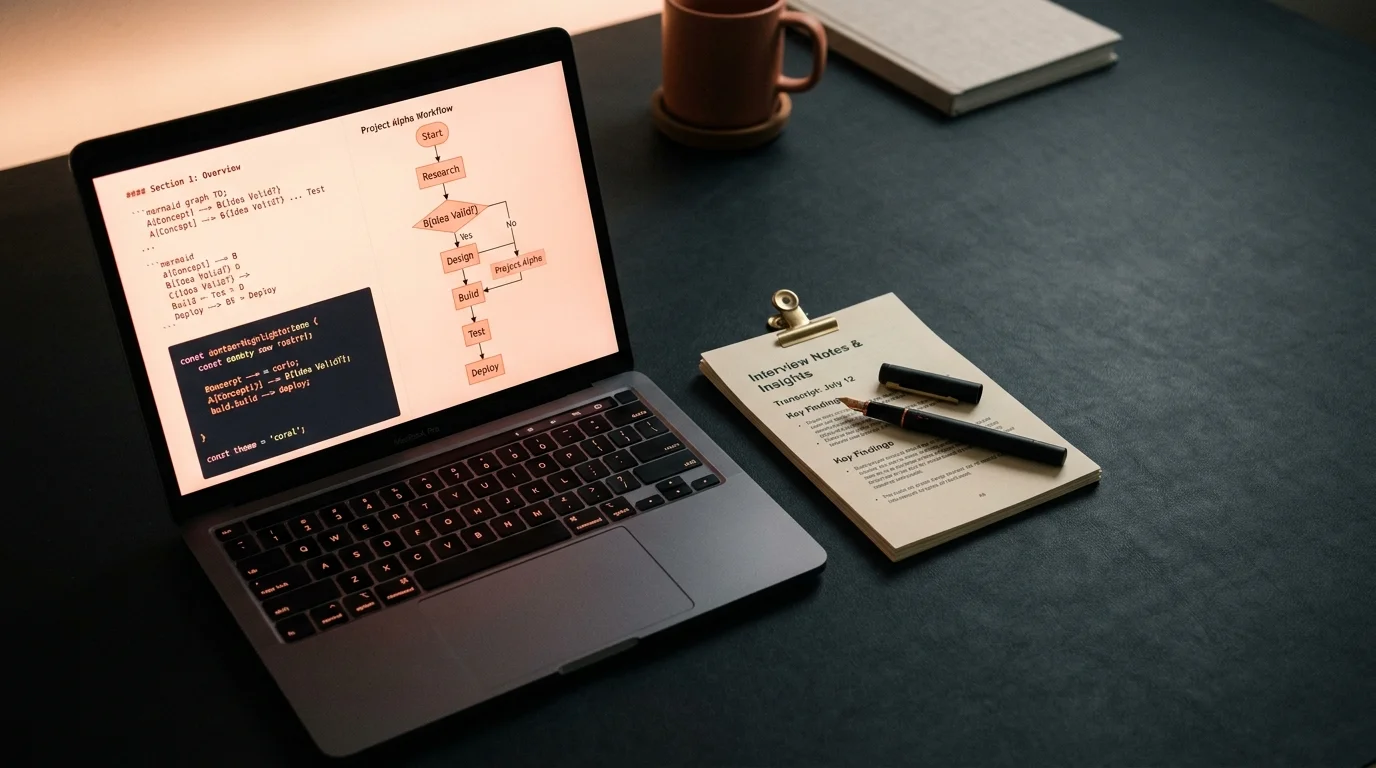
A markdown export is only as useful as the reader you open it in. VS Code preview is fine for a quick look, but it renders with editor typography and cramped margins, which is exactly why the chat pane feels unreadable in the first place. Prism MD was built for this specific problem. It treats an AI transcript as a document, gives it magazine typography, renders code with syntax highlighting, and handles KaTeX math and Mermaid diagrams inline. If your Copilot session included architecture sketches drawn with Mermaid, they finally render as diagrams instead of gray fenced text.
For a broader comparison of readers built around AI content, the best markdown reader for AI-generated content post covers Prism MD alongside Obsidian, Typora, and browser plugins. If your Copilot output tends to be long architectural discussions with embedded math, rendering LaTeX and Mermaid in markdown walks through the specific rendering pipeline. Both are worth reading before you commit to a workflow, because the reader you pick shapes how often you revisit past sessions. A shared reader across ChatGPT, Claude, and Copilot exports also removes the friction of switching tools per source.
Building a Searchable Copilot Chat Archive
One session is easy. A hundred sessions across three repos is a filing problem. The trick is to give each exported markdown file a consistent naming scheme: date, repo, and a short topic slug. Keep the exports in a single flat folder rather than nested per-repo directories, because flat folders search faster and let full-text tools like ripgrep or the macOS Spotlight index return results across every project you have ever asked Copilot about. Tag each file with front matter if your reader supports it, or with a simple list of hashtags at the top if it does not.
Once the archive exists, treat it like a research corpus. The personal knowledge base from AI conversations guide covers the tagging and linking patterns that work at scale, including how to cross-reference decisions across sessions. For teams, sharing an AI conversation without screenshots explains how to keep the archive readable when it leaves your machine. The upfront cost is small and pays back the first time you remember Copilot solved a bug six months ago but not how. Search alone becomes worth the effort by the third or fourth time you avoid re-prompting the same problem.
Practical Workflow Tips
A few habits make the export routine painless instead of a chore. Keep a scratch script in your dotfiles that runs the JSON to markdown conversion in one command, and alias it to something short you will type. When Copilot solves a real problem, export the thread immediately, because Copilot Chat rotates old sessions out of the visible list once workspace storage hits its quota. Once a session is gone from the UI, the JSON may still be on disk, but relying on that is a bad plan. Build the export step into your muscle memory the same way you built commit hygiene.
- Export threads that involve architectural decisions, tricky migrations, or hard-won debugging insights.
- Skip exporting one-line lookup questions, because the noise dilutes the archive.
- Store exports in a single folder synced through Dropbox, iCloud, or a private Git repository for portability.
FAQ
Does GitHub delete my Copilot Chat history on the server side? GitHub retains a limited window of chat metadata for abuse and quality review, but the full transcripts you see in the panel are local to your editor. If you rely on them, back them up yourself on a schedule that matches how often you ask hard questions. Weekly is enough for most developers, daily is safer for anyone doing migration work. Treat the local JSON as the source of truth, not the UI.
Can I export a thread I already cleared? If you cleared the thread from the UI but have not restarted VS Code, the JSON may still be recoverable from workspace storage. Once VS Code compacts the storage, the data is gone for good. Recovery tools will not help because the files are overwritten, not deleted with a trash step. The safest habit is to export before you clear anything, even threads that feel disposable at the time.
Which is better for reading long Copilot answers, Prism MD or Obsidian? Obsidian is stronger for linking and personal knowledge management with its graph view and backlinks. Prism MD is stronger for pure reading, syntax highlighting, math, and Mermaid diagrams rendered inline. Many people use both for different reasons and pipe exports through each depending on the task. Reading and archiving are different jobs, and one tool rarely wins at both.
Do these steps work for GitHub Copilot in Neovim or Emacs? The concept is the same, but the storage paths differ across editors and plugin versions. Look for a copilot chat directory inside your editor config folder and adapt the export script accordingly to the JSON shape you find there. The user and assistant role fields tend to be consistent across implementations, so a small tweak to the walker is usually enough. If you get stuck, the Copilot Chat GitHub repo has enough source hints to reverse the format.
Read every Copilot session like a real document
Free to start — no credit card.
Related reading



Ready to read your own AI documents?
Open ChatGPT, Claude, Gemini, or any markdown file in the reader built for the way models write.
- ✓Renders code, math & Mermaid out of the box
- ✓Works offline once you've opened a doc
- ✓Free forever for personal reading