
How to Share an AI Conversation with Your Team Without Screenshots
Screenshots of ChatGPT, Claude, and Gemini replies stop working the moment more than one teammate needs them. Here is a sharing workflow that scales instead.
The default move when an AI gives a good answer at work is the screenshot. You crop the chat panel, drop the image into Slack, and move on. It is the fastest path from "this is useful" to "my teammate has seen it", and it is also the worst possible format for the content itself. A long reply with code blocks, a comparison table, and three nested lists turns into a blurry image that nobody can copy from, search, or quote. This post is about the better ways to share an AI conversation, in order of effort, and the workflow that holds up when your team starts producing this stuff every day.
Why screenshots break the moment a teammate cares
A screenshot is fine when the answer is short, throwaway, and only one person needs it. The trouble starts when the reply is the kind of thing your team will quote in a planning doc next week. Code is no longer copyable, math is no longer rendered, and headings are no longer linkable. Worse, every change in the source document means a new screenshot, and the old ones quietly become wrong without anyone noticing. Three months in, you have a Slack channel full of stale images that look authoritative and contradict each other.
The second problem is search. None of your tools see inside an image, which means you will not find that vendor comparison with a keyword search of Slack, your wiki, or your notes app. The information is there, technically, but only the person who took the screenshot remembers it exists. For one person that is annoying, but for a team it is invisible work that you keep paying for every week. A good starting guide to keeping AI answers findable in the first place is in our piece on saving conversations, and the same logic applies double when more than one person needs them.
Use the built-in share link, but know its limits
ChatGPT, Claude, and Gemini all offer a share link of some kind. The link renders the conversation in a clean web page on the AI vendor's domain, without your sidebar, prompts, or account chrome. It is genuinely useful for short-lived sharing inside a small team that all has accounts on the same provider. The link cost is zero, the rendering is decent enough, and a teammate can open it on a phone without doing anything special on their end.
The limit is that you do not control the page. The vendor can deprecate share links, change the design, throttle anonymous access, or tie viewing to an account login that your colleague does not have. Many enterprise teams also disallow paste-into-vendor-domain links for data-handling reasons, so a Claude or ChatGPT share URL never makes it past the first reviewer. The share link is a fine quick share for in-team conversation, but it is not a fine place to put a document you want to cite for a year.
Convert the conversation to a real document
The durable move is to export the conversation as markdown and then host it somewhere your team already trusts. That sounds heavy, but it is two short steps and a habit your team will pick up inside a week. Step one is the export, which is one click in Claude, a copy from the share view in Gemini, and a slightly longer flow in ChatGPT. Step two is the host, which can be a shared drive, a wiki page, or a reader that renders markdown into something readable on every device.
The hosting choice is where most teams underestimate the difference. A raw markdown file on Google Drive is technically shared, but a teammate opens it and sees triple backticks and pipe characters instead of rendered code and tables. A wiki like Notion does better but flattens the formatting and loses the math. We covered the typography side of this in why AI markdown deserves better typography, and the practical impact is that teammates who open a poorly rendered document tend not to read it. They scan the first paragraph, decide it looks dense, and close the tab without saying so.
A workflow that survives more than one project
The shape of a working setup is more boring than people expect. You need a place where files live, a naming convention everyone follows, and a reader that opens the file into a real document on every device. None of this is invented from scratch, because the same pattern works for engineering RFCs and for product research briefs. AI-generated content is one more input into the same shared filing habit your team already has, and a workable starting set looks like this:
- One folder per project, inside your existing team drive, named the same way you name everything else.
- File names in
YYYY-MM-DD-topic-in-short-form.mdso they sort and read at a glance. - A short two-line header at the top of each file with the model name, the prompt, and the date.
- A rendered reader bookmarked by everyone on the team, so opening the file is one click and not a separate import step.
That last point is the one that quietly decides whether the habit sticks. If reading the file takes a teammate three clicks and a download, it dies inside a fortnight. If it takes one click and the document appears, it scales across the team without needing a champion. Prism MD is the reader we built for exactly that shape of file, and the workflow holds up whether the source is ChatGPT, Claude, or Gemini. For a side-by-side of the alternative readers, our roundup covers Notion, Obsidian, Typora, and Prism MD against the same one job.
FAQ
Is it safe to share AI conversations with my whole team? It is safe in the same way that sharing any internal document is safe. The conversation should not contain customer data, secrets, or anything you would not paste into a wiki page in the first place. If it does, redact it in the markdown file before you save it, and treat the export as the canonical version your team works from going forward. The original chat is then a draft, and the saved file is the document of record.
What about long conversations with branches and edits? Most exports flatten the branch structure into a single linear transcript. That is usually what you want for sharing, since a teammate does not need to see the abandoned attempts to understand the answer. If branches matter for your work, save them as separate files in the same folder, with the branch noted in the filename. Reading them as separate documents is faster than scrolling a tree view, and it matches how the rest of your team writes anyway.
Do I need to convert PDFs or attachments? If the conversation referenced an attachment, save the original file alongside the markdown export in the same folder. Most readers will link inline to local files, and your teammates can open both without thinking about formats. Keep the attachment names short and dated so they line up with the conversation file. If the conversation only quoted part of a PDF, paste that excerpt into the markdown as a fenced quote, since a teammate scanning the file later should not have to track down the source PDF to make sense of the answer.
Give your team one reader for every AI conversation
Free to start — no credit card.
Related reading


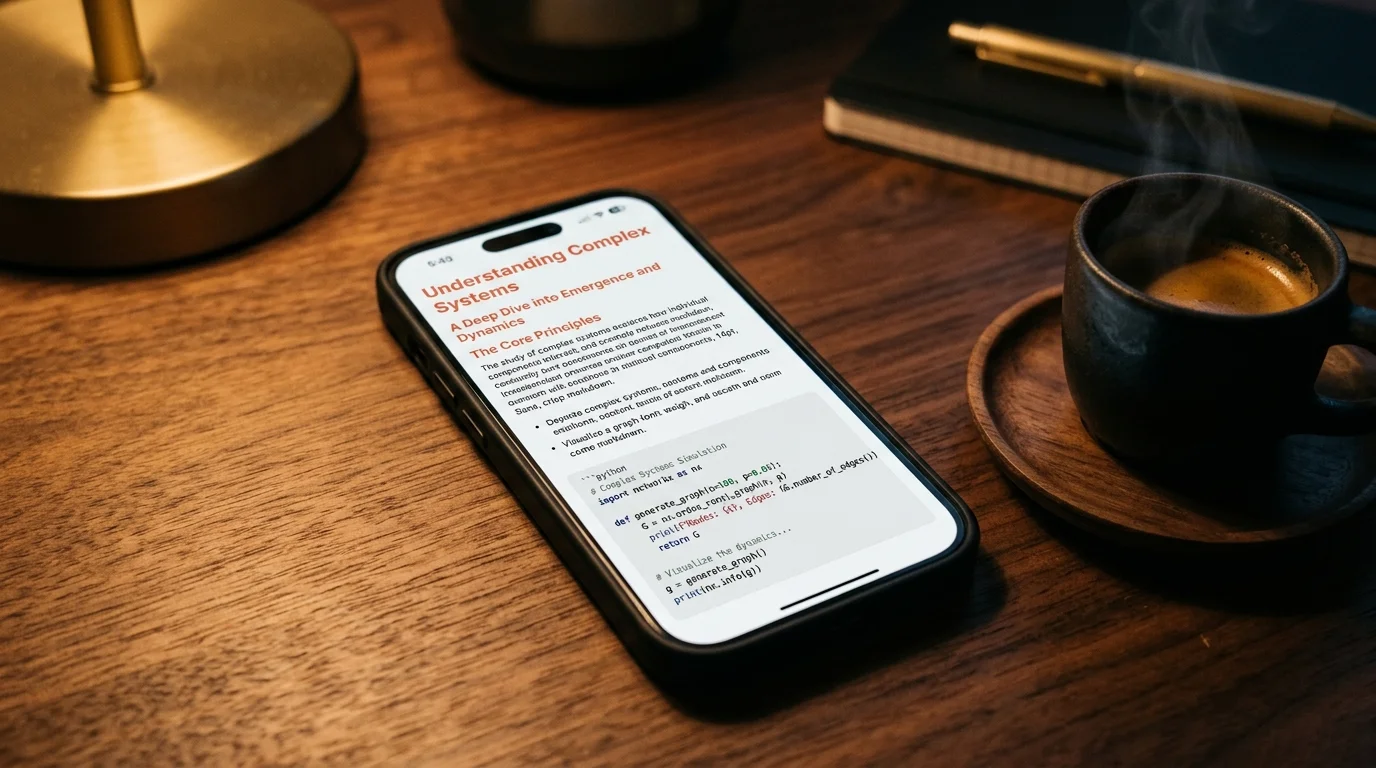
Ready to read your own AI documents?
Open ChatGPT, Claude, Gemini, or any markdown file in the reader built for the way models write.
- ✓Renders code, math & Mermaid out of the box
- ✓Works offline once you've opened a doc
- ✓Free forever for personal reading