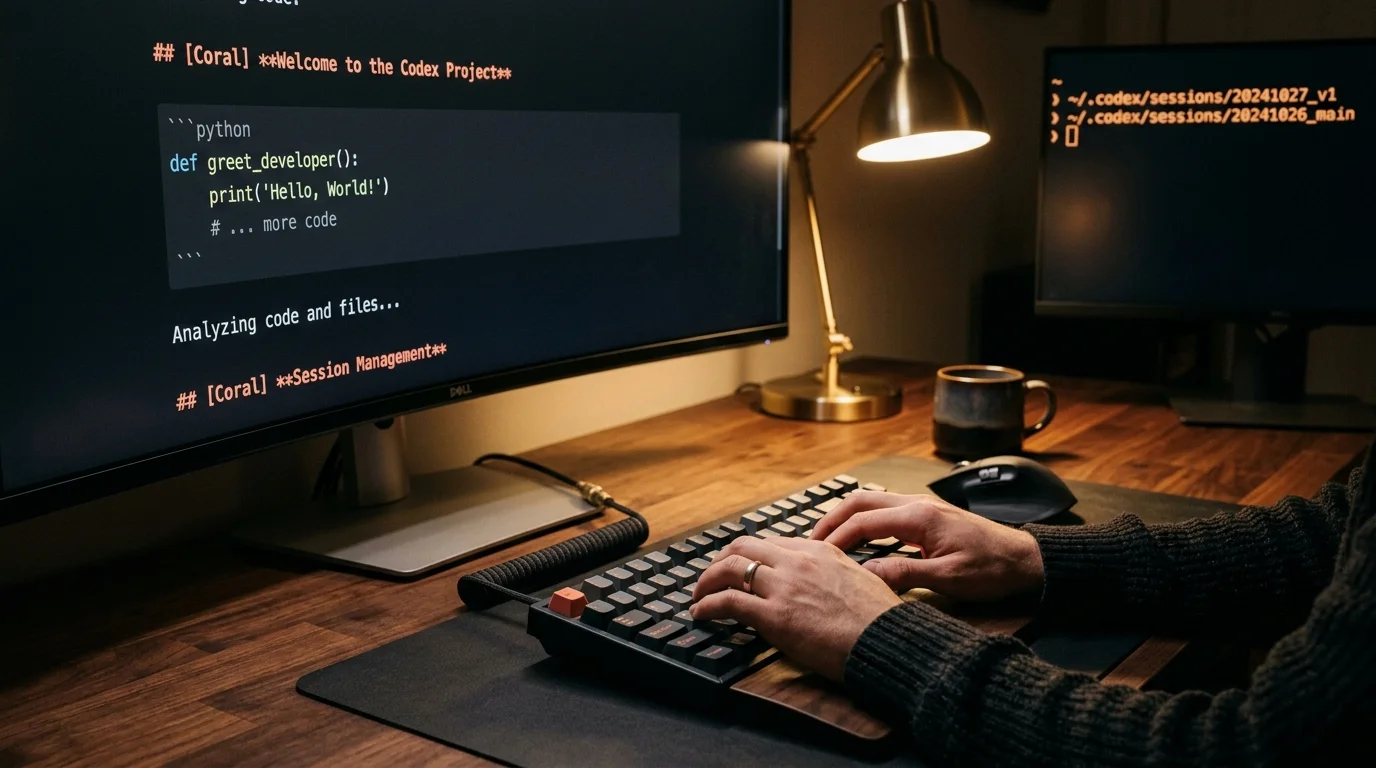
Codex CLI Chat History: Where Files Live + How to Read Them (2026)
Codex CLI writes every session as JSONL under ~/.codex/sessions. Here are the exact file paths, how to read them, and how to export clean markdown.
The short answer: OpenAI Codex CLI stores every session as a JSONL file under ~/.codex/sessions/, organized by date, with one event per line. The prompt history that powers up-arrow recall lives separately at ~/.codex/history/. If you only remember one path from this post, make it the first one. Everything else is about turning those raw files into something a human can read without squinting.
This is a tactical guide for anyone who has lost a Codex session to a terminal resize, a tmux crash, or an accidental clear. It covers where the files live on macOS, Linux, and Windows, how to open a specific session by date, how to edit or branch from a previous message, and how to export the transcript as clean markdown or PDF. For the longer background on why the raw JSONL format exists in the first place, there is a companion deep dive on reading OpenAI Codex CLI chat history that pairs well with this post. Keep it open in a second tab if you want the full context after the practical answers below.
The exact file paths
On macOS and Linux, Codex CLI writes to ~/.codex/sessions/YYYY/MM/DD/ with one JSONL file per session. The filename follows the pattern rollout-<UTC-timestamp>-<session-id>.jsonl, so a session started on August 4th 2026 at 21:14 UTC lands at something like ~/.codex/sessions/2026/08/04/rollout-2026-08-04T21-14-09-abc123.jsonl. On Windows the same tree lives under %USERPROFILE%\.codex\sessions\ with backslashes instead of forward slashes. The CLI also keeps a flat prompt history at ~/.codex/history/history.jsonl, which is what the up-arrow key reads from inside interactive mode.
Four paths are worth bookmarking before you go any further, because every troubleshooting question about Codex persistence ends up at one of them. Keep this list taped above your desk if you work with Codex every day, since knowing which file holds which kind of state removes most of the guesswork. The config and log paths matter less day to day, but they are the first places to check when the CLI behaves oddly or when sessions suddenly stop writing to disk. Scan the four entries below once, then come back to this section only when something breaks:
~/.codex/sessions/YYYY/MM/DD/rollout-*.jsonl: the full event log per session, including every tool call and diff.~/.codex/history/history.jsonl: a flat log of your prompts, used for up-arrow recall.~/.codex/config.toml: the active CLI configuration, useful when debugging why persistence is off.~/.codex/log/: the CLI's own debug logs, separate from your session content.
That history file is useful for grepping past prompts but it does not contain assistant replies, tool calls, or diffs. If you need the full conversation you always want the per-session file in sessions/. A quick sanity check from any shell: ls -lt ~/.codex/sessions/**/*.jsonl | head. If that returns nothing, either you are running in ephemeral mode or the CLI has not been invoked since install. Confirm the directory exists with ls ~/.codex before assuming anything is broken.
Reading a single session
Opening a Codex JSONL file directly in Vim or VS Code is a bad time. Every line is one JSON event with escaped newlines, escaped quotes, and tool call arguments that run to several kilobytes on a single wrapped line. The envelope is syntax-highlighted but the markdown inside the content fields comes through as literal \n## and triple-backtick sequences. You can get a crude read with jq -r '.content' session.jsonl but that flattens turn boundaries and loses the ordering between a user message and the shell command Codex ran in response.
The better move is to render the JSONL into real markdown once, then open the markdown in a reader built for long-form AI output. A twenty line Python or Node script walks the file, emits an H2 for each user turn, quotes the assistant reply as normal markdown, and formats tool calls as fenced code blocks with a bash or diff language tag. Save one .md per session with the same timestamp prefix so the folder sorts chronologically. Prism MD opens those files with proper type scale, syntax-highlighted code blocks, and rendered KaTeX or Mermaid where the assistant produced them, and the whole thing stays on your device so API keys inside the transcript never leave the machine. If you work across several agents, the same pipeline applies to Claude Code and Cursor.
Editing a previous message
Codex CLI does not expose a "regenerate from message N" button in the way the ChatGPT web UI does, but the state is on disk and nothing is stopping you. The pattern is simple. Copy the JSONL for the session you want to branch from, truncate it at the user turn you want to edit, rewrite that line with your corrected prompt, and start a new Codex session that loads the modified file. The CLI honors the ordered events as prior context, so the assistant continues from your edited turn as if the original tail never existed.
There are two gotchas worth internalizing before you touch the files. First, do not edit the file that is currently open in a live Codex process, because the CLI holds a write handle and your changes will be overwritten on the next event. Always duplicate first, edit the copy, then start a new session against the copy. Second, keep the event schema intact: every line needs the same top-level fields the CLI wrote, otherwise the parser rejects the resume. If this feels fiddly, treat the JSONL as a git-tracked artifact and branch at the file level. Our note on version controlling AI conversations with git covers that pattern in more detail and gives you a repeatable workflow.
Exporting transcripts out of Codex
Most people who ask about export want one of three things: a shareable markdown file, a PDF for an engineering review, or a bulk archive they can grep across. For markdown, use the rendering script above or paste the JSONL into Prism MD and let the reader produce the formatted view. For PDF, render the markdown first and print to PDF from any browser or markdown tool. The intermediate markdown step matters because it is the format that preserves code blocks, math, and diagram structure through every subsequent conversion.
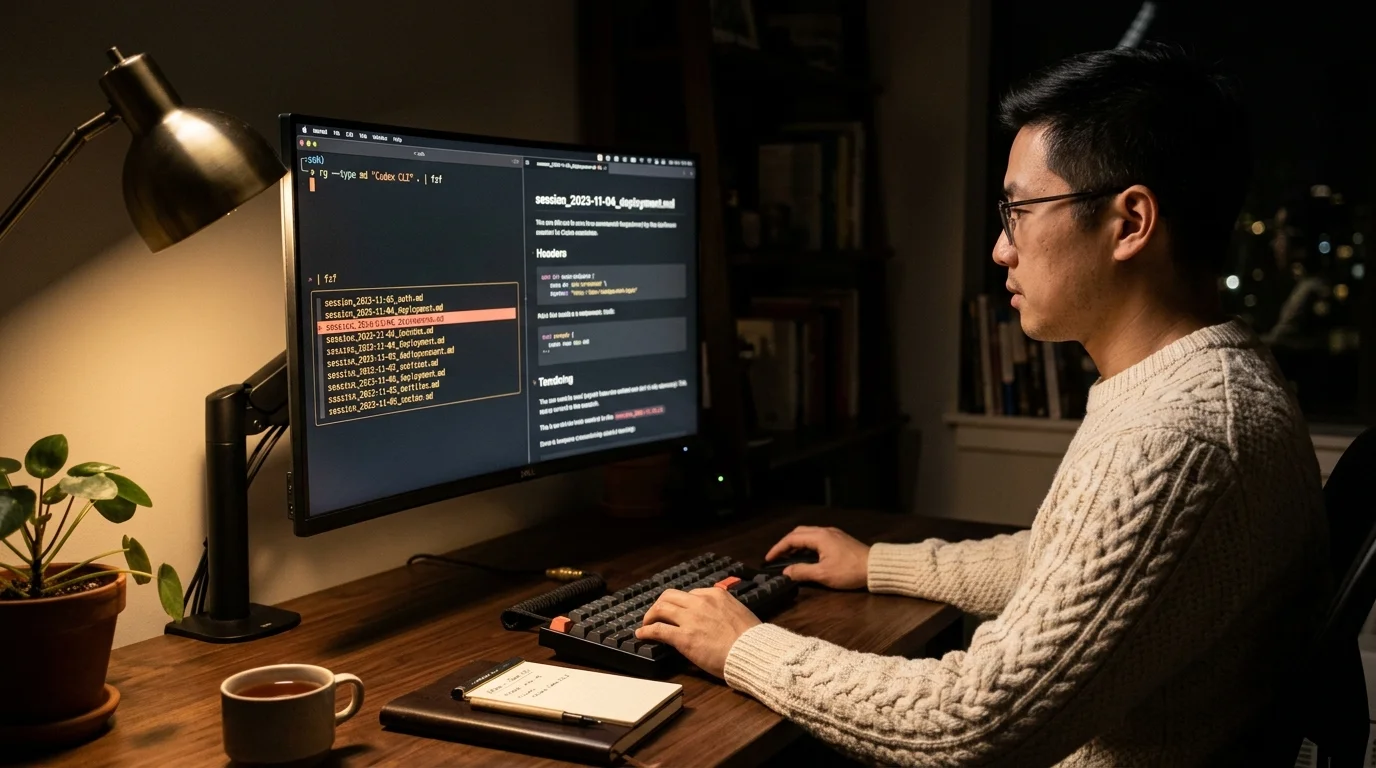
For bulk archive, treat ~/.codex/sessions/ as the source of truth and sync a rendered mirror folder to wherever you keep long-term notes. ripgrep across that mirror finds any phrase across months of work in under a second. For broader background on retention and backup patterns, see our longer walk-through on archiving AI conversations long term. The OpenAI platform documentation covers the Codex CLI configuration surface area at platform.openai.com/docs if you need to confirm flag names on a newer release.
FAQ
Where is Codex CLI history stored on Windows?
%USERPROFILE%\.codex\sessions\ for full session JSONL files, and %USERPROFILE%\.codex\history\history.jsonl for the prompt recall file. The directory structure matches macOS and Linux exactly, so any script you write on one platform works on the others with a path swap.
How do I open a specific past Codex session by date?
Navigate to ~/.codex/sessions/YYYY/MM/DD/ and pick the JSONL whose timestamp matches the hour you remember. Render it to markdown with a small script or open it in Prism MD directly.
Can I delete old Codex session files safely?
Yes. Nothing else depends on them, and the CLI will create new files for new sessions. Back up anything you want to keep as rendered markdown first, since the raw JSONL is near-useless once a tool knows about the data.
What is the difference between history/ and sessions/?
history/ is a flat prompt log for up-arrow recall and contains only user prompts. sessions/ is the full event log per session including assistant replies, tool calls, and diffs. Use sessions/ for anything beyond prompt reuse.
Open your Codex JSONL files as clean, searchable markdown.
Free to start — no credit card.
Related reading
Ready to read your own AI documents?
Open ChatGPT, Claude, Gemini, or any markdown file in the reader built for the way models write.
- ✓Renders code, math & Mermaid out of the box
- ✓Works offline once you've opened a doc
- ✓Free forever for personal reading