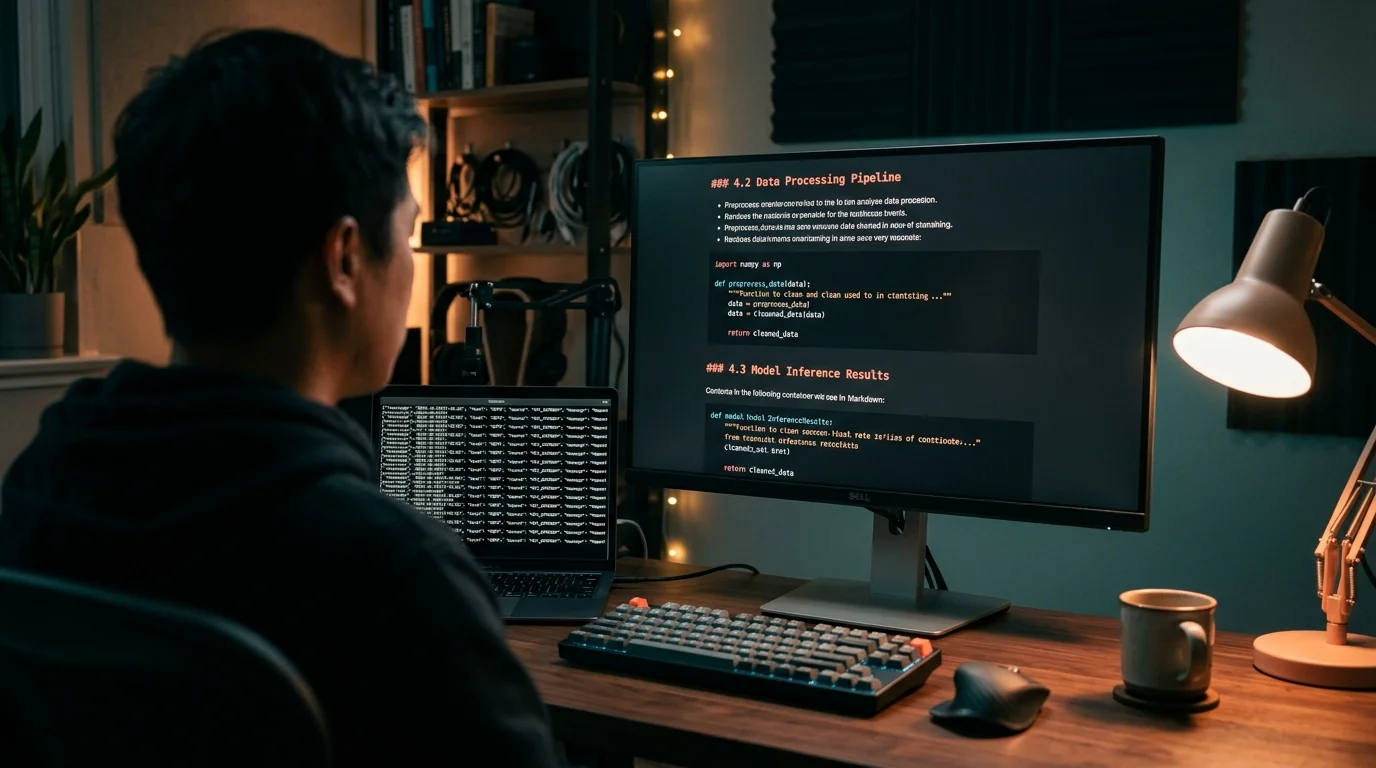
Read OpenAI Codex CLI Chat History Without Losing Your Mind
OpenAI Codex CLI writes every session to JSONL under ~/.codex. Here is how to find, render, and search those transcripts as clean markdown.
If you use the OpenAI Codex CLI for real work, you already know the pain. The terminal scrollback gets clobbered the moment you resize a window, tmux crashes eat the last hour of thinking, and the JSONL session files that Codex quietly writes to disk are close to unreadable in a plain editor. The good news is that Codex CLI is honest about persistence: every message, every tool call, every diff it proposed is on your machine in a structured format. You need to know where those files live and how to render them as something a human can skim in under a minute.
This guide walks through the exact file locations, why the raw format resists reading, and how to turn a week of Codex sessions into calm, searchable markdown. It assumes you are on macOS or Linux with a recent Codex CLI install, but the Windows paths are almost identical under %USERPROFILE%\.codex. Every technique here works for solo developers and small teams alike, and none of it requires uploading your transcripts to a third party. That last point matters because Codex sessions routinely capture secrets, internal file paths, and half-formed product ideas.
Where Codex CLI stores your sessions
Codex CLI keeps every session under ~/.codex/sessions/, organized by date. Each session becomes a single JSONL file named with a UTC timestamp and a short session ID, for example 2026-08-04T21-14-09.abc123.jsonl. Inside that file, every line is one event: a user message, an assistant reply, a shell tool invocation, a patch proposal, or the response Codex received back from the sandbox. The order is chronological and the schema is stable enough to script against.
A second directory, ~/.codex/history/, holds a rolling prompt history that the CLI uses for up-arrow recall inside interactive mode. That file is useful for fuzzy grepping past prompts, but it does not contain assistant output, tool calls, or diffs, so it is not a substitute for the sessions directory. If you have been running Codex for a few weeks, you probably have a few hundred JSONL files already. That volume is exactly why you need a real reader instead of less.
Why the raw JSONL is unreadable
Open one of those files in Vim or VS Code and the problem is immediate. Every line is a fat JSON object with escaped newlines, escaped quotes, base64 image payloads if you pasted screenshots, and tool call arguments that can run to several kilobytes on a single line. Word wrap turns each event into a wall of magenta punctuation. Syntax highlighting helps with the JSON envelope but does nothing for the markdown that lives inside the content fields, so the code blocks, headings, and lists that Codex produced come through as literal \n## and `\n\n```` sequences.
You can improve things with jq -r '.content' but that flattens the structure and loses the turn boundaries. You lose the ability to see which reply followed which tool call, and long assistant answers with math or Mermaid diagrams still render as raw source. The right move is to treat the JSONL as data and render it once into properly formatted markdown, then read the markdown in a tool built for long AI answers. The same argument applies to any coding agent, which is why we wrote a broader guide on how to read AI coding agent transcripts that covers the general pattern.
Rendering Codex transcripts as markdown
The rendering step is a small script or a paste into Prism MD. If you want to script it, a twenty line Python or Node program can walk each JSONL file, emit an H2 for every user turn, quote the assistant reply as normal markdown, and format tool calls as fenced code blocks with a bash or diff language tag. Keep image content as image links pointing back to the original session directory so you do not blow up your rendered file with base64. Save the output as one .md file per session, named with the same timestamp so it sorts naturally.
Prism MD reads these rendered files the way they were meant to be read. Headings get a real type scale, code blocks get proper monospace and horizontal scroll instead of hard wrapping, and math or Mermaid inside an assistant reply renders as a diagram rather than raw source. The reader stays offline on your device, which matters because these transcripts often contain API keys, internal file paths, and half-drafted product decisions. If you also work in Cursor or Aider, the same pipeline applies: see our notes on reading Cursor chat history and reading Aider chat history for the equivalent locations. A few small choices make the rendered output far more useful:
- Prefix every user turn with the ISO timestamp so you can grep by date later.
- Collapse consecutive tool calls under a single H3 called "Tool activity" so you can skim past them when you are looking for reasoning.
- Keep the model name and token count in the frontmatter so you can tell at a glance whether a session ran on a fast small model or a heavier reasoning one.
Searching across weeks of Codex sessions
Once you have a folder of rendered markdown, search becomes trivial. ripgrep handles thousands of files in under a second, and because the markdown preserves turn boundaries you get useful context around every hit. For richer queries, feed the folder to any local full text index; the point is that the raw JSONL was never the right substrate for search, and the markdown is. If you want to preserve exact code fragments across regenerations, our post on how to extract code blocks from AI conversations shows the parser pattern.
Prism MD adds a second layer on top of grep by letting you pin sessions, tag them by project, and jump between the rendered view and the underlying markdown with one keystroke. That matters when you are trying to reconstruct why a Codex run produced a particular patch three weeks ago and you only remember the shape of the bug, not the exact wording. Tagging by project also lets you carry context between weekly reviews without hunting through timestamps. Treat your Codex sessions the way a good engineer treats commit messages: cheap to write, expensive to lose, worth indexing.
FAQ
Does Codex CLI keep transcripts if I run in ephemeral mode?
No. Ephemeral sessions skip the write to ~/.codex/sessions/ by design. If you rely on transcripts, leave the default persistence on and rotate old files out yourself.
Can I read the JSONL directly on my phone?
You can, but you should not want to. Sync the rendered markdown folder to your phone through iCloud, Dropbox, or Syncthing, and open it in Prism MD. The raw JSONL will render as one endless line and eat your battery.
What happens to tool call outputs that exceed the model context?
Codex truncates them in the assistant view but keeps the full output in the JSONL under a separate tool_output field. A good renderer emits the truncated version inline and links to a sidecar file with the full payload.
How large do these session files get?
A heavy day of coding produces roughly 200 KB to 2 MB per session. A year of daily use lands somewhere near 500 MB total, which is nothing for modern disks and trivial to back up.
Read your Codex transcripts the way they were meant to be read.
Free to start — no credit card.
Related reading

How to Read Lovable AI Project Chat History in a Real Markdown Reader
6 min read · lovable · ai-transcripts
How to Read JetBrains AI Assistant Chat History Outside the IDE
7 min read · jetbrains · ai-assistant
How to Read AI Conversations Split-Screen With Your Code Editor
8 min read · workflow · developer-tools
Ready to read your own AI documents?
Open ChatGPT, Claude, Gemini, or any markdown file in the reader built for the way models write.
- ✓Renders code, math & Mermaid out of the box
- ✓Works offline once you've opened a doc
- ✓Free forever for personal reading