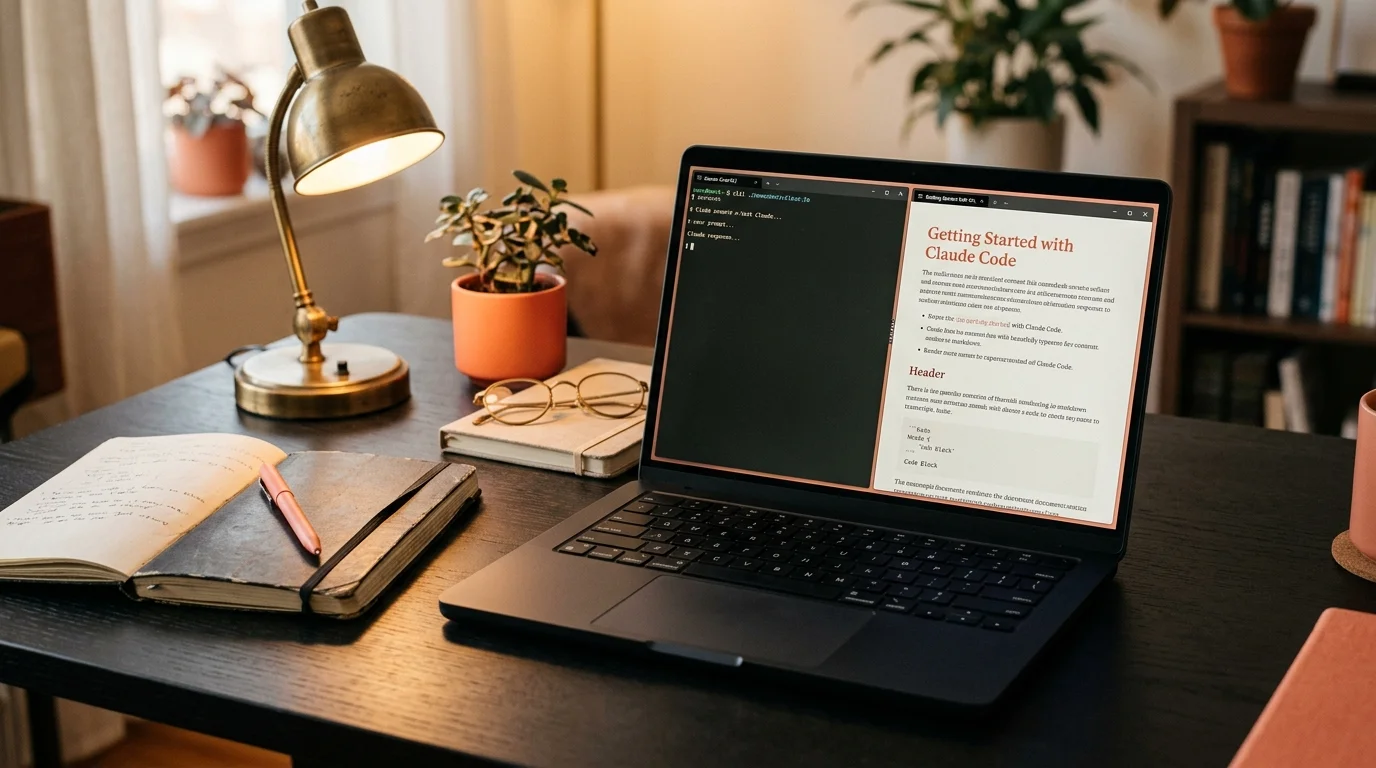
How to Find and Read Claude Code Chat History (Step-by-Step)
Where Claude Code stores session transcripts, how to export them to clean markdown, and how to reread long coding sessions in a reader built for AI output.
How to Find and Read Claude Code Chat History (Step-by-Step)
Claude Code is a terminal, not a chat app. That is wonderful for shipping code and brutal for memory. The scrollback buffer in iTerm or Warp eventually eats your session, and even if it does not, scrolling a 4,000 line terminal to find the moment Claude explained your migration strategy is not reading. It is archaeology. If you have ever closed a tab and realized the one paragraph you wanted is now gone, you know the feeling.
The good news is that Claude Code writes everything to disk. Every prompt, every tool call, every assistant reply lives in a structured session file on your machine, in the order it happened. Once you know where to look, you can export those sessions into clean markdown and reread them the way you would reread a design doc. The rest of this post walks the whole path: where the files live, how to export them, and how to read the output without losing your mind. None of it requires a plugin or a new subscription.
Where Claude Code Stores Session Transcripts
Claude Code keeps one JSONL file per session under your home directory. On macOS and Linux the path looks like ~/.claude/projects/<encoded-project-path>/<session-id>.jsonl. The <encoded-project-path> is your project working directory with slashes replaced by dashes. If you ran Claude Code inside /Users/you/code/my-app, the folder will be something like -Users-you-code-my-app. On Windows the base is %USERPROFILE%\.claude\projects\, and the same project encoding rule applies.
Each .jsonl file is one session, and each line is one message or tool event. The schema is stable enough to parse with a 20 line script, and the fields are documented in the public Claude Code docs. The CLI itself is open source at anthropics/claude-code on GitHub if you want to see how messages are serialized. A fast way to list your five most recent sessions is ls -lt ~/.claude/projects/*/*.jsonl | head -5. Open one with less or bat and you will see raw JSON lines. Readable, but ugly, which is the point of exporting.
Exporting a Session to Clean Markdown
You have three realistic options, in rough order of effort. The built-in command is fastest when the session is still open, scripting against the raw JSONL is the right choice when the session has already ended, and a community tool is a reasonable middle ground if you do not feel like writing code. Each one produces a plain .md file you can open anywhere, which is the whole point. Pick based on where the session currently lives and how much shaping you want to do before it hits your reader.
- Use
/exportinside Claude Code. In an active session, type/export. It dumps the current conversation to a markdown file in your working directory with turn headers and fenced code blocks preserved. - Script against the JSONL file. Point
jqat the file, pull outtype,role, andcontent, and emit## Userand## Assistantheaders followed by the message text. About 20 lines of Python or Node. - Use a community converter. Several small tools on GitHub walk
~/.claude/projects/and emit one markdown file per session. Pick one with recent commits.
The built-in /export command is the right path when you are still inside the session you want. The JSONL script path is the right choice when the session is already closed or when you want to bulk-process a project folder on a schedule. Either way, the output you want is a single .md file per session with clear turn headers, fenced code blocks preserved, and tool call blocks either kept inline or clearly delimited. Keep the tool calls. The tool call log is often where the real reasoning lives, and stripping it leaves you with half of a conversation.
Reading the Exported Session Properly
Now the real problem. A 90 minute Claude Code session is often 15,000 to 40,000 words of mixed prose, bash output, diffs, and code. Dropping that into Notion flattens the typography and buries the headings. Dropping it into VS Code gives you a wall of monospace with no outline. You want a reader that treats long AI output as a document, not as a message log, and that keeps code and prose visually distinct.
That is what Prism MD is built for. It renders markdown with real serif typography, keeps code blocks monospaced and copyable, gives you an outline generated from your H2 headings, and handles 30,000 word files on a phone without choking. If you want the longer argument for why a dedicated reader beats a general-purpose editor here, we wrote it up in the best markdown reader for AI content. The workflow I use is boring and short: finish a Claude Code session, run /export or convert the JSONL, drop the .md into Prism MD, skim the outline, jump to the three turns that mattered, bookmark two of them, close the laptop. The whole loop takes under a minute per session, and the archive becomes something you will revisit instead of hoard.
A Few Things That Trip People Up
Sessions can span multiple files if you resume. Using --continue or -c can create a new session file that references the prior one, so if a conversation feels truncated, check for a sibling .jsonl with an earlier timestamp in the same project folder. Tool output can also be enormous. A single rg across a monorepo can bloat a session file by megabytes, so when you export, strip long tool outputs down to the first and last 50 lines so the markdown stays readable. The reasoning is what you came back for, not the full node_modules listing. For a deeper take on the layout problem, see handle long code blocks in AI answers.
Third, secrets end up in transcripts. If Claude Code read a .env to debug something, the values are sitting in plaintext inside the session file. Before you share or sync an export, redact them, and treat the .claude/projects folder like any other secrets-adjacent directory on your machine. We have a short guide on redacting sensitive info from AI conversations that applies cleanly here. Finally, the pattern generalizes to other coding agents. If you also use Cursor, Windsurf, or Aider, the Prism MD blog has per-tool guides for each, and the storage path and export command differ, but the "export then reread in a proper reader" loop stays the same.
FAQ
Where exactly is the Claude Code history folder on macOS? It is ~/.claude/projects/. Inside, each project you have used Claude Code in gets its own folder, and each session inside that folder is a single .jsonl file named after the session ID. Open any one of them with less to confirm you are in the right place. If the folder is empty, you probably used a different user account for that session, or Claude Code was launched with a custom home directory.
Can I search across all my past Claude Code sessions? Yes, and this is one of the real advantages of the plain-text format. Because the files are JSONL, rg or grep -r across ~/.claude/projects/ works and is fast. For a nicer experience, export the sessions to markdown first and search them in a reader that indexes content and respects headings. A full-text search over your own history is often better than asking the model to summarize what you discussed last week.
Does deleting a .jsonl file break anything? No. Deleting the file removes the session from history, and Claude Code does not depend on it for future runs. Back up anything you care about before you delete it, because there is no trash can inside the CLI. If you want a safety net, move files into a ~/.claude/archive/ folder instead of removing them outright.
Is there an official way to bulk-export every session? Not as of this writing. The community has written small scripts that walk ~/.claude/projects/ and emit one markdown file per session, and it is a 30 minute job to write your own if you want full control over the output format. The upside of rolling your own is that you can drop long tool outputs, redact secrets, and name files by project in a single pass. The downside is maintenance, since the message schema can shift between Claude Code releases.
Reread Your Claude Code Sessions Like Documents
Open Prism MD free and give your Claude Code archive a reader that respects it. Export your next session, drop the markdown in, and read it the way you would read a well-set book. The sessions you keep are only as useful as the reading you give them, and a terminal buffer is not reading. Fifty sessions in, you will wonder how you ever worked without a real archive.
Related reading

Ready to read your own AI documents?
Open ChatGPT, Claude, Gemini, or any markdown file in the reader built for the way models write.
- ✓Renders code, math & Mermaid out of the box
- ✓Works offline once you've opened a doc
- ✓Free forever for personal reading