How to Read AI Conversations on Windows Without the Chat App
ChatGPT, Claude, and Gemini all ship Windows apps that crowd their best answers into a chat sidebar. Here is the export, render, and library workflow that fixes it.
The Windows app store treats ChatGPT, Claude, and Gemini as full desktop clients, but every one of them still ships a chat sidebar as the reader. A 15,000 word answer on a 27 inch monitor ends up in a 480 pixel column with a blinking input box pinned to the bottom. The export buttons are there, in theory. They produce JSON, raw markdown, or a print-styled HTML page that looks worse than the original. None of those land on a Windows desktop as a document you would reread willingly on a Monday morning.
The fix is a separate route: get the conversation out as clean markdown, render it in a reader that respects the desktop, and keep a folder of past answers you can search later. None of it requires WSL or a build step. Most of the work is on the export side, which the chat app fights you on a little. The reader side is the part Windows finally does well in 2026, and the part that pays off every time you reopen a long thread.
Why the chat app is the wrong reader on Windows
The Windows ChatGPT and Claude apps both ship as Electron shells around a mobile-shaped layout. The reading column stays narrow because the input box has to fit on every screen. Long answers stack into a single scroll, with no sticky table of contents and no way to jump between the H2 sections the model wrote. Code blocks render in a monospace stack that ignores your system font choices. KaTeX and Mermaid render half the time, less if a tool call interrupts a long answer.
The result is a reading experience that maxes out at about three minutes per session. Once you scroll past the second screen, the chat app forgets where you were. Refreshing the window or switching threads resets the scroll. None of that matters for a 200 word answer. For a long Claude derivation or a Gemini Deep Research dump, it kills the document before you can read it.
Export the conversation as markdown first
Every major chat app has a real export route, even if the UI buries it. ChatGPT settings carries a Data Export button that ships a zip with raw markdown per conversation, usable but unsorted. Claude has a single-thread copy that lifts clean markdown straight to the clipboard. Gemini hides its long answers behind a share link that you can scrape into markdown with the right reader. Grok, Copilot, and Mistral each have similar workflows, collected in the conversations index.
The cleanest pattern is to commit to one format: plain markdown files with a short YAML header at the top. Name the file with the date and the topic, not the model, because the model is a tag, not a category. Keeping one consistent format makes the reader, the search step, and the backup step trivial later. That is the whole reason this route works on Windows where the chat app does not. Once the file is on disk, the desktop finally has something to render.
Render it in a real desktop reader
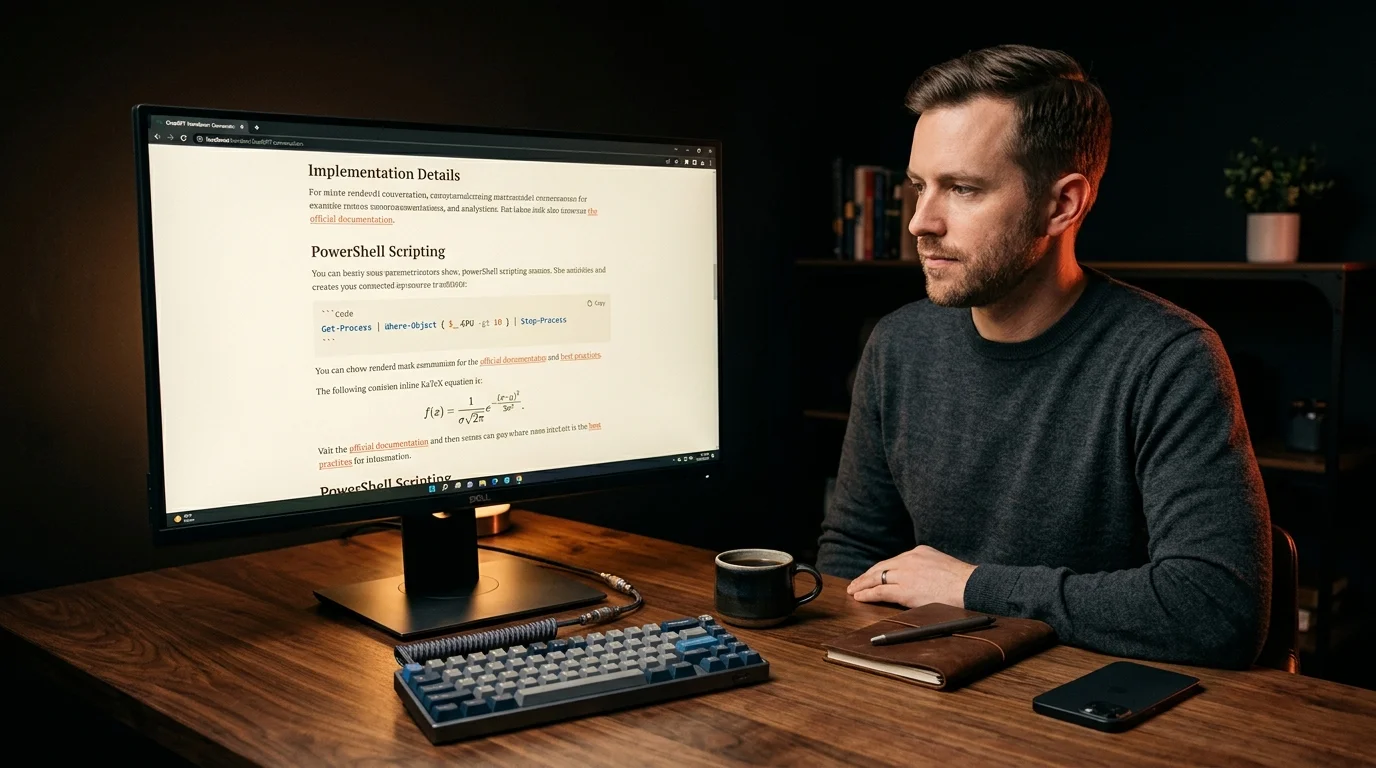
Once the file is on disk, the reader is the part that pays off. Prism MD opens markdown directly in the browser with a single-column editorial layout, a sticky table of contents on the left, and warm coral accents that survive long reading sessions. KaTeX, Mermaid, fenced code, and citation footnotes all render in the same pass. Nothing reflows when a tool call is missing. Nothing forgets your scroll position when you click a footnote.
A few small details matter more than they sound. The reader needs to keep the H2 headings as anchors so you can deep-link a section into a Slack message later. It needs to handle the long code blocks ChatGPT produces without horizontal scrolling. It needs to keep dark mode subtle and warm, not blue. The typography piece on Prism MD covers why those defaults matter for long-form AI reading, and why most general-purpose markdown apps get them wrong on a desktop.
Keep a small library you can find again
A folder of markdown files is only useful if you can find one again six weeks later. Windows Search will not get you there, and most chat apps cannot search their own history past 30 days. The right move is to use ripgrep, which runs natively on Windows now and reads markdown faster than any app-store search bar. A two-line PowerShell function over the export folder will outperform every chat app search on day one. The archive and search workflow piece walks through the ripgrep and tag setup if you want a copyable script.
For anything beyond a flat folder, a small set of tags in the YAML header carries most of the load. The point is not to build a database, only to leave enough metadata that a six-week-old export still surfaces in a search. Four fields cover almost every case I have seen in two years of reading my own archive. Keep them lowercase and consistent across files:
- Model name, such as claude, chatgpt, or gemini
- Topic in one or two words
- Project or client tag if relevant
- Date in ISO format
Anything heavier turns into a second job, and most Windows users stop here and never need a real database. The tag set is small on purpose, so adding one to a new export takes about five seconds. That is the threshold under which the habit sticks. Past that, the library quietly stops growing.
Make the reader Windows-native
A browser tab is not quite the right shape for a desktop reader. The simplest fix is to pin Prism MD as a Microsoft Edge web app, which gives it its own Start menu entry, its own taskbar icon, and its own window without the address bar. Alt-Tab treats it like a real desktop app. The PWA install also works on Chrome, with the same result. The full route is covered in the offline reading piece for Android, and the Windows path is the same shape, only with a larger window.
Two settings make the reader feel native on Windows. Set the system font fallback to Cascadia Code or Consolas for the code blocks, and keep the reader on a warm serif for prose. Turn off Windows pointer scroll smoothing in the Mouse settings, which fights any long reading column. Both are five minute changes that hold up across every long answer you will ever read on a desktop. After that, the chat app becomes the place you write, and the reader becomes the place you think.
FAQ
Do I need WSL or a Linux subsystem to do any of this?
No. The export step uses whatever chat app you already have installed on Windows. The reader runs in any modern browser, including Edge and Firefox on a clean Windows install, and Prism MD does not require a build step. Ripgrep ships a single Windows binary with no dependencies, and the PowerShell wrapper for it is five lines.
Will my markdown files sync to my phone?
Yes, if you put the folder on OneDrive, Dropbox, or any other sync service that gives you a watched directory. Prism MD will open the same file from the phone or the desktop, since the reader is a web app and reads from whatever path you hand it. Most people read on the laptop and reach for the phone only for quick lookups during the day. The phone view inherits the same typography and dark mode, so nothing reflows when you move between devices.
Can I read the conversation offline on a flight?
Yes, with one small preparation step. Install Prism MD as a PWA on Edge or Chrome, then open every document you want to take with you before the plane door closes. The reader caches each opened document and renders it without a network connection. The export step itself still needs a connection, so do that on the ground.
Read your AI conversations the way they were meant to look on Windows
Free to start — no credit card.
Related reading



Ready to read your own AI documents?
Open ChatGPT, Claude, Gemini, or any markdown file in the reader built for the way models write.
- ✓Renders code, math & Mermaid out of the box
- ✓Works offline once you've opened a doc
- ✓Free forever for personal reading