How to Read AI Conversations on a Chromebook Without the Chat App
Chromebooks are the easiest device to chat with an AI on and the hardest to reread the answer on. Here is the export, render, and Drive-backed library workflow that fixes it.
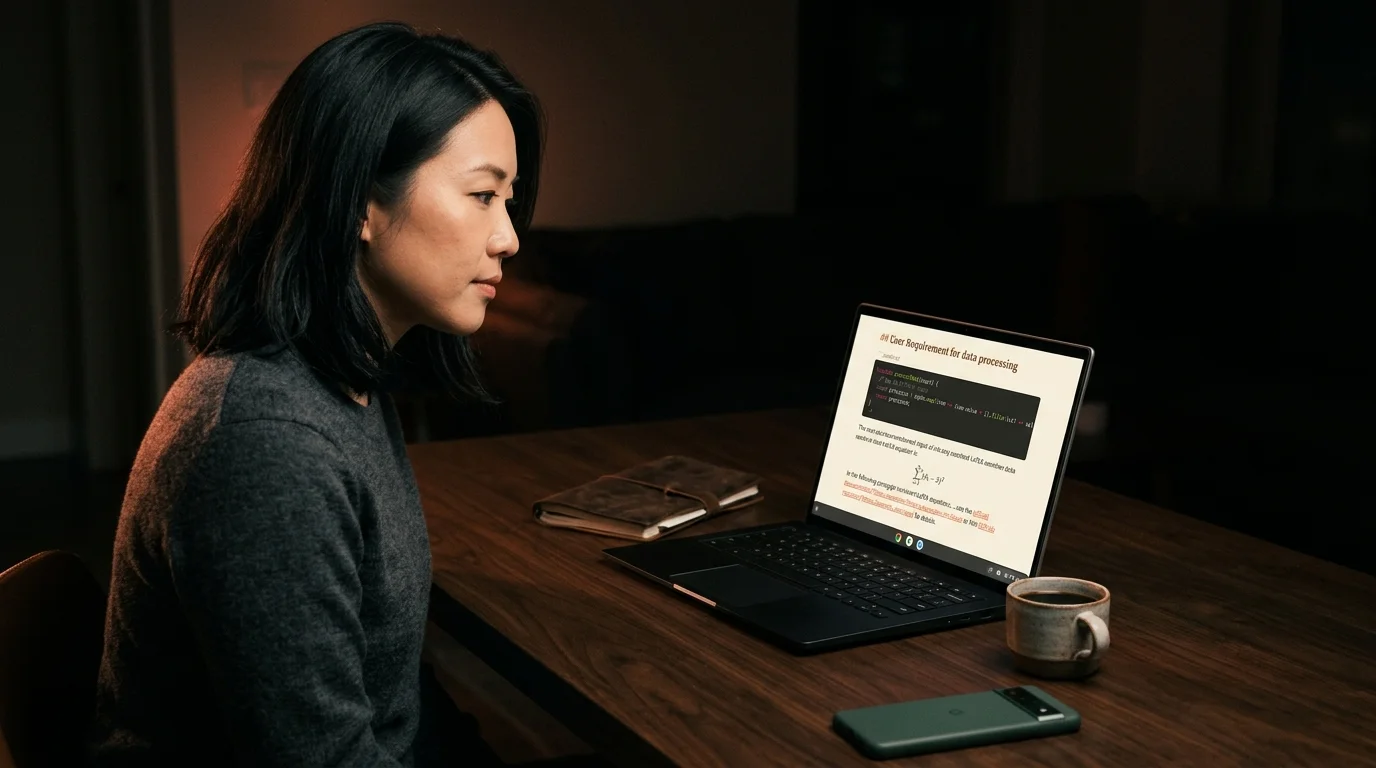
Chromebooks ship as the most ChatGPT-friendly machine you can buy, and the most ChatGPT-hostile one you can read on. The browser is the entire operating system, so every long Claude answer or Gemini deep research thread you finish is already trapped inside a chat tab that was built to show the next prompt, not the last reply. Powerwash a ChromeOS device once, and the threads you wanted to keep go with it. The fix is not a different chat app. It is a small habit that turns each thread into a markdown file, then a reader that does the file justice on ChromeOS hardware.
The Chromebook reading problem
A 14-inch ChromeOS panel is roughly the same shape as a MacBook, but the reading software you get for free is not the same. macOS has a real Preview app, a real Finder, and a Quick Look key. Chromebook gives you the browser, the Files app, and a half-functional offline mode for Drive. When a 6,000-word answer lands in a chat sidebar, the sidebar is the reader, and the sidebar was built to stack messages, not to hold a long document the way a Mac or a Windows desktop holds it. The chat UI also hides the table of contents, so the second pass through the answer becomes a scroll race instead of a reread.
The other half of the problem is ChromeOS itself. The Files app shows a markdown file as text on a white background with no monospace fallback, no syntax highlighting, no KaTeX, no Mermaid. Open the same file in a downloaded Notion clone and you usually trip the install limits on the device, especially on the 4 GB models that schools and small offices buy in bulk. Linux on ChromeOS through Crostini fixes a lot of this, but only if you are willing to keep a second package manager alive on a machine you bought to avoid that exact chore. None of those routes are wrong, they are heavier than the job needs.
Get a clean export out of the chat app
The cleanest export across the big chat apps is not their export menu. It is a copy out of the rendered page into a markdown file you keep on Google Drive. The reason is simple: every official export route either flattens code blocks, drops citations, or wraps the whole reply in a JSON envelope you then have to clean by hand. The copy route preserves headings and code fences because the page already renders them that way. The trick is to triple-click the assistant message, copy as markdown using the small clipboard button the chat apps now ship, and paste straight into a .md file in Drive.
A short set of habits keeps this clean over a month of use, and the work pays off even if you change reader later. The export step is the same one the search workflow depends on, so the file format pays you back twice. Treating the prompt as a heading at the top of each file is the part most people skip, and the part that makes the file findable six months later. The three habits worth keeping are simple:
- Name the file with the date in front, then the model, then a five-word topic. A name like
2026-06-24-claude-mortgage-amortization-walkthrough.mdis the only thing that makes search useful later. - Keep a single Drive folder called
ai-reads, sorted by name, not by modified date. Modified date lies the moment a sync touches the file. - Paste the original prompt as a level-two heading at the top of the file, then a horizontal rule, then the answer. The prompt is what you search for, not the answer itself.
Open it in a real reader on ChromeOS
Once the file is in Drive, the question becomes which app to render it with. A native installable reader like Prism MD runs as a Progressive Web App on ChromeOS, which means it lives in the launcher next to Files and works offline once the file is in the cache. The rendering itself is the part that matters: warm cream serif headings on a near-black background, monospace code blocks with syntax highlighting, KaTeX equations rendered inline, and Mermaid diagrams drawn from the source fence. None of those need Crostini, and none of them need a one gigabyte Electron download that the device cannot afford. The reader window also gives the file its own task switcher entry, which is closer to the way a desktop app behaves than a chat tab ever gets.
The other route is a browser tab into a hosted markdown reader, which works fine on a fast connection. The downside on a Chromebook is that the browser is also the chat app, the docs app, and the meeting app, so the reader tab competes for memory with everything else. The PWA route gives the reader its own window, its own task switcher entry, and its own offline cache, which is the closest a ChromeOS machine gets to a real desktop app. Anthropic's own product notes hint at the same point: the chat surface is not the reading surface, and the sooner you separate them, the better the second pass through a long answer goes.
Keep a library that survives Powerwash
The last piece is the part most ChromeOS users learn the expensive way. A Powerwash wipes every local file, every Linux container, and every PWA cache. The only files that survive are the ones in Drive, which is why the export habit above has to land in Drive and not in the local Downloads folder. Pair that with a small index.md at the top of the ai-reads folder that lists each file with a one-line summary, and you have a library that rebuilds itself the moment you sign back in. A reader that reads markdown straight from Drive, like the workflow described in the Linux guide, then makes the rebuilt library usable in under a minute.
FAQ
Does Prism MD work offline on a Chromebook? Yes. The PWA caches the reader shell on install and caches any file you open at least once. A flight or a school WiFi outage does not stop you reading a file you opened in the morning. The cache survives a sleep cycle, which is the failure most people hit first.
Is the Files app enough on its own? No. The Files app shows markdown as plain text with no syntax highlighting, no math rendering, and no Mermaid. It is fine as a place to store the file, not as the place to read it. Use it as the library shelf, not the reading lamp.
Will the export step lose code blocks? Not if you copy the rendered message and paste as markdown. The official export menus in ChatGPT and Gemini sometimes flatten fenced code into prose, so the copy route is the safer one. The same applies to inline math, which the JSON exports often strip down to LaTeX source without delimiters. A short manual paste keeps the rendering source intact.
What about Crostini Linux on ChromeOS? Crostini works, but it pulls a second package manager onto the device. The PWA route gives you the same rendering without the maintenance bill, which is the right tradeoff on a 4 GB Chromebook. Keep Crostini for development work, not for opening a file. The reader and the dev environment do not need to share a runtime.
Read your AI conversations the way they were meant to look on ChromeOS
Free to start — no credit card.
Related reading
Ready to read your own AI documents?
Open ChatGPT, Claude, Gemini, or any markdown file in the reader built for the way models write.
- ✓Renders code, math & Mermaid out of the box
- ✓Works offline once you've opened a doc
- ✓Free forever for personal reading