How to Read AI Conversations on a Mac Without the Chat App
ChatGPT, Claude, and Gemini treat a 16-inch Retina display like a phone. Here is the export, render, and library workflow that makes macOS the right reader.
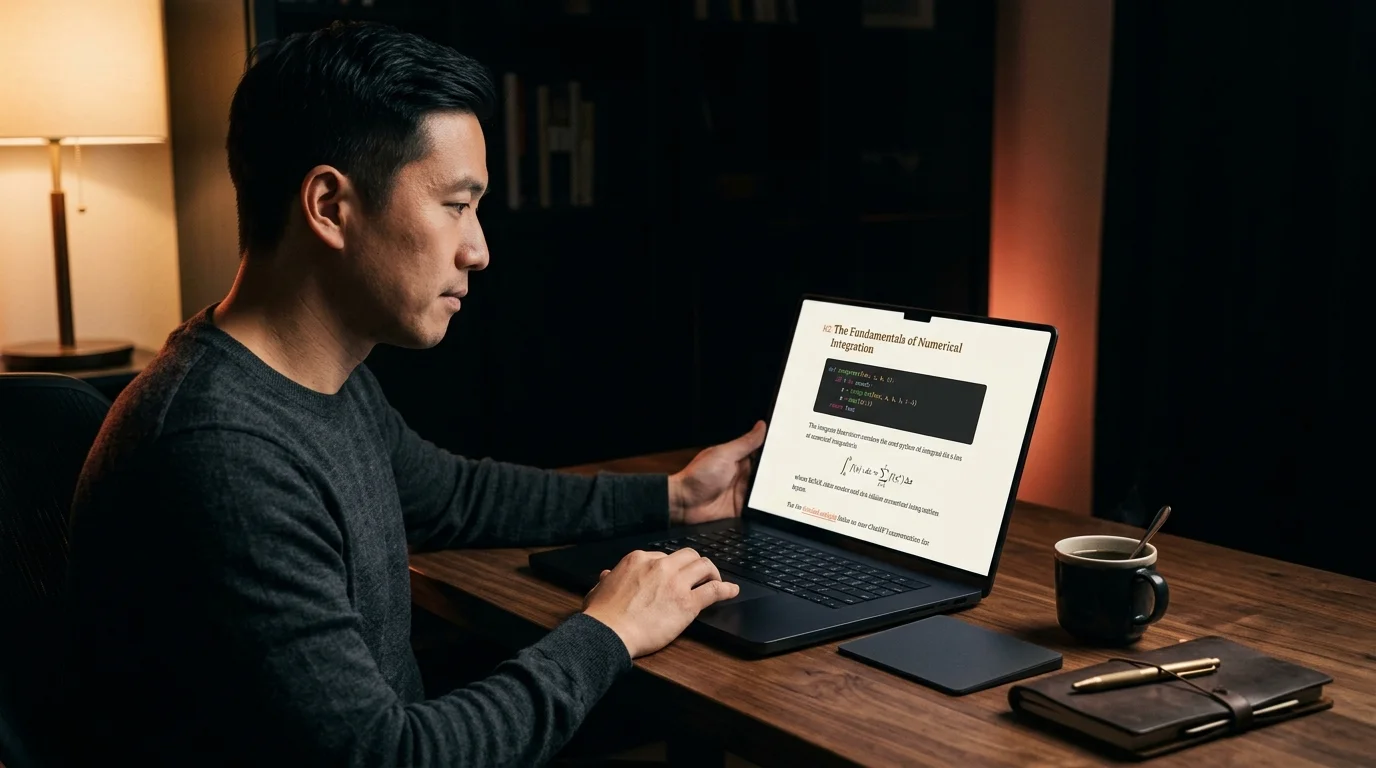
The Mac is the screen most AI conversations get written on, but the chat apps still treat that 16-inch Retina panel like a phone. ChatGPT, Claude, and Gemini all run inside a narrow center column with a sidebar of old threads pushing the reading width down to something closer to a chat bubble than a document. Forty minutes of dense reasoning ends up shaped like a group text. The Mac deserves better, and so does the answer. This is the export, render, and library workflow that finally treats macOS as the primary reading surface for long AI threads.
Why The Native Mac Apps Fall Short
The desktop clients from OpenAI, Anthropic, and Google are technically native, but they were built as ports of the web app. The reading column never goes above roughly 720 pixels even on a 6K display. Headings get treated as bold paragraphs. Fenced code blocks scroll horizontally inside a panel that was already half the screen. KaTeX renders, but the equation sits in a line height tuned for chat, not for math. Mermaid diagrams either fail silently or open in a side panel that pushes the rest of the answer offscreen.
There is also the question of permanence. The desktop apps keep history on the vendor's servers, which means a deprecated model or a closed account quietly takes a year of thinking with it. A 40-minute Claude derivation is not a chat, it is a document, and macOS already knows how to handle documents well. The fix is to get the answer out of the chat client and into a real reader. The Apple Human Interface Guidelines for reading describe exactly the kind of layout a long thread needs, and the kind no chat app provides.
The Three Step Mac Workflow
The flow is short. Export the conversation as markdown, render it in a reader built for long-form, then file it somewhere the rest of macOS can search. Most of the work is the export, and the rest takes seconds once a folder convention is in place. The full sequence looks like this:
- Export the thread as raw markdown from the chat client's settings panel.
- Drop the .md file into a synced folder under iCloud Drive or Dropbox.
- Open it in a reader tuned for long-form, not for writing.
- Tag it by model, topic, and project so Spotlight can find it later.
ChatGPT and Claude both ship a real markdown export from their settings panel, which arrives as a zip. Gemini still requires the share-link route, which is covered in the Gemini export guide. Sync the resulting folder through iCloud Drive or Dropbox so every Mac, iPad, and iPhone in the household sees the same library. From there the file is a normal document, and the rest of macOS treats it that way.
What A Real Reader Does Differently
Prism MD opens a markdown file the way Preview opens a PDF. The reading column sits at a measured 68 to 72 characters, headings keep a proper type scale, and code blocks get full-width syntax highlighting with monospace optimized for screens. KaTeX renders inline and display math without a build step, and Mermaid diagrams snap to the column width instead of overflowing it. The dark theme uses warm coral accents on near-black, which holds up at 2 AM far better than the cold gray that ships with most clients.
The macOS layer also gets used properly. Spotlight indexes the rendered text, so a query for the right paragraph from a six-month-old Claude thread returns the file in roughly a second. The longer search workflow lives in the search saved conversations guide, and the broader archive question is treated in the save AI conversations post. Both build on the same idea, which is that the file system is the right home for these documents, not a vendor database.
Reading Position Matters On A Mac
A Mac at a desk encourages a posture the phone never does. Eyes back, screen up, both hands free. That posture rewards a reading column that does not move, a font that holds its shape at 18 to 20 pixels, and a contrast ratio that does not punish a 90-minute session. The chat clients optimize for the opposite. Their column slides around as new tokens stream in, fonts hover near 14 pixels to fit the side rail, and the contrast is tuned for a phone screen in daylight, not a tungsten-lit office at 9 PM. The honest measure is whether a single thread holds for a full hour without scrolling back to find where the eye left off, and a real reader keeps that position where the native apps quietly lose it.
What About Notion, Obsidian, And Bear
Notion, Obsidian, Typora, and Bear all open a markdown file on a Mac, and all of them do something the chat clients refuse to do, which is render headings as headings. The trade-off is that each of them is primarily a writing tool. Notion buries the file inside a database, Obsidian opens it inside a graph that wants to be a vault, Typora is a writer, and Bear is a journal. None of them was built around the question of opening one long AI answer and reading it well.
A reading-first tool stays out of the way. No graph, no database, no edit cursor blinking next to the title. The deeper feature-by-feature comparison sits in the best markdown reader post, which lines up the same four tools against the single job of opening one long AI conversation and reading it cleanly. Open the file, render it, keep the column steady, and let the Mac do what the Mac is good at.
FAQ
Does this work on an Intel Mac? Yes, the render is a static page in a browser, so any Mac that runs a current Safari or Chrome handles it without strain. Apple Silicon is faster on long Mermaid diagrams, but the difference is rarely visible on a normal AI conversation. The reading column, font hinting, and code block performance are all identical across the two architectures. An older 2018 MacBook Pro handles a 20,000-word Claude thread the same way an M3 Max does.
Can I keep the library fully offline? Yes, save the .md files to a local folder outside iCloud Drive and the reader still opens them. The full offline route, including installing the reader as a Progressive Web App, works the same way on macOS as the offline Android guide describes. Once installed, the reader runs from the Dock like any other Mac app and opens local files through the standard file picker. Network status stops mattering, which is the right answer for a library that should outlive any single vendor.
What about a Magic Trackpad and natural scrolling? A reading-first layout responds to gesture scroll without snap-back, which is the macOS default. The chat clients add their own scroll interception for streaming tokens, which is the part that feels wrong on a Mac trackpad and the first thing a real reader removes. Two-finger scrolling, pinch-to-zoom on a Mermaid diagram, and three-finger swipe between documents all behave the way the rest of macOS behaves. The trackpad stops fighting the page and the page stops fighting back.
Read your AI conversations the way they were meant to look on a Mac
Free to start — no credit card.
Related reading
Ready to read your own AI documents?
Open ChatGPT, Claude, Gemini, or any markdown file in the reader built for the way models write.
- ✓Renders code, math & Mermaid out of the box
- ✓Works offline once you've opened a doc
- ✓Free forever for personal reading