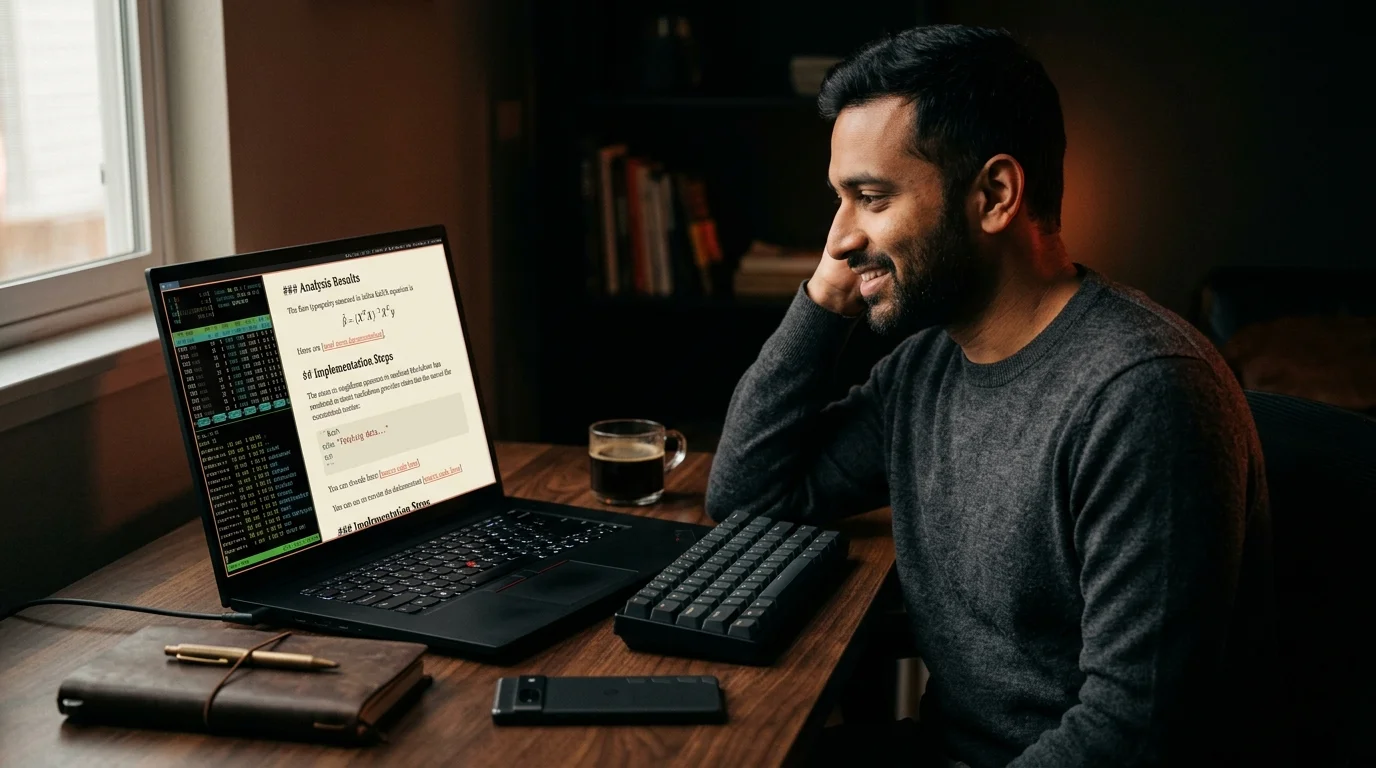
How to Read AI Conversations on Linux Without the Chat App
ChatGPT, Claude, and Gemini ship no native Linux client, so the chat tab is the reader by default. Here is the export, render, and archive workflow that fixes it.
Linux is the right operating system for a long AI conversation, and almost nobody talks about it. The chat apps from OpenAI, Anthropic, and Google all skip a native Linux client, which leaves users on Ubuntu, Fedora, Arch, or Pop!_OS reading a serious thread inside a Chromium tab. That tab was built for a quick reply, not for the forty minutes of dense reasoning a Claude or ChatGPT answer can produce. The good news is that Linux happens to be the easiest desktop to fix this on, because the whole pipeline is files, scripts, and your own choice of reader. This guide walks the export, render, and library setup that finally treats your AI threads as documents instead of feed posts.
Why the chat tab fails on Linux
A web client is the lowest common denominator, and it shows. Code blocks reflow oddly when the sidebar opens, KaTeX math sometimes loads half a second after scroll, and any thread longer than a few thousand tokens turns into a scrollbar with no map. None of that is your distro's fault. The chat surface assumes you are sending another message in twenty seconds, so it never invests in the reading view a long answer needs. On Linux specifically, you also lose the small ergonomic conveniences a native app gives you on Mac or Windows, such as a proper window title, a system tray icon, and an export menu that does not require three confirmations.
The honest fix is to stop treating the chat tab as the reader. Export the thread to a file, render the file in something built for prose, and keep the file in a folder you control. That pattern is exactly what the rest of the desktop is already good at, and it is what makes Linux pull ahead of macOS and Windows for this specific job. For the broader argument about why a reader-first approach matters, the post on why AI markdown deserves better typography walks through the difference between a chat surface and a document surface.
The export step, one shell command at a time
Every major chat app exposes a copy or export path that lands in your clipboard or downloads folder as raw markdown. ChatGPT has the share button that returns a markdown export, Claude offers a copy-as-markdown affordance on each message and a full thread export on Pro plans, and Gemini will hand you a clean share link you can fetch with curl. The trick on Linux is to wire those exports into one folder with a consistent naming convention, so the archive is searchable later. A short Bash function in your shell rc file is usually enough to do the rename, the slugify, and the move in one keystroke.
A workable convention is a single ~/ai-archive folder with one subfolder per model and per month. The filename pattern that ages well is YYYY-MM-DD-<short-topic>.md, because it sorts cleanly with ls and stays unique without a hash. Keep the source markdown raw, including the fences and the inline math, because re-rendering is cheap and editing the source is a one-way trip. If you want a deeper export-side workflow for one of the major models, the guide on how to read long Claude conversations walks the Anthropic side end to end.
Render the file, do not preview it
A markdown preview pane is not a reader. Most Linux markdown apps were built for software documentation, which means narrow columns, a heavy monospace bias, and no sense of long-form rhythm. AI output is closer to a magazine article with code blocks dropped in, so the reader needs serif body type, generous line height, real KaTeX rendering, and a table of contents that follows the scroll. Prism MD is a browser-based reader that runs anywhere a recent Firefox or Chromium ships, which on Linux is everywhere, and it opens a local file or a pasted block in one click.
If you prefer a fully local stack, pandoc plus a CSS file is the classic Linux move and still holds up well. Pandoc will turn the markdown into HTML or EPUB, and a hundred lines of CSS gets you close to a real reading layout. The trade is that you give up the live KaTeX and Mermaid rendering, the search across the archive, and the sticky table of contents, so the build-it-yourself path is best reserved for users who genuinely enjoy maintaining a pipeline. For most people, the simpler answer is to keep the file local and open it in a reader that does the heavy lifting.
A small Linux toolchain that holds up
The pieces below are what most long-time Linux users settle on after a few rounds of trial and error. Each one is replaceable, but the combination has the property of staying out of your way when you have a forty-page thread to read. Pick the four parts up front, wire them together once, and the workflow disappears into the background where it belongs. Treat the list as a starting kit, not a prescription, because every distro has its own opinions about how to lay these pieces out.
- A shell function that takes a clipboard markdown blob and writes it to
~/ai-archive/<model>/YYYY-MM/<slug>.mdin one command. - A reader that renders the file with real serif typography, KaTeX math, Mermaid diagrams, and a sticky outline.
- A search layer, either ripgrep on the folder or the search built into the reader, that finds a paragraph six months later.
- An optional sync layer such as Syncthing or a private Git repo, so the archive follows you between machines.
The same toolchain works whether you live in GNOME, KDE, Sway, or i3, because nothing in it depends on a specific window manager. Most of the friction in a Linux setup comes from over-customizing the wrong layer, and this stack keeps each piece deliberately small. If your search habit is more developer-shaped, the workflow in how to search across all your saved AI conversations covers the ripgrep side in more depth. Once the four parts are in place, the only ongoing work is hitting the export shortcut after a good answer.
Cross-device reading from the same Linux archive
The benefit of keeping the archive as plain markdown files is that every other device you own can read them too. A Syncthing folder shared to an Android phone gives you the same library on the train, and a small Git repo cloned to a Mac or a Windows laptop gives you the same library at a different desk. The reader is the part that changes per device, but the source of truth stays on Linux, which is usually the most stable machine in the rotation. If you also read on a tablet, the post on reading AI conversations on a reMarkable shows how to plug an e-ink slate into the same folder without breaking the workflow.
FAQ
Does Prism MD have a native Linux app?
It runs in any modern browser on Linux, including Firefox, Chromium, Brave, and Vivaldi, and it works offline once installed as a PWA. There is no separate AppImage or Flatpak to maintain, which is intentional, because a browser tab matches the way most Linux users already keep their reader open. The PWA install pins the reader to your launcher with its own window, so it behaves like a native app without the maintenance cost. If you prefer to skip the install entirely, the same URL works fine in a normal tab.
Can I keep the whole archive offline?
Yes. The export step writes plain markdown files to a folder you choose, and the reader opens local files directly, so the archive never has to leave the machine. If you want sync without a cloud account, Syncthing over your local network handles the device-to-device part cleanly. For users on a hardened setup, the whole pipeline runs without a single outbound request once the reader is cached.
What if I write in Vim or Emacs?
Both are fine for editing the source markdown, especially for cleaning up a messy export. The reader is a separate concern, because editor previews are still optimized for documentation, not long prose with code and math mixed in. The cleanest split is to keep your editor as the place where you fix typos and add headings, and keep the reader as the place where you sit back and read the result. Most Vim and Emacs users land on that division within a week.
Will this work on a low-spec Linux laptop?
The reader is HTML and CSS at heart, so a ten-year-old ThinkPad with 4 GB of RAM handles it without complaint. The expensive part of the chat apps was the live model call, which is not happening here at all. A local file rendered by the browser is closer to opening a long blog post than running a heavy desktop app. That makes Linux a good rescue plan for older hardware that the official chat clients have started to ignore.
Read your AI conversations the way they were meant to look on Linux
Free to start — no credit card.
Related reading


Ready to read your own AI documents?
Open ChatGPT, Claude, Gemini, or any markdown file in the reader built for the way models write.
- ✓Renders code, math & Mermaid out of the box
- ✓Works offline once you've opened a doc
- ✓Free forever for personal reading