
How to Read AI Conversations on a Steam Deck
The Steam Deck OLED is a surprisingly good reader for long ChatGPT and Claude threads. Here is the Desktop Mode setup, controller mapping, and offline workflow.
Reading long AI conversations on a phone works fine on the couch, but a Steam Deck sitting on the desk with a kickstand is a different animal. The seven inch screen is bright, the built in controller lets you scroll without touching the trackpad, and Desktop Mode gives you a real Linux browser that renders code and math the way you would want to see it on a laptop. I started doing this during long research sessions where I did not want to keep switching to my laptop to reread a Claude thread from earlier in the day. After two weeks the Deck became my default reader for anything over two thousand words of AI output, and the laptop went back to being for writing and coding.
The Steam Deck also has one feature that laptops do not: it goes into a proper sleep in a second and wakes up in a second. You can put down a long AI thread, cook something, come back, and pick up on the exact same paragraph. That is closer to how a book feels than to how a browser tab feels, and it changes how much of a long thread you finish. Laptops lose you at the lid close because there is friction on the way back in, and that friction is where most abandoned research sessions die.
Why the Steam Deck is a good AI reader
Handheld PCs have caught up to tablets on screen quality but they still get treated like game only devices. The Deck OLED runs at 1280 by 800, which is close to the effective reading width of a paperback once you set a sensible content column. That means you can drop a long AI export into a reader and get a page that looks like a book, not like a chat log with the sidebar chopped off. The HDR panel also handles code blocks and diagrams with real contrast, which matters more for AI content than for a novel.
Battery on the OLED under light browsing is around eight hours, which is enough to read through a stack of deep research reports on a long flight. You also keep the trigger buttons and D pad, which turn out to be better for reading than a touchscreen. Left trigger for page up, right trigger for page down, and the right thumbstick for smooth scroll on diagrams is a setup I now prefer to a Kindle for AI content specifically. AI content has code and math that need the color and sharpness a Kindle cannot give you, so the Deck fills a device gap that e-ink cannot cover.
Setting up Desktop Mode for reading
Hold the power button and pick Switch to Desktop. This drops you into KDE Plasma with Firefox already installed. Open Firefox, install uBlock Origin, and pin the tab bar to the side so the horizontal space goes to your content instead of chrome. Set the default zoom to 133 percent, which is the sweet spot for the Deck OLED at a comfortable arm length distance. Save the zoom as the site default for the domains you read on so you do not fight the browser every time you open a new tab.
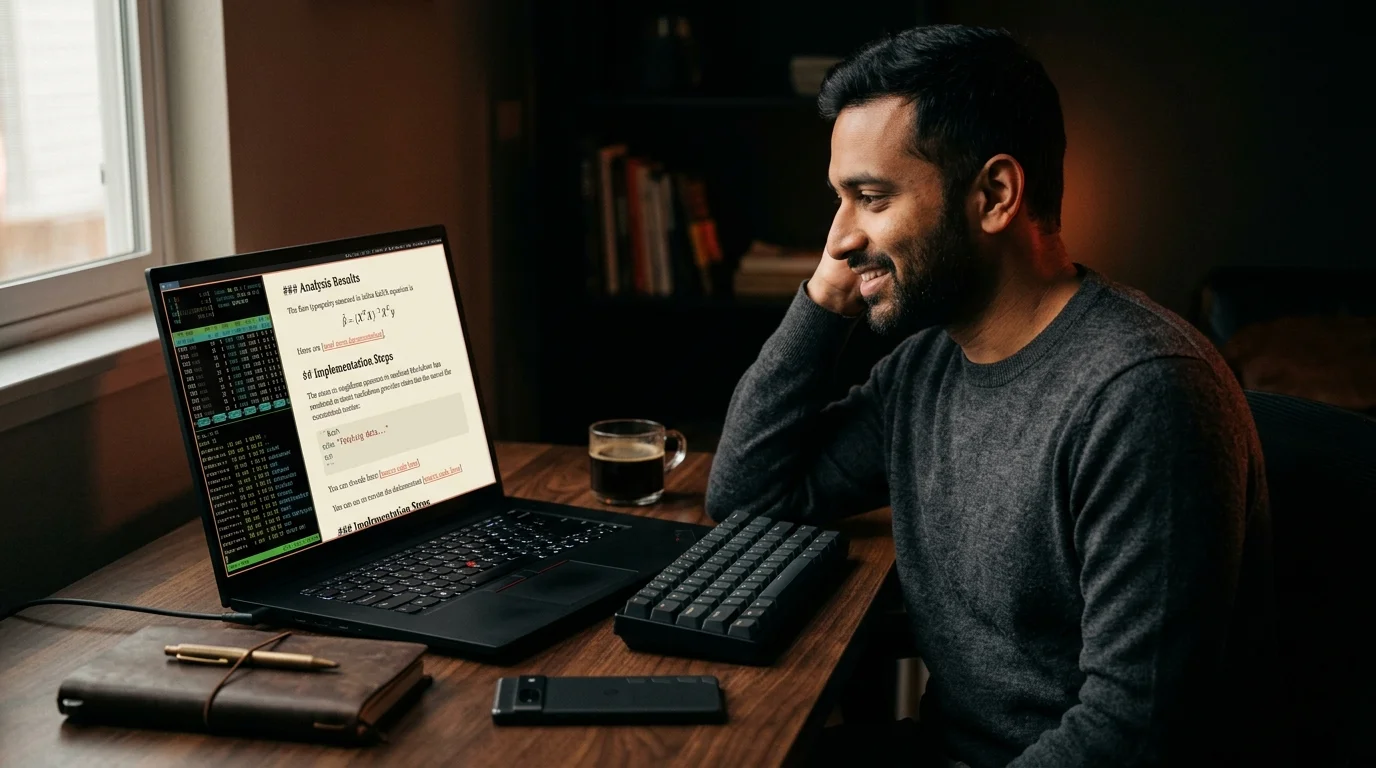
The important part is the reader. Paste your ChatGPT or Claude export URL into Prism MD and let it render the thread as a real document. The output uses a proper serif for prose, a monospace with ligatures for code, and KaTeX for math, so a long research answer stops looking like a chat message and starts looking like something you would save. If you want the reasoning behind those choices, the piece on why AI generated markdown deserves better typography covers why the default provider UIs get this wrong. For offline reading on planes, export the rendered document as EPUB using the workflow from converting long AI answers to EPUB, then open it with Foliate through Discover in one click.
Controller mapping that helps
The default Steam Input in Desktop Mode is tuned for productivity, not reading. Open Steam, go to Controller Settings, and load a Desktop layout you can customize. The mapping I ended up with after a week of trial and error is small but the whole point is that each binding gets used constantly, so small wins compound over an hour of reading. Save the layout as Reader and set it as the default for Firefox, and from then on the Deck behaves like a quiet, long lived e-reader with color and code support.
- Left trigger: Page Up. Right trigger: Page Down. Both feel like turning pages with your index fingers.
- Right stick: Mouse cursor with a low sensitivity. Used for clicking inline links inside a paragraph.
- L1 and R1: Browser tab back and forward, so switching between two open AI threads is one bumper away.
- Left stick: Smooth scroll on Mermaid diagrams and long code blocks. Better than the trigger jumps when you want to inspect a chart.
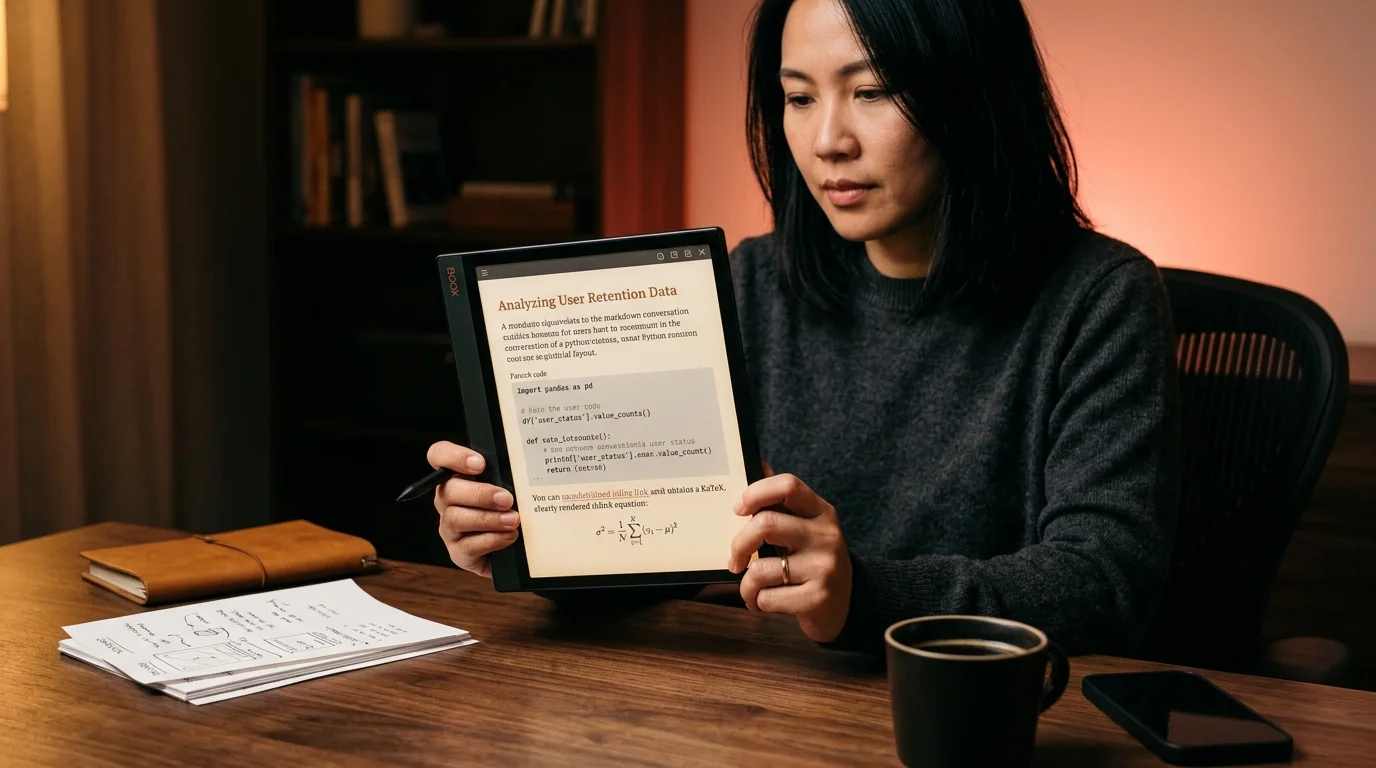
That layout closes the gap with dedicated readers for the specific case of AI content, which is the one thing a Kindle cannot fill. If you want to compare this to a proper e-ink workflow, the Boox tablet setup is the closest cousin and it uses the same reader on the other end. Both devices lean on the reader to do the typography work, so the hardware differences show up mostly in weight and glare. The Deck wins on color and refresh, the Boox wins on weight and daylight glare, and neither replaces the other cleanly.
What the Steam Deck is not good at
It is heavier than a Kindle Scribe by a lot. Reading in bed on your back for an hour is not comfortable unless you rest it on a pillow, and the kickstand only helps on a table. The fans stay silent under browser load but the aluminum back does get warm on the OLED after about ninety minutes, which is noticeable if you are reading with the Deck flat on your lap. For couch reading a light tablet still wins, and for travel a phone still wins on weight alone.
The other honest limit is that Desktop Mode is still KDE Plasma. It is fine, but it is not macOS. Font hinting on some sites is off by a hair, and copy paste between Firefox and a note app has a small delay compared to a real laptop. Prism MD sidesteps most of that because the reader ships its own font stack and its own copy behavior, so the KDE quirks stay out of the reading surface itself. If you plan to annotate as you read, the workflow in annotating AI conversations works on the Deck with a Bluetooth keyboard paired.
FAQ
Do I need Desktop Mode or can I read in Gaming Mode? Gaming Mode has a browser through the Steam overlay but the layout is cramped and the fonts are small. Desktop Mode with a controller layout is the setup that works for long reading sessions of any length. You can switch back to Gaming Mode in seconds when you are done, so the tradeoff costs nothing on either side. The one exception is a quick check of a short answer, where Gaming Mode is fine because you are not going to stay in it long enough to feel the layout pinch.
Will this drain the battery faster than gaming? No, the opposite is true. Firefox on text and code is a fraction of the load of any 3D game, and the OLED at low brightness pulls almost nothing. You will get roughly double the battery life you would get from a AAA title, and sometimes more with the panel dimmed. Eight hours of continuous reading is a realistic number on the OLED, which covers a full transpacific flight with margin to spare.
Can I read offline on a plane? Yes, and the workflow is worth setting up before you fly. Export the thread as EPUB from Prism MD, drop it in Foliate, and it works with the Deck in airplane mode without any fuss. See the EPUB conversion post for the export step and the font choices that render well in Foliate. The one thing to remember is to preload your EPUBs before boarding because the Deck has no cellular fallback.
Is the LCD Deck good enough or do I need the OLED? The LCD works for reading, but the OLED is a real upgrade because the black background matters more for text than for games. If you already own the LCD, do not upgrade for reading alone because the gap is not that wide. If you are buying new, the OLED is the better long term pick because the panel is easier on the eyes over multi hour sessions. The extra battery life on the OLED also matters more for reading than for gaming, because reading is exactly the workload that stretches a charge the furthest.
Turn your Steam Deck into a proper AI reading device
Free to start — no credit card.
Related reading

Ready to read your own AI documents?
Open ChatGPT, Claude, Gemini, or any markdown file in the reader built for the way models write.
- ✓Renders code, math & Mermaid out of the box
- ✓Works offline once you've opened a doc
- ✓Free forever for personal reading