
How to Annotate AI Conversations Without Losing Your Margin Notes
Chat apps will not let you highlight a Claude or ChatGPT thread. Here is the two-pass annotation workflow and the tools that keep your notes attached to the file.
A long Claude or ChatGPT thread is worth re-reading. The problem is that nothing inside the chat app helps you do it. There is no highlight tool, no margin, no way to pin a paragraph and come back to it next Tuesday. By the time the thread is two thousand words deep, the only reference you have is your own memory of where the good bit lived. That is not a workflow. That is a tab you are afraid to close, which is the worst form of knowledge management ever invented.
Annotation is the missing layer. The export gets the words out, a reader makes them legible, and annotation is what turns the document into something you keep returning to. This post is about that third step, the one the chat tools refuse to ship. It is also the step that decides whether your archive becomes a library or a graveyard.
Why chat apps refuse to let you mark anything
The product reason is simple. Chat is a stream, not a document, and a stream cannot hold a sticky note. Highlights would have to attach to a message id, survive a regeneration, and follow you across devices, and none of the major chat clients have built that index. The result is that ChatGPT, Claude, Gemini, and Copilot all treat your fifty-minute conversation as ephemeral, even when it is the most considered writing you produced that week. You can star a chat, you can rename it, you cannot point at a single paragraph and say "this one". For the deeper context on why the chat shape itself works against re-reading, the long Claude conversations post covers the same failure from the reader side.
There is also a strategic reason worth naming. If the chat is annotated, the chat is a document, and a document is something you can take to a competitor's reader. Anthropic and OpenAI both prefer that your notes live inside their app, where the lock-in is highest. The cleanest fix is to stop asking the chat app for the feature and move the annotation step into a real reader. Once the markdown is rendered as a document, the annotation tools that already exist for documents become available again. Treat the chat client as a typewriter, not a filing cabinet, and the workflow gets a lot lighter.
The two annotation jobs that matter
Most people conflate two different annotation jobs. The first is the highlight pass, where you mark the three or four passages that justified the whole thread. The second is the margin pass, where you write your own short note next to a highlight: a question, a counter-example, a link to a related conversation. The highlight pass is fast and shallow, the margin pass is slow and the part that compounds. Skipping the second pass is the most common failure mode, and the reason most personal archives stop earning their disk space within a month.
Both jobs need the same thing: a stable anchor. If your highlight is attached to a line number, a regeneration breaks it. If it is attached to the message id, a different reader loses it. The trick is to anchor against the exported markdown itself, which is a frozen file you control, not a live chat that the provider can mutate. That is also why the save AI conversations workflow starts with an export and never with a share link.
A working annotation workflow
The shape I keep coming back to has four steps. It works whether your source is ChatGPT, Claude, Gemini, or a coding agent transcript, and it survives a year on disk. The point of the shape is not novelty. The point is that it is small enough to repeat on a Tuesday evening without thinking, which is the only reason it ever gets done at all.
- Export the thread to markdown the day you finish it, not a week later when the share link has expired.
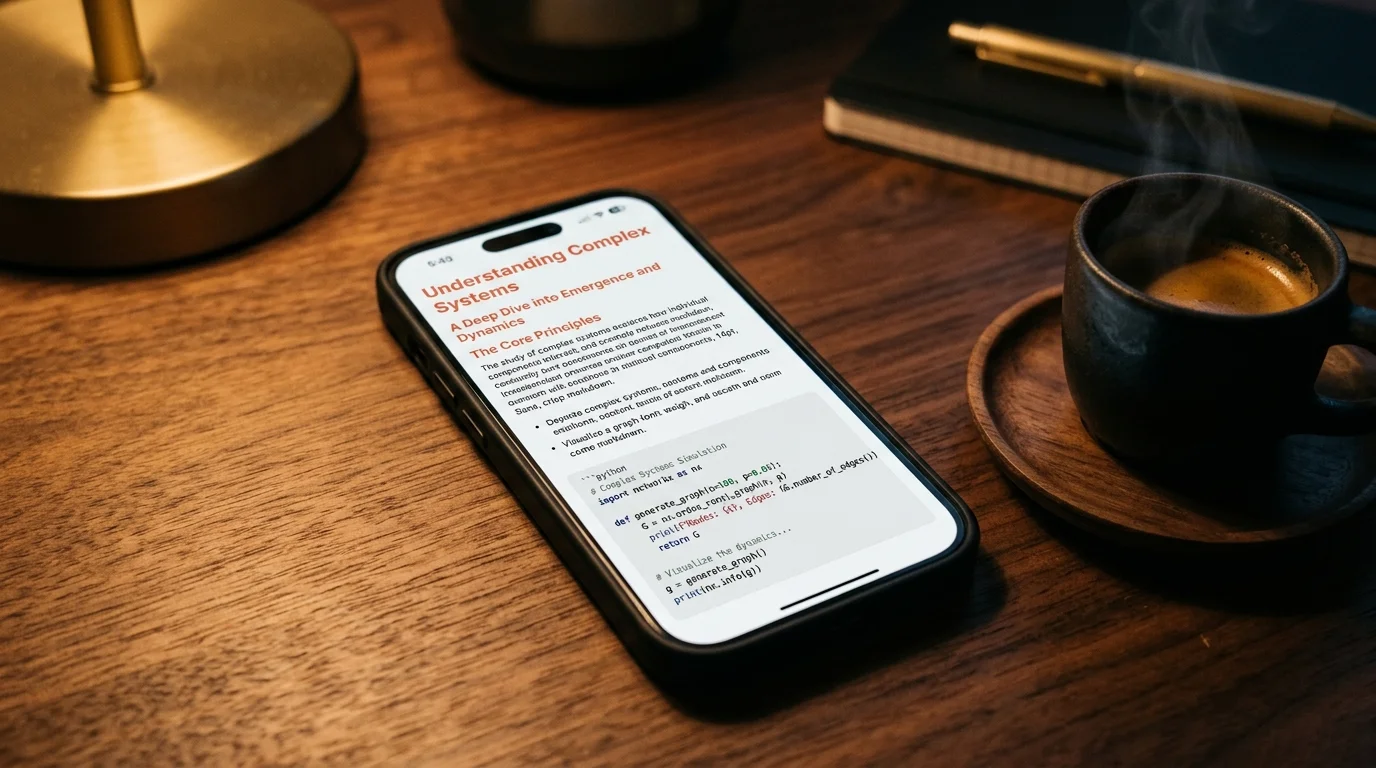
- Open it in a reader that renders code, KaTeX, and Mermaid cleanly, so the highlight pass is not fighting the layout.
- Run a five-minute highlight pass and resist the urge to write notes yet. Pick the three passages that would let you reconstruct the thread from memory.
- Come back the next morning and run the margin pass. Write one sentence per highlight, in your own voice, and link out to anything related.
The reason the two passes are separated by a night of sleep is not romantic. It is that the highlight pass is a recognition task and the margin pass is a generation task, and brains are slow to switch between them under time pressure. Splitting them turns annotation from a chore into two short sessions, each one under ten minutes. The morning pass also tends to produce sharper notes because the recall cost is non-zero, which forces you to write what mattered rather than what felt important last night.
Annotate your AI conversations against a file you actually own
Free to start — no credit card.
Tools that carry your notes without trapping them
The tool short list is unglamorous and deliberately small. Obsidian and Bear both treat markdown as a first-class file format and let you highlight inside the rendered view. iA Writer keeps the highlight pass honest because there is no margin column at all, which forces you to leave the note inside the document body. A reader-first option like Prism MD renders the export cleanly and keeps the annotation against the source markdown, so the notes travel with the file rather than with a sync account.
What you want to avoid is anything that locks the highlight inside a proprietary database without a markdown export. Notion is the obvious offender here, and the trade-off is laid out in more detail in the markdown reader comparison. If you cannot get the highlighted file back out as portable markdown, you are renting your annotations, and the rent always goes up. The test I use is brutal and quick: export, delete the app, and see whether the highlights survive. If they do not, the tool is a trap.
FAQ
Should I annotate inside the chat app if the provider adds the feature? Probably not, and the temptation is the trap. Provider-side highlights die when the thread is deleted, regenerated, or migrated to a new account, and none of the major chat clients have committed to a stable annotation format. The other risk is silent format change: the provider can rewrite the highlight schema overnight and nothing in the release notes will warn you. Keep the annotation against the exported markdown, which is a file you own. That is the only layer that survives a vendor pivot.
Where should the margin notes live, in the file or in a separate notebook? Inside the file, as inline blockquotes prefixed with your initials. A separate notebook decouples the note from the source paragraph and the link breaks the first time the thread is renamed. Inline notes also travel with the file when you share it, which means a teammate sees the context without needing a second tool. The cost is a slightly messier read on first pass, which is a fair trade for never losing a margin note again. If the clutter bothers you, fold the notes inside a collapsible block.
How do I share an annotated thread with a teammate without screenshots? Export the markdown with the inline notes included, then share the file directly. The team sharing workflow covers the handoff in more detail and is worth reading once before the first share. The short version is that markdown is the lowest common denominator and survives every reader your team uses. Screenshots stop scaling at two people. A shared file scales to a department.
Is it worth annotating every long thread? No, and trying to do so is the fastest way to abandon the habit. Annotate the ones you expect to reference more than once, which is usually one in ten. The rest are fine as a clean export, sitting in your archive in case you ever need them again. A good heuristic: if you have already thought about the thread twice since it ended, it earns an annotation pass. Everything else is storage with extra steps.
Related reading


Ready to read your own AI documents?
Open ChatGPT, Claude, Gemini, or any markdown file in the reader built for the way models write.
- ✓Renders code, math & Mermaid out of the box
- ✓Works offline once you've opened a doc
- ✓Free forever for personal reading