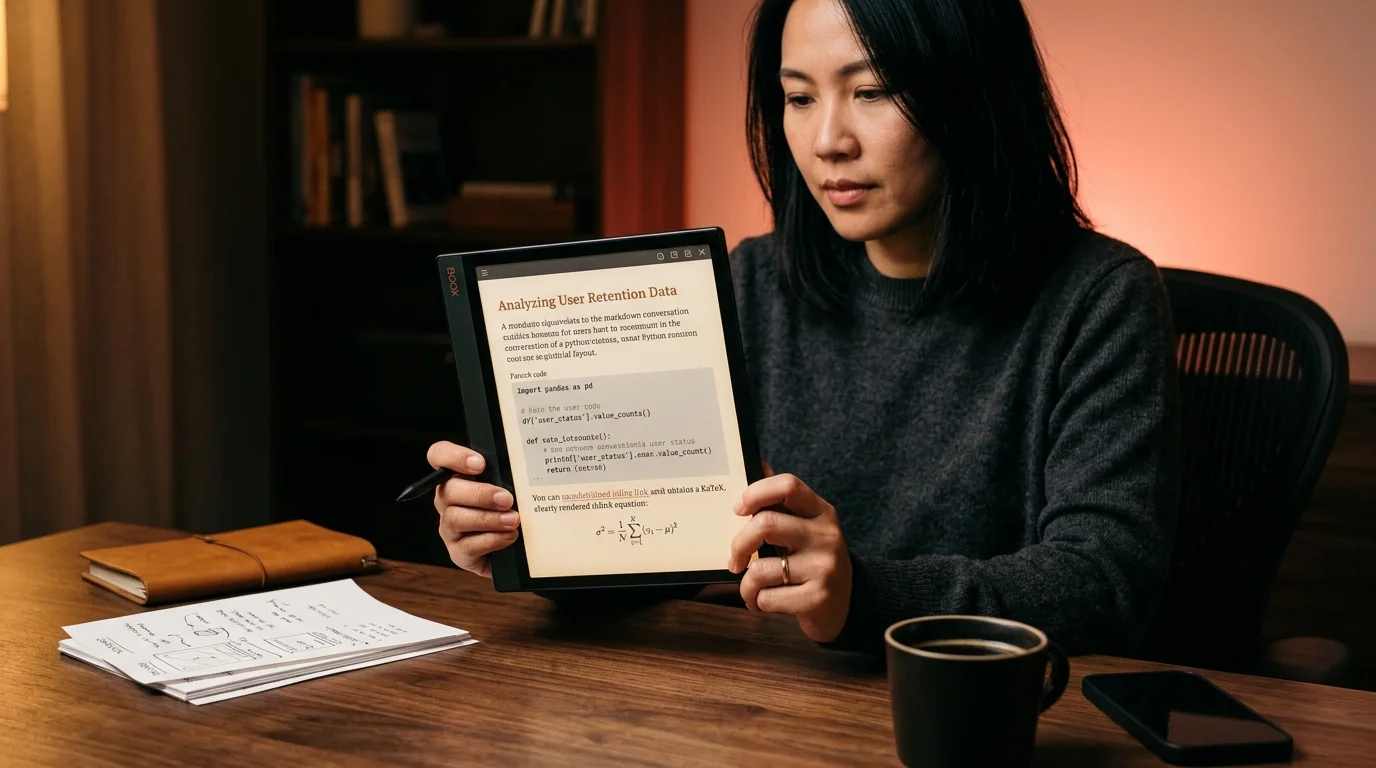
How to Read AI Conversations on a Boox E-Ink Tablet
A Boox runs Android, takes a stylus, and installs a real PWA. Here is the export, render, and sync workflow that turns it into a proper reader for AI conversations.
A Boox is the most flexible e-ink tablet you can buy in 2026. It runs full Android, takes a stylus, ships with a warm front light, and on the color models renders a muted coral or amber link tint that paper readers like Kindle and reMarkable simply cannot show. That makes it the right surface for a long Claude or ChatGPT answer, the kind that runs forty minutes and weaves prose, code, and the occasional KaTeX line into one document. The catch is the same one every e-ink owner hits the first week. The chat app you used to write the answer is the wrong app to reread it on, and the Boox launcher is full of half-working PDF readers that flatten everything you cared about.
This is the export, render, and sync route that turns a Boox into a proper reader for AI conversations, without sideloading anything sketchy and without giving up the stylus. The route uses three components: a clean markdown export from your model of choice, a synced folder the Boox can see when the network drops, and a PWA install of Prism MD that renders the file in the same warm cream serif column the desktop reader uses. Once those three pieces are in place, the Boox stops feeling like a compromised tablet and starts feeling like a purpose-built AI reader. The page turn button on the side does real work, the front light dims for the late evening read, and the stylus is finally pointed at a document worth marking up.
Why the chat app fails on e-ink
ChatGPT, Claude, and Gemini all ship Android apps that install on a Boox in one tap. They also all assume a 120 hertz OLED panel that can repaint a streaming token cloud sixty times a second. E-ink does not work that way. The screen ghosts, the cursor blinks late, the auto-scroll fights the page turn, and the soft keyboard eats half the visible column. You end up reading the answer through a smeared viewport that punishes you for owning a slower screen.
The fix is not a better chat app. The fix is to stop treating the chat thread as the artifact and start treating the exported markdown as the artifact. Once the answer is a file, the Boox is the best reader in the house. The same logic that drives our reMarkable workflow and our Kindle workflow carries here, but Boox gives you one capability neither of those has: a real browser and a real PWA install.
Export the conversation cleanly
The export step is the same one we cover in detail for each model. ChatGPT has a Share button that produces a public URL, plus a Settings export that emails you a zip of every conversation as raw markdown. Claude has a copy-as-markdown affordance on every assistant message and a project-level export. Gemini relies on the share-link path, which is the route our Gemini guide walks through end to end.
Pick the cleanest source for the conversation you want, then save the markdown into a synced folder. Google Drive, Dropbox, and OneDrive all have Android apps that work fine on Boox, but the simplest path is a single folder called ai-reading that you point one sync client at. The Boox does not need to know it is markdown. It only needs the file to be there when the network drops on the train.
Install Prism MD as a PWA on Boox
This is the step that makes a Boox feel like a purpose-built AI reader. Open the stock Boox browser, navigate to www.prismmd.app, sign in, and tap the install icon in the address bar. Android prompts you to add the PWA to the home screen, and the Boox launcher treats it like any other app. From that moment, you have a reader that:
- Renders markdown into the same warm cream serif column the desktop site uses, which holds up beautifully on a 300 ppi e-ink panel.
- Renders KaTeX math and Mermaid diagrams locally, no network required after the first load.
- Caches every document you open so the next train ride does not need wifi.
Set the Boox screen refresh mode to Normal or Speed for the reader, not Regal. Regal looks gorgeous on photos and is wrong for typography because it leaves residual contrast on the previous page that turns body text into a smear. Speed mode keeps the body text sharp and only ghosts at scroll edges, which on a reader that turns by tap rather than drag, you will barely notice. The front light is worth tuning once and leaving alone: warm temperature around the 70 percent mark, brightness low enough to read in a dark room without glare on the bezel. If you wear glasses with anti-reflective coating, drop the brightness one more notch and the page stops competing with the room.
Use the stylus the way you would on paper
The reason to spend Boox money over Kindle money is the pen. A long AI answer is not a passive read. You will want to mark a paragraph, note a counterpoint, and circle the one line that answered the question you asked four prompts earlier. The Boox Notes app lets you import a PDF and write directly on it, and the cleanest way to feed it a long markdown thread is to render the thread in Prism MD first, then print to PDF from the browser. The result is a single PDF with proper page breaks, intact code blocks, and live coral underlines on every inline link.
The two-pass habit we walk through in the annotation guide maps onto Boox without changes. First pass on the rendered web view, no pen, only reading. Second pass on the PDF in Boox Notes, with the stylus, marking the three lines that matter. The original markdown stays clean in your synced folder, and the annotated PDF lives in Boox Notes where the search index can find it later.
Render your AI conversations cleanly before they hit your Boox
Free to start — no credit card.
FAQ
Does Prism MD work offline on Boox once it is installed?
Yes. Once the PWA is added to the home screen and you open a document at least once, the reader, the typography, and the rendering libraries are cached. You can pull a saved markdown file from your sync folder and read it on a flight with no network at all.
Which Boox model is best for reading long AI answers?
Any 10 inch or larger model is the right shape for a forty minute answer. The Tab Ultra C and Tab Ultra C Pro add color, which matters for syntax highlighting and link visibility. The Note Air series is the better value if you mostly read black-and-white prose and want a lighter slate.
Can I read Mermaid diagrams on a black-and-white Boox?
Yes, with one caveat. Mermaid renders in the same grayscale palette the rest of the document uses, so the diagrams stay legible. Color-coded swimlane diagrams will lose their color cues but keep their structure, which is usually what you needed.
Should I use the Boox browser or install Chrome?
Use the stock Neo Browser for the PWA install. It hands off the manifest to the launcher cleanly. Chrome works but adds a second app icon and burns more battery on background sync that an e-ink reader has no reason to run.
Related reading



Ready to read your own AI documents?
Open ChatGPT, Claude, Gemini, or any markdown file in the reader built for the way models write.
- ✓Renders code, math & Mermaid out of the box
- ✓Works offline once you've opened a doc
- ✓Free forever for personal reading