How to Read AI Conversations on a Foldable Phone
Long ChatGPT and Claude threads finally feel readable on a Fold. Here is the layout, reader, and split screen setup that makes the inner screen worth it.
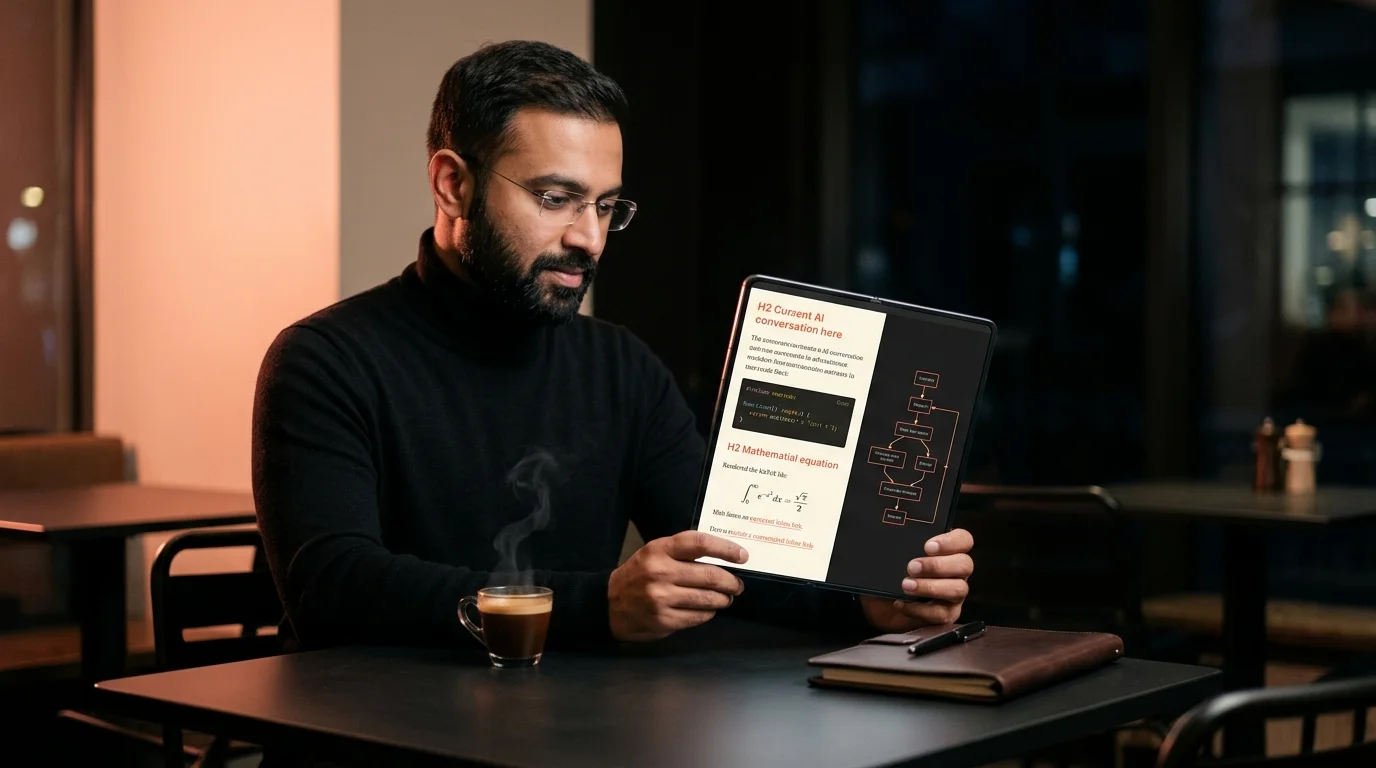
A folded phone is a phone. An unfolded phone is a small tablet with a hinge. That gap is where long AI answers finally feel readable on the go, and it is also where most reading apps still fumble the layout. If you own a Galaxy Z Fold, a Pixel Fold, a OnePlus Open, or a Honor Magic V, you already have some of the best reading hardware in your pocket. You need software that respects the inner screen, and a few habits that make use of the extra space instead of stretching a phone layout across it.
This guide covers how to read long ChatGPT, Claude, and Gemini threads on a foldable in a way that sticks. It walks through the layout tricks, the reader settings, and the split screen workflows that turn a 7 inch inner display into a proper reading device. By the end you will know how to set up a foldable for a full commute of deep reading without eye strain, dropped code blocks, or a scroll that never ends. None of the steps below assume a specific carrier build or a rooted phone, so the workflow travels with you across upgrades.
Why Foldables Beat Regular Phones for AI Reading
A standard phone screen forces long AI answers into a narrow column that scrolls forever. A 2,000 word Claude response becomes a thumb workout, and code blocks wrap into unreadable shards halfway down the page. On a foldable inner display, the same answer fits in a third of the scroll length, and fenced code blocks keep their shape. That alone changes how much of the answer you finish reading in one sitting.
The second win is posture. A folded phone lives in one hand for triage and short glances. An unfolded phone sits on a table or a knee like a tiny book, which is the posture you want for a 15 minute deep read. Most people already do this instinctively with novels on Kindle, and long AI answers deserve the same treatment. A foldable is the only device that gives you both modes without a second gadget in your bag.
The third win is the outer screen. You can pin an AI conversation to the cover display for glanceable rereading, which is useful on a bus or in a queue at the pharmacy. That is a workflow no regular phone supports without an awkward always on widget. It maps neatly onto the reread habit covered in our post on saving AI conversations to reread later, and it turns dead time into review time.
The Layout Problem Most Apps Get Wrong
Foldables expose a specific bug in web and app design. Layouts written for a 6 inch phone stretch their measure to the full 7.6 inch inner screen, and suddenly you are reading 120 character lines. That is roughly double the comfortable reading measure of 60 to 75 characters, which is why long AI answers feel exhausting in Chrome on a Fold. Text width is a typographic control, not a screen filling exercise, and most apps quietly get this wrong.
The fix is a fluid measure that caps line length regardless of screen width. A good AI reader sets a max width of around 68 characters, centers the column, and leaves the rest of the inner screen for margins or a second pane. This is not a foldable quirk, it is basic typographic hygiene, and you can read more about the reasoning in our post on why AI markdown deserves better typography. Once you notice the problem, you cannot unsee it in every default browser render on the inner screen.
Prism MD applies this by default, and on a Fold that means the reading column stays comfortable while the extra space renders your table of contents, section outline, or a second document side by side. It is closer to reading a physical page than a phone screen. That single design choice does more for foldable reading than any hardware upgrade the vendors have shipped in the last two generations. The savings compound on any thread longer than about 800 words, which is where phone layouts start to punish the reader.
Setting Up Your Foldable for Long AI Threads
Before you open a reader app, do three quick things at the system level. First, set the inner display font size one step above default, since foldables ship with dense defaults that assume a phone posture. Second, turn on the taskbar so you can pin a browser or reader alongside your notes app for split screen work. Third, disable auto rotate when you settle in to read, since foldables misread posture more often than phones and will flip mid paragraph.
Then choose your reader. The right pick depends on where your AI exports already live and how much you care about rendered math or diagrams. If your AI content is mostly plain prose, any browser will do. If it contains code, math, or Mermaid, you want a reader that renders all three inline without a plugin ritual. Any of these will work, in rough order of quality for AI content:
- Prism MD on the web, which respects the fluid measure and renders KaTeX and Mermaid inline
- A dedicated markdown reader like Obsidian, if you already keep AI exports in a vault
- Firefox with reader mode as a fallback, since it enforces a measure that Chrome does not
For heavy code readers, the split screen trick is the real payoff. Put your AI answer on the left half of the inner screen and your terminal, IDE, or documentation on the right. This is the closest a phone gets to a desk setup, and it maps well to the workflow covered in our guide on reading AI coding agent transcripts. Once you have this configured once, Android remembers the pair and you can relaunch it from the taskbar with two taps.
Handling Code, Math, and Diagrams
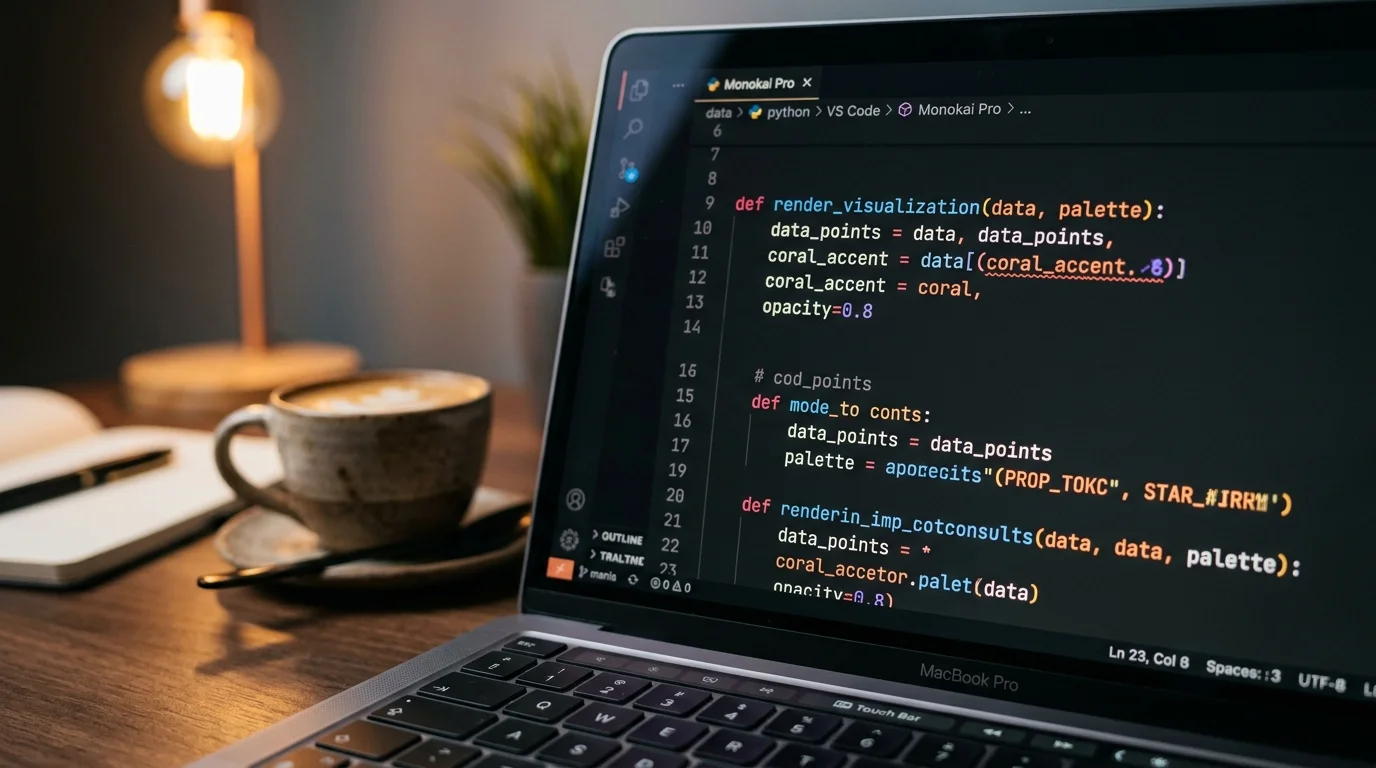
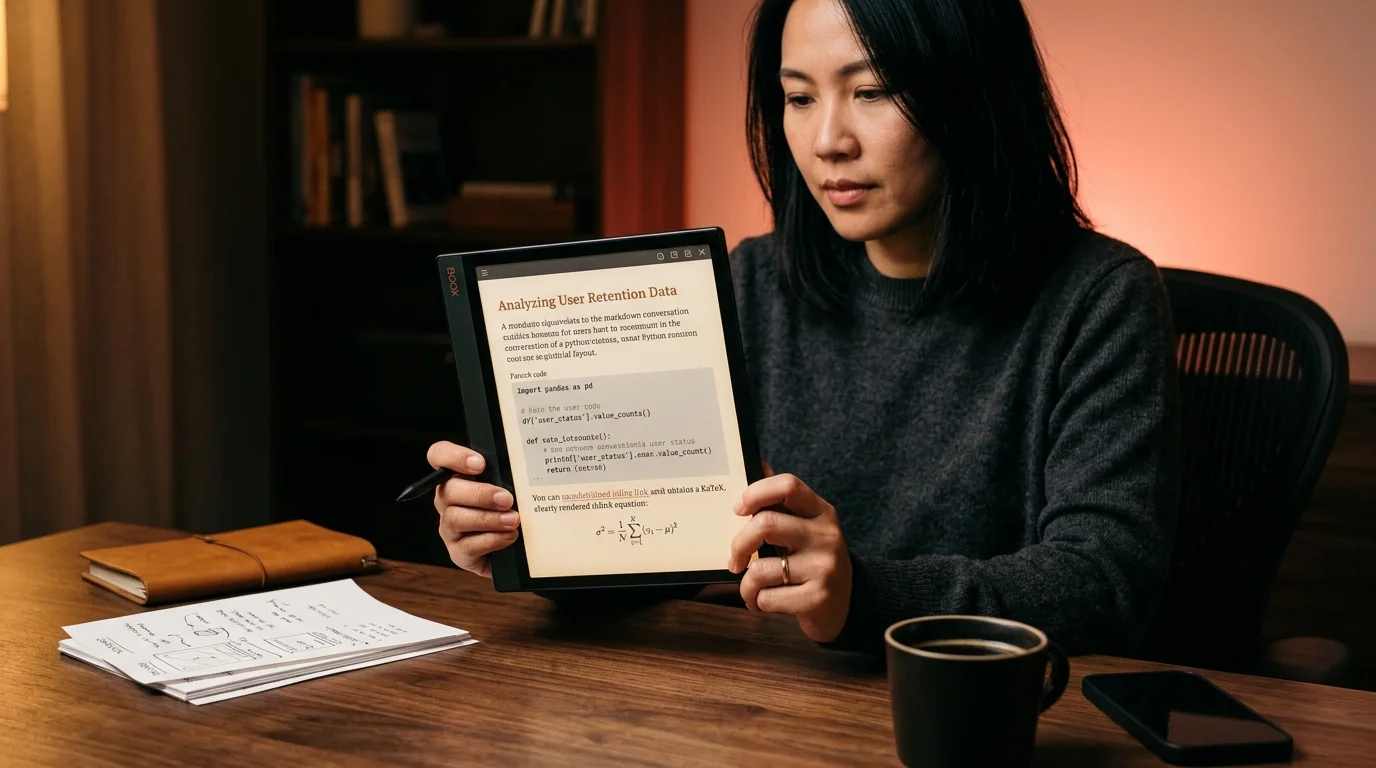
Code blocks in long AI answers are the most common thing foldable browsers get wrong. Horizontal scroll bars go missing, syntax highlighting drops on refresh, and long lines wrap in the middle of variable names. A reader that renders fenced code with proper monospace fonts and a real horizontal scroll fixes this in one step. If the answer contains math, a KaTeX aware reader saves you from squinting at raw LaTeX, and a Mermaid aware reader turns ASCII flow charts into diagrams you can zoom.
The inner screen has enough real estate that these renders finally look correct at full size. A Mermaid flow diagram on a regular phone is a blurry postage stamp that you screenshot and open in a gallery app to read. On a Fold it is a legitimate architecture sketch, and you can screenshot it straight into a design doc without any zoom dance. That difference alone makes the inner screen worth using for any technical AI thread longer than a few hundred words.
Battery, Heat, and Long Sessions
Foldables run hotter than regular phones when the inner screen is on for long stretches, and heat throttling will dim the panel mid session if you are not careful. Two settings help most. Drop the refresh rate to 60Hz for pure reading sessions, since scrolling through text does not need 120Hz and the battery gain is meaningful. Turn on dark mode with a warm reading theme, which most modern AI readers offer, and which is easier on both battery and eyes. If you plan a full commute of reading, keep the phone half folded so only the outer screen is active until you settle in.
FAQ
Does Prism MD have a native Android app for foldables? Not yet, and there is no ship date on the roadmap. The web app is a progressive web app, which means you can add it to your home screen and it will open full screen on the inner display without any browser chrome. That covers most of what a native app would offer for a reading tool, and it sidesteps the Play Store review lag entirely. A native shell may come later if the demand shows up in the analytics, but the PWA is close enough that most users never miss it.
Do foldables help if I only read short AI answers? Not much, and the honest answer is that you will feel silly using the inner screen for a two paragraph response. The gains show up above roughly 800 words per answer, and they compound on threads that mix code, math, and diagrams. If your AI use is short one liners and quick lookups, a normal phone is fine and a foldable is overkill for the reading side of the workflow. Save the inner screen for deep research, long transcripts, and anything with rendered diagrams.
Which foldable is best for reading in 2026? The Galaxy Z Fold 7 and the OnePlus Open 2 are the current picks for reading, thanks to brighter inner panels and shallower crease geometry. The Pixel Fold 2 has the cleanest software but a slightly duller screen, so pick it only if you value the Pixel software experience over raw brightness. The Honor Magic V4 is the wildcard, with the best crease geometry of the lot but a spotty Google services story outside China. All four handle Prism MD in the browser without any special setup.
Can I sync my reading position across a foldable and a laptop? Yes, if your reader stores state server side. Prism MD does this by default once you sign in, so you can start a long answer on your desk and finish it on the bus without hunting for your place in the thread. Sync also carries your notes, highlights, and reread queue across devices, which is the piece that makes the outer screen glance workflow worth setting up. If your reader only stores state locally, a foldable is still useful but the cross device story falls apart.
Read your longest AI threads without a scroll marathon
Free to start — no credit card.
Related reading

Ready to read your own AI documents?
Open ChatGPT, Claude, Gemini, or any markdown file in the reader built for the way models write.
- ✓Renders code, math & Mermaid out of the box
- ✓Works offline once you've opened a doc
- ✓Free forever for personal reading