
How to Read AI Conversations on a reMarkable Tablet
A reMarkable is the right screen for a 40-minute Claude or ChatGPT answer, but the export, render, and sync route is not obvious. Here is the one that works.
A reMarkable tablet is the only screen most people own that treats reading as the whole job. No notifications, no tabs, no inbox bleeding in from the side. That is exactly the surface a long Claude or ChatGPT answer needs. The problem is that the path from an AI chat window to a clean document on the slate is not obvious, and the obvious paths waste the device. This post walks the route that works in practice, end to end, for a reMarkable 2 or a Paper Pro.
Why a reMarkable is the right shape for a long AI answer
A serious Claude or ChatGPT reply is rarely one screen of prose. It is twelve to forty minutes of mixed paragraphs, code blocks, tables, and the occasional KaTeX line. On a laptop you read three paragraphs and then your hand moves to a tab. On a phone the lines wrap into a column so narrow that the code blocks scroll sideways and the comparison tables collapse into nonsense. A reMarkable removes both failures at once. The page is roughly A5, the contrast is paperlike, and the device has no second app to drift into.
It also fixes a quieter problem. Long AI answers are often the place you do your real thinking, and thinking benefits from a pen. Marginalia next to a paragraph is a different act than highlighting on a laptop. The pen invites you to argue back, to draw an arrow between two paragraphs that contradict, to circle a function name you keep forgetting. If you have already worked out a reading habit for long Claude threads or a deep research routine, moving the reading step to a slate is the cheapest upgrade you can make to it.
The export step the chat apps do not advertise
The reason most people give up on this workflow is the export step. ChatGPT, Claude, and Gemini all hide it, and the visible Share buttons produce links, not files. What you need is the raw markdown of the answer or thread, saved as a .md file on your laptop. The route depends on the source, and the first export takes the longest because you are also learning where the buttons live.
For Claude, open the conversation, use the menu next to the title, and pick the export option that returns a markdown file. For ChatGPT, the Settings panel under Data Controls has a full export that arrives by email as a zip of HTML and JSON. The HTML reads cleanly enough on its own, but if you want markdown, paste the answer body into a plain text file with the .md extension. For Gemini, the share link can be opened and the answer copied as markdown into a new file. None of this takes more than two minutes once you have done it once. The full mechanics for each source are covered in the per-tool guides for ChatGPT exports and Gemini exports.
Rendering the markdown before it touches the tablet
A reMarkable will happily open a PDF, but it will not render a raw .md file the way a markdown reader does. Code fences come through as triple backticks and KaTeX comes through as raw dollar signs. So the rendering step has to happen first, on the laptop, and the output has to be a PDF that already looks the way you want to read it on the slate. Skipping this step is the single most common reason the device ends up in a drawer.
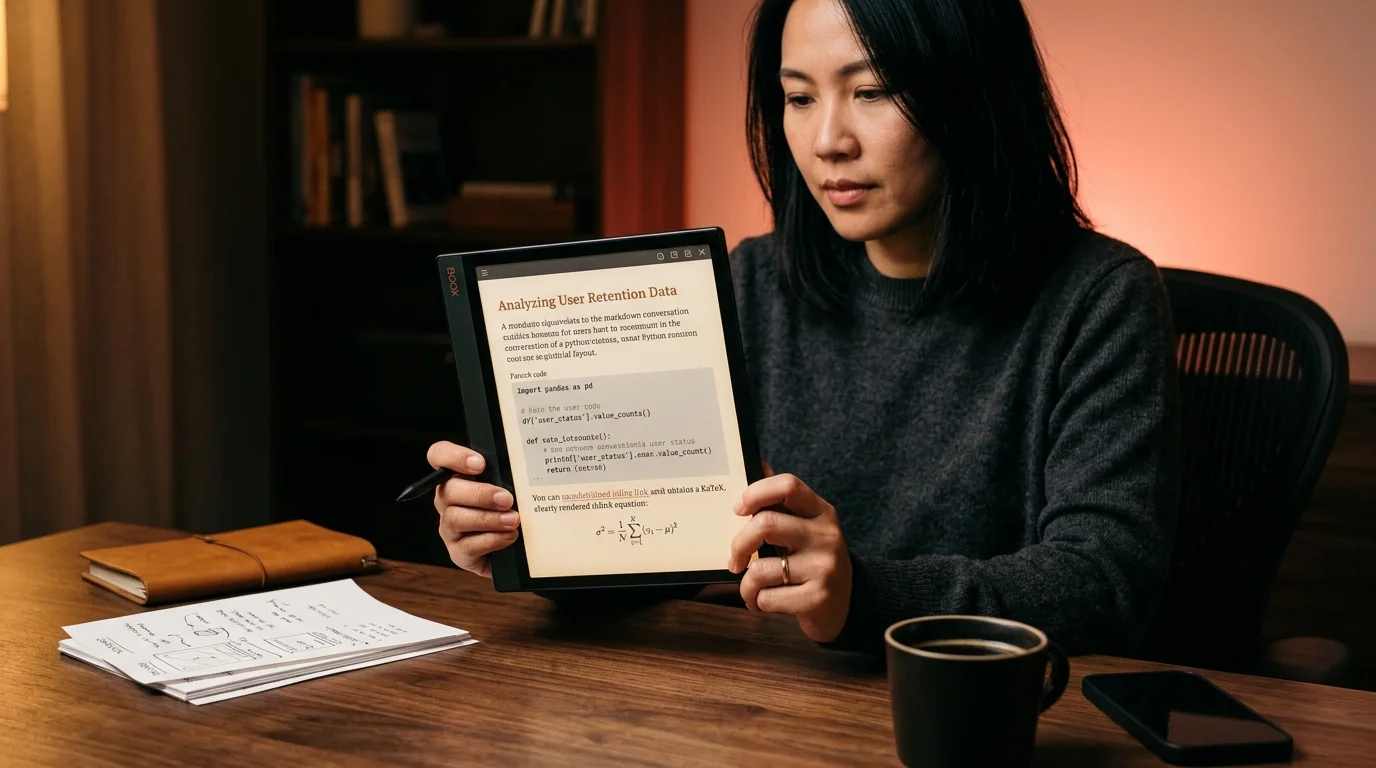
This is the step Prism MD is built for. Drop the .md file into the reader, the document opens with rendered code blocks, real KaTeX math, and a sticky table of contents. From there you print to PDF using the browser print dialog with the Prism MD reader theme already applied, and you get a paper-shaped document with serif body, monospace code, and equations that survived the trip. A few notes that pay off:
- Set the print size to A5 or close to it before you save the PDF, so the reMarkable is not zooming around a Letter sheet.
- Turn on background graphics in the print dialog so the code block tint survives.
- Keep the file name short. The reMarkable home screen truncates aggressively.
Getting the PDF onto the reMarkable
There are four routes onto the device and only two of them are worth using daily. The reMarkable desktop app is the most reliable: drop the PDF into the My Files pane and it syncs over WiFi within seconds. The reMarkable mobile app does the same job from a phone if the PDF lives in iCloud Drive or Google Drive. The Read on reMarkable browser extension and the email-to-device address both work, but the extension was built for clean web articles and the email path is slow.
Once the file is on the device, the marker is the point. A long Claude conversation about a refactor wants a star in the margin next to the diff you are going to apply, a question mark next to the claim you are unsure about, and a circle around the function name you keep forgetting. The reMarkable handles all three without taking your attention away from the page. If the document came from a comparison flow like the one in reading three AI answers side by side, the marker is also the cheapest way to mark which model got which part right.
When the slate is the wrong device
A reMarkable is not the right screen for every AI conversation. Threads where you want to copy code into a terminal belong on the laptop, because the slate has no clipboard you can pipe into iTerm. Threads where someone else is going to respond inline belong in a real document with comments. Threads under a thousand words rarely justify the export and print round trip at all. The slate earns its place when the answer is long enough that you would otherwise lose the thread, structured enough that a table of contents helps, and quiet enough that you want to read it the way you would read a printed essay. That is the shape of the work that pays the device back.
FAQ
Will code blocks be readable on a reMarkable 2? Yes, if you render the markdown first and print to PDF at A5. The default monospace font in a Prism MD theme stays legible down to about 9 point on the reMarkable 2 screen. Wider blocks still need to be re-wrapped at the source, since the slate will not horizontally scroll a PDF page. If your answers run heavy on 120-column code, the Paper Pro screen is a kinder fit.
Does KaTeX math survive the print to PDF? Yes. KaTeX renders to HTML and SVG that the print dialog rasterizes cleanly, so you see the equations on the slate exactly as they appeared on screen. The one caveat is inline math inside a heading: some themes shrink it past the point of legibility. Bump the heading size up a notch in the print theme and the problem goes away.
Can I sync my annotations back to the laptop? The reMarkable desktop app exports annotated PDFs with a single click, and the marks are preserved as a vector layer on top of the original page. Open that PDF on the laptop and the marginalia is right there next to the prose that prompted it. For threads you want to keep, archive the annotated PDF alongside the original .md file so future-you can see both the source and your reaction in one folder. This is also the easiest way to share a marked-up answer with a teammate without forcing them onto your device.
Is the reMarkable Paper Pro worth it for this workflow? For AI reading specifically, the larger screen on the Paper Pro is a meaningful upgrade because comparison tables and wide code blocks stop wrapping at the margins. The color layer is a nice bonus for syntax-highlighted code, though the contrast is still gentler than a laptop screen. If you mostly read prose answers and short code samples, the reMarkable 2 is enough, and the smaller form factor is friendlier in a bag. Either device is a better reading surface than a laptop for a forty-minute answer.
Render your AI conversations cleanly before they hit your slate
Free to start — no credit card.
Related reading


Ready to read your own AI documents?
Open ChatGPT, Claude, Gemini, or any markdown file in the reader built for the way models write.
- ✓Renders code, math & Mermaid out of the box
- ✓Works offline once you've opened a doc
- ✓Free forever for personal reading