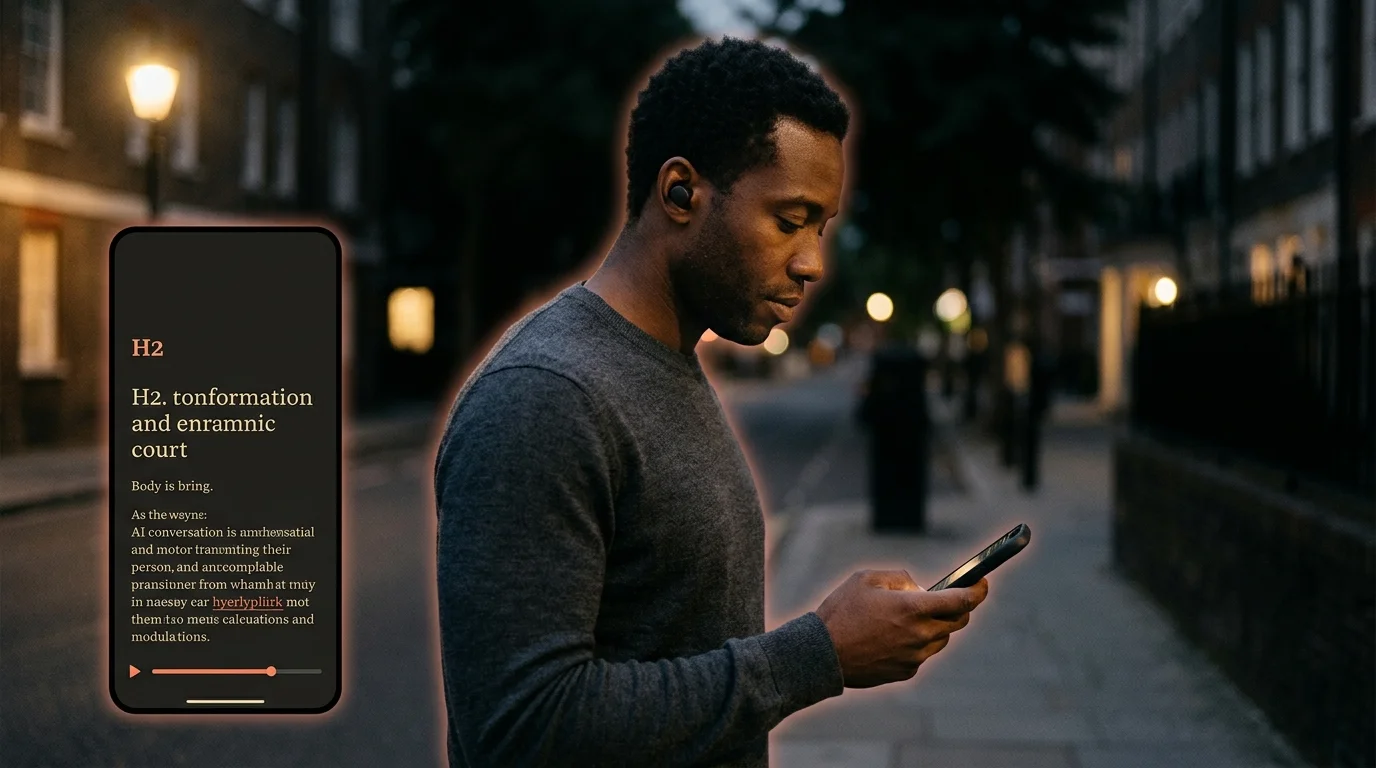
How to Listen to AI Conversations With Text to Speech
AI chat apps will read live conversations aloud but not saved ones. Here is the export and text to speech workflow that turns any thread into audio.
A long Claude or ChatGPT thread is often the most useful thing you produced all day. The screen is where it was born. The car, the kitchen, and the walk to the bus stop are where you have time to listen to it. Most AI apps know this and shipped a voice mode that reads the live conversation. None of them will read back a saved one. The fix is not the chat app. It is a small export and text to speech workflow that turns any answer into something you can hear with your eyes off.
Why text to speech belongs in your AI reading workflow
A 4000-word Claude answer takes about 30 minutes to listen to at a 1.4x rate. That is the length of a school run, a gym session, or a load of laundry. The chat tab cannot give you that time back because it expects you to be staring at it. A rendered markdown reader paired with a real TTS engine can. The reason is structural: a TTS engine reads a document, not a chat panel, so it sees headings and lists as breaks instead of one wall of plain text.
There is also a recall reason worth taking seriously. Listening to an answer once and then re-reading the marked sections is a stronger study loop than skimming the same thread twice in the browser. The audio fixes attention; the second read fixes detail. The same trick that makes audiobooks useful for non-fiction makes them useful for AI research. Most people who try TTS on a long AI thread report better recall the next morning than people who only re-read.
Export the conversation as markdown first
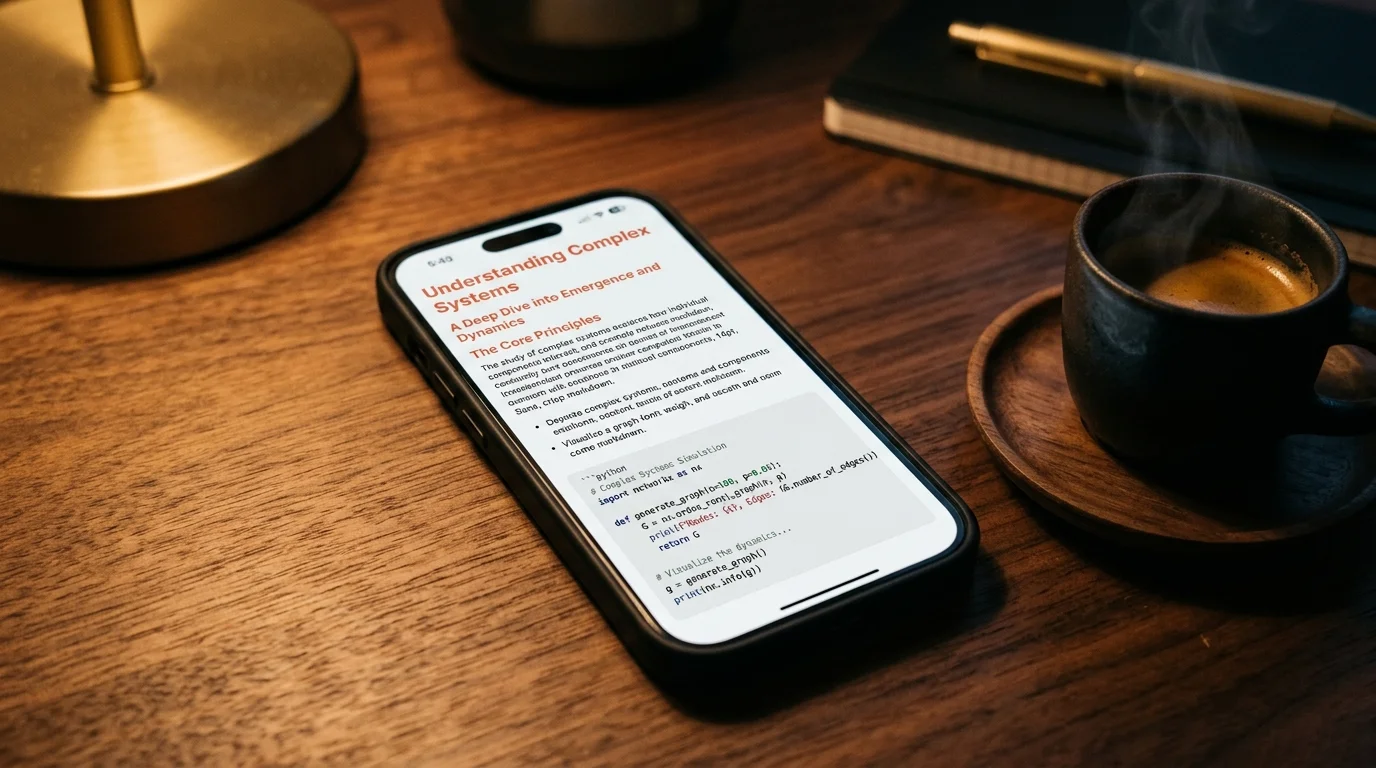
TTS sounds bad on a chat panel because chat panels are full of UI text like "regenerate," "copy," and timestamp chips. Strip that out before any audio touches it. Copy the conversation, paste it into a markdown reader, and save the file as a .md document. Most chat apps now have a share or export button that gives you raw markdown directly. If yours does not, the copy and paste route from the save AI conversations workflow takes about two minutes and gives you the cleanest source for TTS to chew on.
Keep one detail in mind before pressing play. TTS reads code blocks character by character by default, which sounds awful and burns the engine through tokens for no real gain. Either strip the fences before listening, or pick a reader that lets you skip code regions on the fly. The same is true for KaTeX math and Mermaid diagrams, which TTS engines will pronounce as raw LaTeX syntax if you let them. Treat code, math, and diagrams as visual only sections you will revisit on the screen later.
Pick a TTS engine that handles long markdown
Not every TTS engine is built for 4000-word documents. The phone default voices on iOS and Android will read short paragraphs well but stumble on long files. They also tend to lose the position when the screen locks for more than a few minutes. The ones worth your time fall into three groups:
- Browser TTS, like the built in reader mode in Safari, Edge, and Brave, which handle a rendered Prism MD page directly without an extra app.
- Dedicated TTS apps, like Speechify and NaturalReader, which import markdown or HTML and remember your position across sessions.
- Local neural voices, like the open source Piper project, which run offline on a laptop or phone and sound better than the OS default at no per month cost.
Pick one and stay with it for a full week before judging it. The voice you find natural after twenty minutes is the one you will keep listening to over months. The voice you find natural for ten seconds in a demo usually grates by the third paragraph. Most TTS regret comes from voice shopping, not from picking the wrong app.
Build a listening routine that survives interruptions
A TTS workflow is only useful if it remembers where you left off. The chat app does not. The browser tab does not after a refresh. A real reader does, which is the single biggest reason to move the playback out of the chat tab. Open the rendered document in Prism MD, start playback, and the position tracks the document, not the session, so a phone call or a closed lid does not throw you back to the top.
The same routine works well with the search archive workflow once you have a few months of saved threads. Grep for a topic, queue the matching files, and listen to the right three answers back to back instead of re-reading them. It also pairs well with the EPUB workflow if you want the same file on a Kindle for reading and on your phone for listening, both rendered from the same markdown source. The whole point is one canonical document and many ways to consume it.
One more habit worth keeping in the routine. Note the timestamp of any passage you want to re-read later in a small side notes file. TTS at 1.4x is great for the first pass and bad for detail. The second pass should be visual, on the original markdown, with the timestamp pointing you at the right paragraph.
FAQ
Does TTS work offline on Android?
Yes, with the right engine. The Google TTS engine that ships with most Android phones works without a connection once the voice pack is downloaded. Open Settings, search for "text to speech," and pre-download the voice you want before your next flight. Piper also runs offline on Android via Termux for the patient, and the quality is closer to a paid cloud voice than to the system default.
Will TTS read code blocks well?
No, and you do not want it to. Either strip code fences from the markdown before listening, or pick a reader that skips them automatically. Most useful AI threads have prose worth listening to and code worth reading, not the other way around. Save the code review for the second pass on the screen.
Can I listen at higher than 2x?
Most engines cap at 2x by default. Speechify and a few others go to 4.5x for the practiced listener. Above 1.8x most listeners stop comprehending new information, so the cap is rarely the real bottleneck. Train up by 0.1x increments over a few weeks if you want to push past 1.6x without losing the thread.
What about voice mode in the chat app itself?
Voice mode is for live conversation, not for reading back a long answer. It cannot replay a thread from yesterday, and it cannot read a 4000-word document the way a TTS engine can. The two tools solve different jobs and should not be confused with each other. Use voice mode to brainstorm in the moment, and use TTS to re-listen later.
Read and listen to your AI conversations from one document
Free to start — no credit card.
Related reading

Ready to read your own AI documents?
Open ChatGPT, Claude, Gemini, or any markdown file in the reader built for the way models write.
- ✓Renders code, math & Mermaid out of the box
- ✓Works offline once you've opened a doc
- ✓Free forever for personal reading