How to Read Kimi (Moonshot AI) Conversations as Real Documents
Export Kimi K2 chats from Moonshot's web app and read the long-context transcripts in a real markdown reader with CJK typography support.
Kimi is one of the sharpest LLMs coming out of China, and its long-context window makes it a favorite for researchers who feed it whole PDFs and expect coherent summaries back. The problem hits the moment you close the tab. Moonshot's web app keeps your conversations trapped in a sidebar, with no clean export, no offline mode, and formatting that flattens the second you copy anything into another tool. If you use Kimi for real work, you need a way to read those transcripts later without depending on a browser session. This guide covers how to pull Kimi conversations out of the web app, preserve the markdown and code blocks, and read them somewhere that treats long-form AI output with respect. The workflow is short, but the reader you land on matters more than the export step.
Why Kimi Transcripts Are Worth Saving
Kimi K2 handles reasoning chains that stretch across dozens of turns, and Moonshot's 200K token context means a single conversation can hold an entire research thread. That thread is often more valuable than the individual answers. You built up context, corrected the model, refined a prompt, and arrived at something useful. Losing that thread means starting the reasoning over from scratch the next time you need the same answer, which is a slow tax on every future question in the same domain.
Saved transcripts also matter for auditability. If Kimi helped you draft a technical spec or translate a legal clause, you want a record of exactly what the model said and how you responded. Screenshots break search. Copy-paste into a plain note strips the code fences and turns tables into gibberish. A proper markdown export is the only capture format that survives past a browser refresh and stays useful six months later.
Getting the Conversation Out of Moonshot
Kimi's web interface at kimi.moonshot.cn does not currently offer a native export button, which is frustrating but not fatal. The DOM is clean enough that a browser extension or a manual copy from the conversation panel will preserve most of the structure. Select the entire conversation, copy it, and paste it into a plain markdown file. Code blocks usually survive if you use a paste-as-markdown extension in Chrome or Arc, and the assistant turns keep their fenced blocks intact when the source uses triple backticks. For a fast one-off capture, this manual path is enough.
For heavier users, a small Tampermonkey script can iterate through the conversation nodes and dump them as clean markdown with role labels. The trick is to preserve the H3 dividers between user and assistant turns, otherwise long conversations become an unreadable wall of text with no way to tell who said what. Save each conversation as its own file, named with the date and topic, and drop it into a folder you sync with iCloud or Dropbox. If Kimi ever ships a real export API, this step becomes trivial. Until then, the manual capture is the tax you pay for using a chat product that treats history as ephemeral, and similar friction exists across most Chinese LLM products. The DeepSeek export workflow uses almost identical techniques and is worth reading if you use both models.
Reading the Transcript Somewhere That Respects It
Once you have the markdown file, the reader matters more than most people expect. Notes apps like Notion and Obsidian will render the text, but they impose their own opinions about typography, spacing, and code block styling that fight the shape of AI output. Kimi's answers tend to include long code blocks, nested lists, and occasionally KaTeX math for technical questions. You want a reader that renders all of that natively without forcing you into a specific note-taking philosophy or a plugin marketplace.
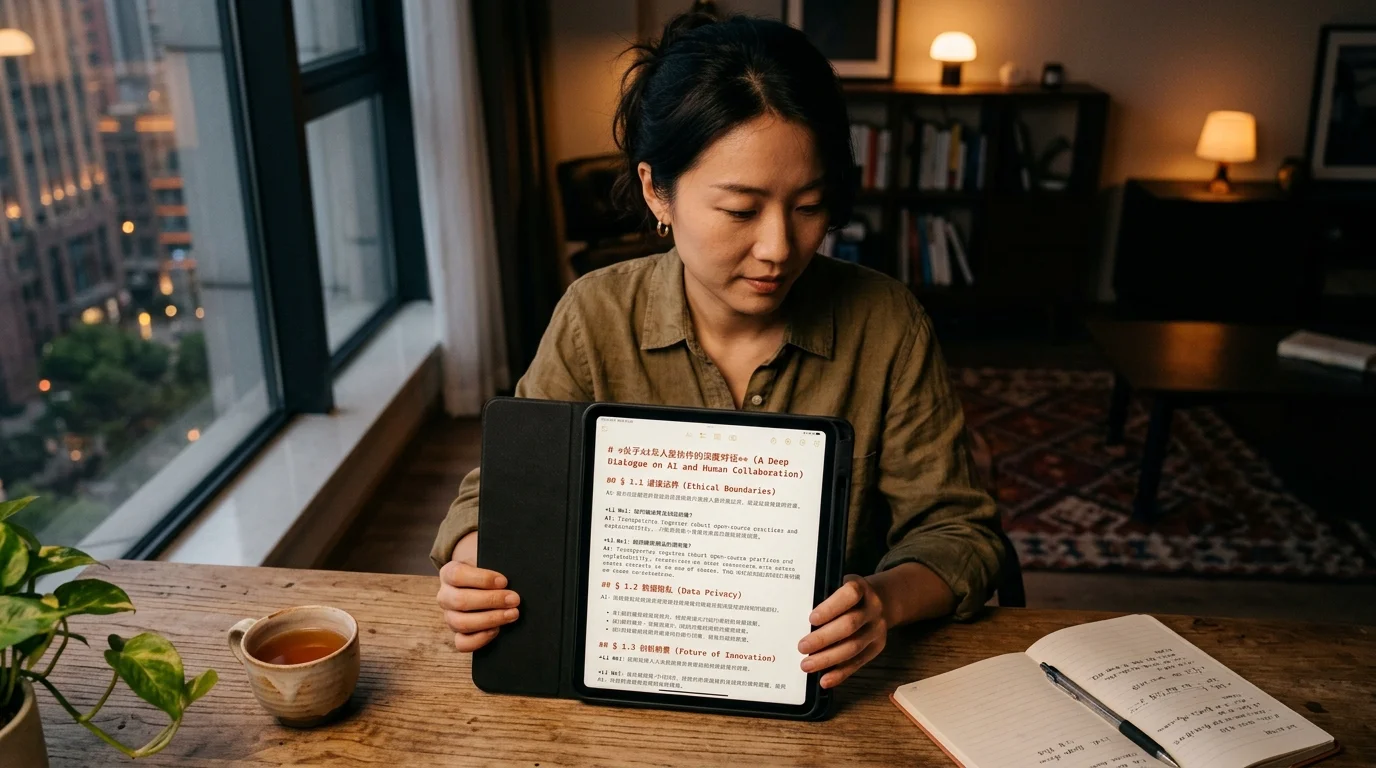
Prism MD was built for exactly this case. Drop the exported markdown file in, and the reader handles syntax highlighting, math rendering, Mermaid diagrams, and long-form typography the way a good editorial magazine would. The reading pane keeps line lengths comfortable, preserves your scroll position across sessions, and works offline once the file is cached. For anyone reading Chinese and English side by side in the same conversation, the font stack falls back gracefully so bilingual content stays legible without missing-glyph boxes.
Read your Kimi transcripts the way they were meant to be read
Free to start — no credit card.
Organizing a Growing Kimi Archive
The first month of saved conversations feels tidy. By month six, you have hundreds of files and no idea which one contains that specific answer about kernel scheduling or that translation of a supplier contract. Tagging pays off early, and a flat folder with descriptive filenames beats a nested hierarchy every time. Prefix each file with the date in ISO format so chronological sort matches temporal order, and keep the topic slug short enough to read at a glance in a file browser. A little discipline at capture time saves hours of grep later. A few patterns worth adopting from the start are listed below, and they compound quickly once your archive grows past a few dozen files.
- One conversation per file, named
YYYY-MM-DD-short-topic.md - Tag the frontmatter with the model version (
kimi-k2,kimi-1.5) so future you knows which context window the answer came from - Keep a running index file that links to the ten most useful conversations in each project
- Add a one-line summary at the top of each file so search snippets are meaningful
The same organizational thinking applies whether you are archiving Kimi, Gemini, or Claude output. The personal knowledge base guide covers the tagging patterns in more depth, and the multi-agent transcripts approach is useful once you start chaining Kimi with other tools in an agent workflow. Either way, the goal is that any conversation you saved once is findable in under thirty seconds without ripping through a dozen folders. Search plus good filenames beat a deep hierarchy for almost every use case.
Reading Long Kimi Sessions on Mobile
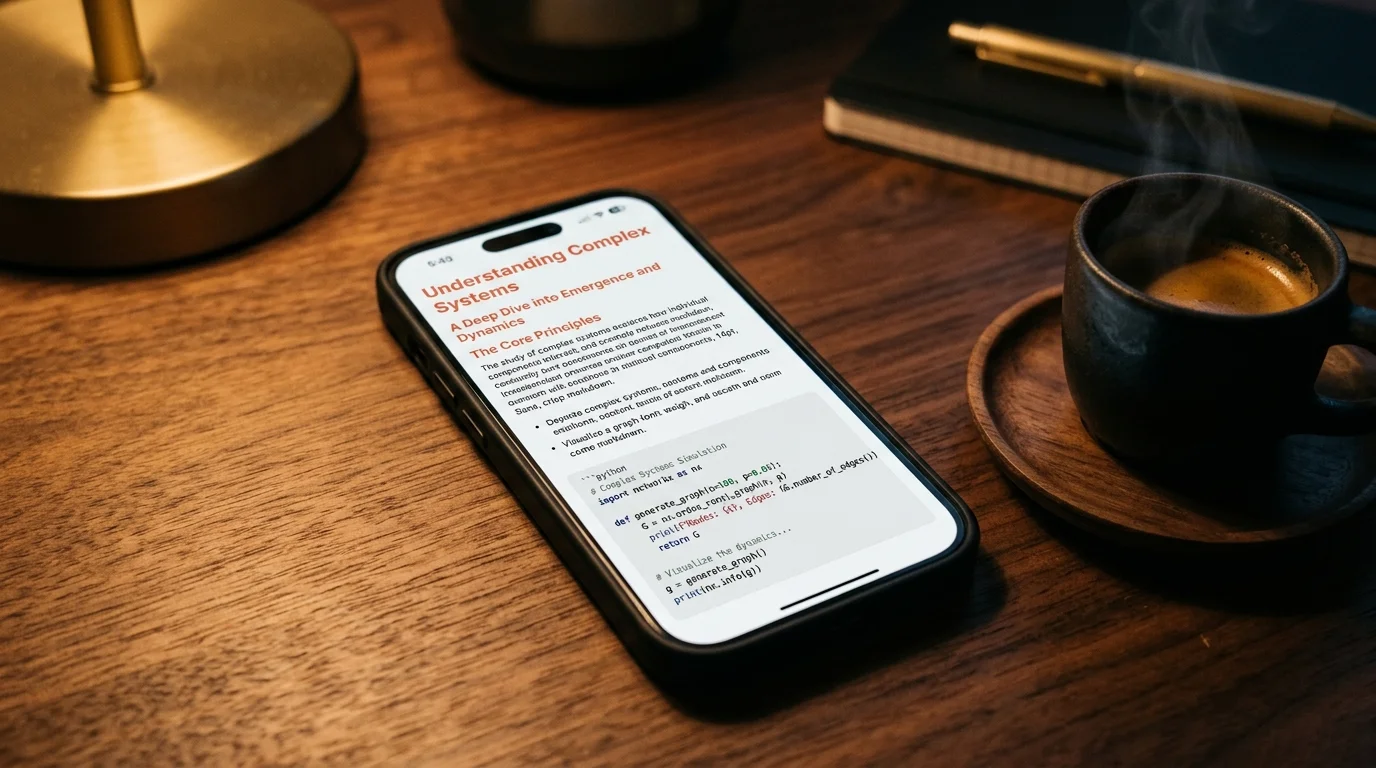
Kimi's 200K context means a single session can easily exceed ten thousand words, which is not comfortable reading in a web browser on a phone. Exporting the markdown and reading it in a dedicated reader changes the experience entirely. You get proper pagination, adjustable font sizes, and the ability to jump between sections without losing your scroll position when the browser tab reloads or the OS reclaims memory. On a long commute, that difference is the difference between finishing the research and giving up halfway through.
For extended research sessions, an EPUB conversion can be even better on an e-reader. The EPUB conversion guide walks through the workflow if you prefer reading on a Kindle or Boox device. For most people, a markdown reader with good typography is faster to set up and easier to keep in sync with the source files. Pick the format that matches where you already read the most, and let the reader do the work of making long AI output feel like something you want to sit with.
FAQ
Does Kimi have an official export feature? Not as of late 2026. Moonshot has not shipped a native export button in the web app or the mobile app, and the roadmap has not signaled one is coming soon. Manual copy-paste or a browser userscript remains the only reliable capture path today. Watch the Moonshot changelog if you want to know the moment this changes, because an API-based export would simplify the entire workflow described above.
Will Chinese characters render correctly in a markdown reader? Yes, provided the reader uses a font stack that includes a CJK fallback. Prism MD ships with Noto Sans SC and Noto Serif SC baked in, so mixed Chinese and English content renders cleanly without missing glyph boxes. If you use a different reader, check that it loads a CJK font before you commit to it. The fallback experience on most Western-focused readers is poor and hard to fix after the fact, so testing early is worth the ten seconds it takes.
Can I preserve Kimi's citation links from web-search answers? Yes, if you copy the conversation as HTML first and convert to markdown with a tool like Pandoc, the citation anchors survive the round trip. A plain text copy strips them, so pick your capture method based on whether citations matter to your use case. For research work where source-tracing is the whole point, the extra step of an HTML capture is worth the friction. For casual questions where you want the answer alone, a plain copy is fine and faster.
How does this compare to reading Claude or ChatGPT transcripts? The workflow is nearly identical once you have the markdown file. The Claude conversations reader and the ChatGPT export guides cover the same ground with different capture steps at the front. Reader choice, tagging discipline, and file naming carry over between all of them, so any habit you build for Kimi transfers straight to the other models you use. That portability is the real win of keeping everything in plain markdown instead of a proprietary chat archive.
Stop losing your best AI research to a closed browser tab
Free to start — no credit card.
Related reading


Ready to read your own AI documents?
Open ChatGPT, Claude, Gemini, or any markdown file in the reader built for the way models write.
- ✓Renders code, math & Mermaid out of the box
- ✓Works offline once you've opened a doc
- ✓Free forever for personal reading