
How to Save and Read Perplexity Answers as Real Documents
Perplexity answers vanish the moment you close the tab. Here is a two-minute export workflow and reader setup that keeps every citation trail intact.
Perplexity is the AI tool people quote most and save least. The answers are dense, full of citations, and built for a single quick read inside the browser. Then the tab closes and the citation trail goes with it. If you use Perplexity for serious research, you need a way to pull those answers out and read them as proper documents, not as one-off chat bubbles. The workflow below takes about two minutes to set up and saves every good answer in a form you can re-read, share, and search later.
Why Perplexity Answers Are Hard to Keep
A Perplexity answer is not one message. It is a short prose summary, a list of numbered citations, a follow-up question carousel, and sometimes a generated table or chart. The chat interface flattens all of that into a scroll. The moment you ask a follow-up, the previous answer slides up and the citation numbers reset for the new context. You can copy the text, but you lose the link structure that made the answer trustworthy in the first place. That is the part most people give up on, and it is the part worth fixing.
The other issue is format. Perplexity renders markdown internally but exports plain prose with bracketed numbers like [1] and [2]. Paste that into Notes or Slack and the references become dead text. The answer reads like a Wikipedia stub written by someone who forgot to attach the footnotes. A proper reader keeps the markdown intact, renders the inline links as real links, and lets the citation list sit at the bottom of the document where it belongs. That is the same problem we covered for Gemini exports in How to Export and Read Google Gemini Conversations, and the fix has the same shape.
The Two-Minute Export Workflow
Perplexity has a share button on every answer, tucked into the three-dot menu next to the answer header. Tap it and you get three options. Ignore the PDF export, because PDFs kill the ability to copy citations cleanly and the file size balloons fast on long answers. The option you want is plain text copy, which gives you the answer body plus the citation list, in markdown, with the links preserved as proper inline references. Here is the order I follow every time:
- Tap the three-dot menu on the answer header
- Choose "Copy text" from the share sheet
- Paste into a new
.mdfile in your editor - Rename the file to something descriptive before saving
- Drop it into a single
research/folder versioned with git or Dropbox
A title like perplexity-q4-shipping-rates.md is worth ten files called untitled-3. Most "I will read it later" libraries fail because the naming is lazy on day one. Spend the five seconds to name the file properly and your future self will find the answer again in six months. If you run a lot of research in one sitting, group the files into subfolders by project so the folder tree mirrors how you think about the work. The folder structure is the index, and the filename is the title card.
Render It So It Reads Like a Report
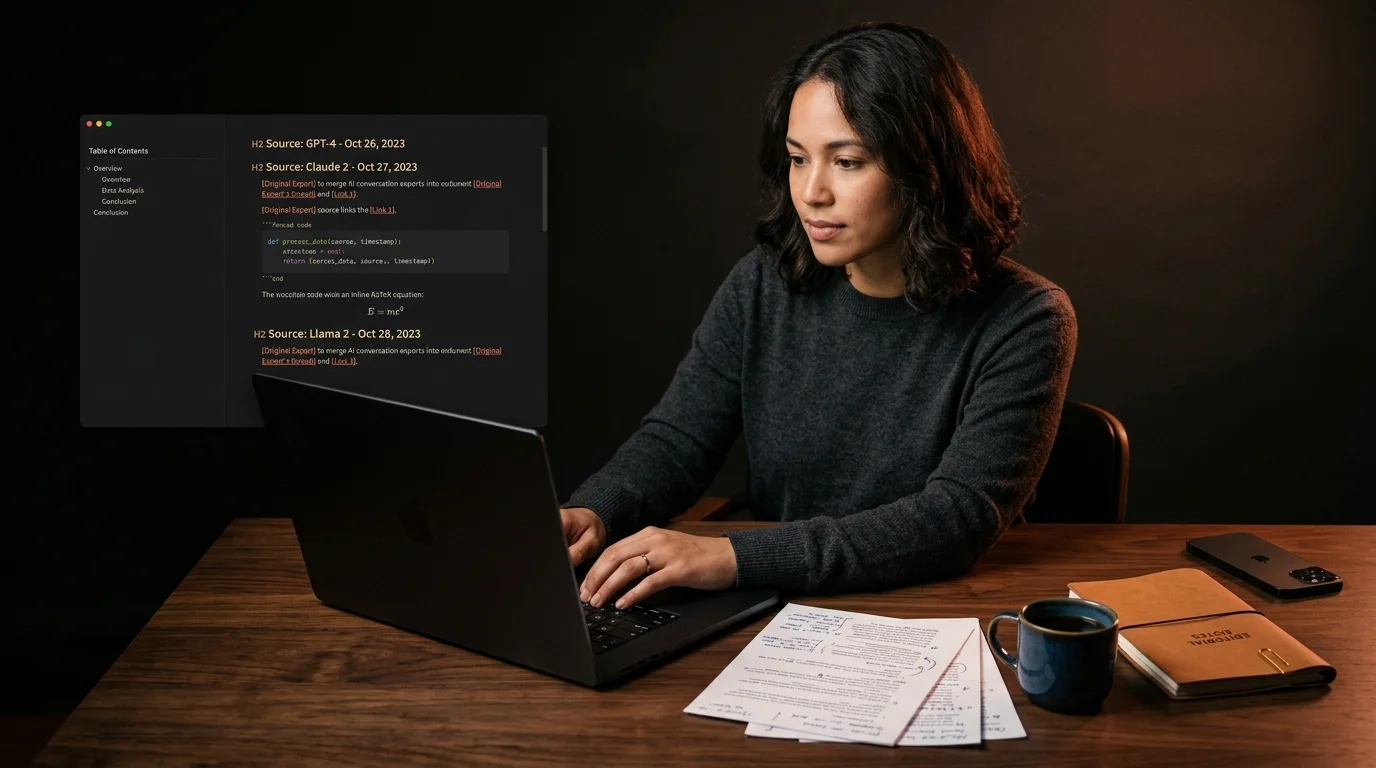
Raw markdown is not the goal. Markdown is the storage format. What you want is a rendered document, with the inline citations clickable, the headings styled properly, any code or math rendered, and the citation list at the bottom formatted as a numbered reference section. That is what a proper markdown reader does, and it is the entire reason Prism MD treats AI output as its own typography problem. Generic markdown editors built for software docs do not handle the Perplexity shape well. They render fine, but the typography is tuned for README files, not for long-form answers with twenty citations.
A good reader gives you three things for a Perplexity export. Inline numbered citations that scroll-jump to the reference list. Real link previews on hover for the source URLs, so you can verify a citation without breaking your read. And readable line length, around 65 to 75 characters, so the prose paragraphs do not stretch across the full width of your monitor. The same setup that works for reading ChatGPT exports as documents works here, with the citation handling as the one Perplexity-specific extra you need.
When Perplexity Beats ChatGPT and Claude
Worth being honest about where Perplexity earns its place in this stack. For anything where you need a current-events answer with sources, Perplexity is the fastest tool on the market right now. It searches the web in real time and gives you the citation trail in the answer, which means you can verify before you trust. ChatGPT and Claude both have web search, but neither presents the source trail as cleanly. If you are doing market research, competitive analysis, or any "what do people currently think about X" question, Perplexity is the right tool for the first pass.
The trade-off is depth. Perplexity tends to give you a strong summary and stop there. Claude will think through a question in more detail, and ChatGPT will write longer prose. For analytical or creative work, those are usually the better tools. The realistic workflow is to use Perplexity for the source-heavy research pass, then take the citations into Claude or ChatGPT for the deeper synthesis. Save both outputs as markdown, render them in the same reader, and you have a research trail you can defend later. The shared-team workflow we wrote about applies here too, especially when more than one person needs to verify the citations.
FAQ
Does Perplexity have a built-in export to markdown?
Not as a single button, no. The "Copy text" option in the share menu gives you markdown with citations intact, which is the closest equivalent. Paste it into a .md file and you have a clean export. The same applies to the mobile app, where the share sheet routes through your system clipboard. If you use Perplexity Pro, the Collections feature stores answers inside Perplexity itself, but it does not export them as files.
What happens to images and generated charts? Perplexity's generated images and chart blocks do not come through in the text copy. If a chart is critical to the answer, take a screenshot and store it alongside the markdown file in the same folder. Reference the image in the markdown with a standard image link so the reader picks it up automatically. For complex charts, copying the underlying data table separately is often more useful than the rendered image. Charts go out of date faster than the data behind them.
Can I save the follow-up questions and the full thread? The suggested follow-ups do not export with the answer text. If a follow-up is useful, ask it and then copy that answer as a separate file. Two saved files beat one file with half the context, and you keep the citation list tied to the question it belongs to. For long research threads, prefix the filenames with a number so the order stays obvious when sorted alphabetically. That small habit keeps a ten-question thread legible months later.
Does this work for Perplexity Pro Deep Research outputs?
Yes, and it matters more for those. Deep Research outputs run longer and carry more citations, which is exactly where a rendered reader pays off versus reading inside the Perplexity tab. The export flow is identical: share menu, copy text, paste into a .md file. The only difference worth flagging is that Deep Research answers sometimes include nested sub-sections, so the heading hierarchy in your reader matters more. A reader that respects H2 and H3 distinctly will make those answers far easier to skim.
Read your Perplexity research the way it was meant to look
Free to start — no credit card.
Related reading


Ready to read your own AI documents?
Open ChatGPT, Claude, Gemini, or any markdown file in the reader built for the way models write.
- ✓Renders code, math & Mermaid out of the box
- ✓Works offline once you've opened a doc
- ✓Free forever for personal reading