
How to Read ChatGPT Voice Mode Transcripts as Real Documents
Pull your ChatGPT Voice Mode conversations out of the mobile app, clean them up, and read them in a markdown reader built for long-form AI output.
Voice Mode changed how people talk to ChatGPT. It also broke the way most of us used to save what we said. A typed prompt lives forever in your history. A spoken one drifts off as soon as the session ends, and the transcript that ChatGPT keeps is buried inside the mobile app in a format that was never meant for reading. If you use Voice Mode for brainstorming, therapy-style journaling, or long walks with your headphones in, that friction adds up fast.
This guide walks through how to pull those spoken conversations out of ChatGPT, get them into clean markdown, and then read them somewhere that respects the fact they were once a real conversation. The point is not to fetishize the export process. It is to make sure the ideas you had at 7am on a run do not vanish by the time you sit down at your desk. Most of the steps take under ten minutes once you have done them once.
Why Voice Mode Transcripts Deserve Better
Spoken thinking has a different shape than typed thinking. Sentences run longer. Tangents happen mid-thought. You circle back to a point three times before landing it. When ChatGPT renders that transcript inside its own mobile app, it uses the same cramped bubble format it uses for typed chats, which flattens everything into short exchanges that feel wrong for the source material. Reading a two-hour walk-and-talk that way is a chore.
The transcripts also contain useful metadata that the default view hides. Timestamps show you when a thought landed. Pauses hint at where you were still working something out. Voice Mode sessions often include follow-ups you asked while distracted, and those follow-ups are frequently the most interesting part of the whole conversation. A proper reader surfaces that structure instead of hiding it. It also gives you a place to add your own notes later.
There is also a practical archive question. OpenAI has changed how history works more than once. Anyone who lost a stretch of chat history in one of those transitions learned the lesson: if you care about it, get it out of the vendor and into a format you own. Markdown is that format. It reads well now, and it will still read well in ten years. No proprietary reader required.
Getting the Transcript Out of ChatGPT
The good news is that Voice Mode conversations show up in your regular chat history on the web app at chat.openai.com. Open the conversation, and each spoken exchange appears as a normal user or assistant message. The bad news is there is no one-click export for a single conversation, so you have two reasonable paths. Both work fine, they optimize for different things. Pick the one that matches how often you plan to do this.
The first path is the official data export. Go to Settings, Data controls, Export data. OpenAI emails you a zip file within a few hours. Inside, conversations.json contains every chat, including Voice Mode ones, as structured JSON. The second path is faster if you only want one conversation: install a browser extension like the open-source ChatGPT Exporter, open the specific Voice Mode conversation, and export it as markdown directly. Both approaches produce readable output. The export route gives you the full archive at once, which is what you want for long-term storage.
If you took this route to fix a related problem, the workflow in how to export and read ChatGPT conversations as beautiful documents covers the same steps in more detail and applies cleanly to Voice Mode transcripts too. The main difference is the cleanup pass in the next section, which typed exports do not usually need. Voice transcripts almost always need some human attention before they are worth keeping. Budget five minutes per session and you will be fine.
Cleaning Up the Speech-to-Text Artifacts
Voice Mode transcripts are not perfect prose. The speech-to-text layer occasionally mishears a proper noun, drops punctuation in odd places, or renders "um" and "uh" as literal words. Before you archive a session you truly care about, spend five minutes on it. Fix the obvious mishears. Add paragraph breaks where you paused. Remove the filler words, or keep them if the pauses matter to you.
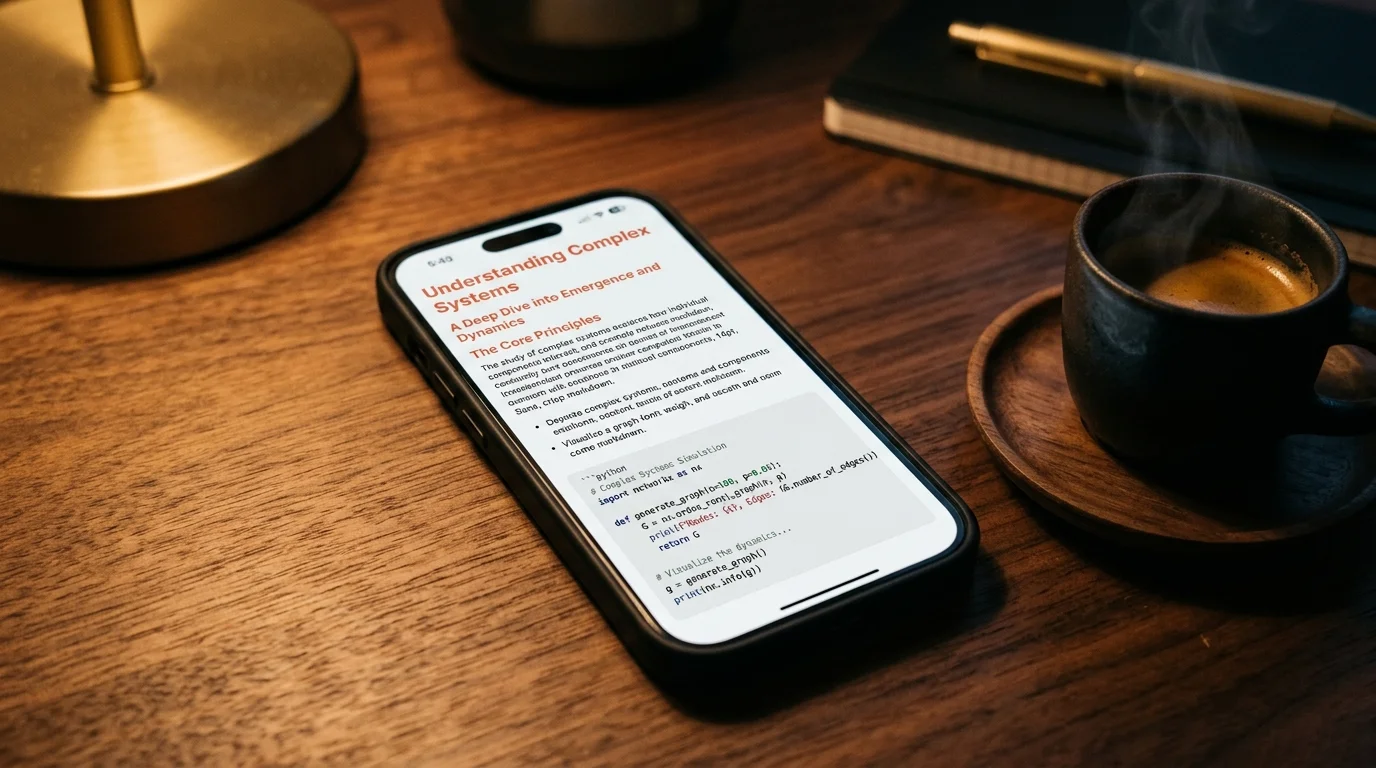
A short checklist works well for most voice transcripts, and it fits easily on a phone screen while you are cleaning up the file. Run through these four items in order, and you will catch most of the friction that would otherwise make you skip rereading the transcript later. The whole pass should take under five minutes per session. It gets faster with repetition.
- Fix any proper nouns the model mangled, especially names of people, tools, or places.
- Split long assistant answers into paragraphs where the spoken version had natural breaks.
- Remove filler words unless they carry meaning.
- Add a one-line header at the top with the date, the topic, and where you were when you recorded it.
That last one matters more than it sounds. Context is what makes an old voice conversation useful a year later. "Voice notes, Oct 4, driving to Chiang Mai, thinking about pricing" is a real anchor. A random timestamp is not. Get in the habit of writing that header before you close the file, or you will forget the context within a week.
Reading the Transcript Somewhere That Fits
Once the transcript is cleaned up, the app you read it in matters. The default ChatGPT interface is fine for triage but not for rereading anything at length. A dedicated markdown reader like Prism MD is built for exactly this: it renders long-form AI output with proper typography, handles code blocks and math cleanly, and stays out of the way when you are on your phone. The same problem shows up with long typed answers, which is why reading long Claude conversations without losing the thread uses the same approach. The reader stops being the bottleneck.
For voice transcripts specifically, a few reader features earn their keep. Wide comfortable line lengths matter, because spoken sentences tend to be longer than typed ones. Good heading rendering matters, because you will use headings to mark the topic shifts you noticed on the walk. Offline reading matters, because voice conversations are often about personal stuff you would rather not sync to a service you do not control. If you already read AI output on the go, reading AI conversations on iPhone without the chat app covers the mobile side, and listening to AI conversations with text to speech closes the loop for anyone who wants to hear the transcript read back.
FAQ
Can I get transcripts from Advanced Voice Mode specifically? Yes. Advanced Voice Mode conversations show up in your regular history the same way standard Voice Mode ones do. The only difference is that the transcript sometimes lags the audio by a few seconds, so wait until the session fully closes before you look for it. Refresh the web view if the last exchange is missing.
Does the transcript include the audio itself? No. OpenAI does not currently expose the raw audio files in the data export. You get the text transcription only. If you need the audio, record it separately with a screen recorder while you talk. iOS Screen Recording works for this, though it will pick up other app sounds too.
What about privacy? These are personal conversations. Treat voice transcripts the way you would treat a journal. Store them somewhere encrypted at rest, keep local copies, and think twice before syncing them to a cloud service you have not vetted. The whole point of moving them into markdown is that you get to choose where they live. Your future self will thank you.
How often should I export? Monthly is enough for most people. Set a recurring reminder, run the export, drop the new conversations into your archive, and move on. The friction of doing it more often usually means you stop doing it at all. Once a month is sustainable, and sustainable beats perfect.
Start Reading Voice Transcripts Properly
Your spoken conversations with ChatGPT are worth more than the mobile chat bubble format gives them credit for. Get them out, clean them up, and read them somewhere that treats them like the real documents they are. Prism MD was built for exactly this kind of long-form AI output, and it works well on the phone you recorded the walk with as well as the desk you sat down at afterward. The reader you use should match the shape of the thinking that produced the transcript. That is the whole point.
Read your voice transcripts the way they deserve.
Free to start — no credit card.
Related reading

Ready to read your own AI documents?
Open ChatGPT, Claude, Gemini, or any markdown file in the reader built for the way models write.
- ✓Renders code, math & Mermaid out of the box
- ✓Works offline once you've opened a doc
- ✓Free forever for personal reading