
How to Read ChatGPT Projects Conversations as Real Documents
Export ChatGPT Projects, stitch conversations into markdown, and read the whole Project as one long document instead of fighting the sidebar.
If you use ChatGPT Projects to keep a research thread alive across weeks, you already know the pain. The sidebar shows a stack of chats. Each chat has its own scroll. Files sit in a separate pane, custom instructions hide behind a settings gear, and search returns fragments without context. When you want to reread the reasoning from three Tuesdays ago, you scroll and scroll and scroll some more, hoping to recognize the paragraph before your patience runs out.
Projects were built to organize. They were not built to reread. Rereading is a different problem and it needs a different tool. The web app assumes you always want the next reply, so it optimizes for input flow, not for the long look back at what was said.
Why Projects Get Unreadable Fast
A single Project can hold dozens of conversations plus reference files plus a custom instruction block. The OpenAI web app treats each conversation as a live thread. It renders code blocks fine and math with KaTeX. What it does not do is treat the Project as a single body of work. There is no table of contents across chats, and bookmarks do not exist.
Export gives you a JSON blob, not a document. The result is that your best thinking with the model ends up locked inside a UI built for chat, not for reference. If you are running a book outline, a legal brief, a research thread, or a technical spec across the Project, you need to zoom out. The web app does not let you do that in any comfortable way, and third-party viewers rarely handle the Project shape correctly either.
What a Real Document Looks Like
A document has a title, a hierarchy, and consistent typography from top to bottom. You can print it, hand it to a colleague, or drop it into a reference folder and find it two years later. Markdown files do all of this and they render the same on every device. The format is text, so it survives account migrations, product redesigns, and the day the web app decides to look different.
The move is to export your Project conversations, stitch them into markdown, and read them in a proper reader. Once the content lives as markdown, rendering long AI answers as beautiful documents becomes a solved problem. You get a fixed measure, real headings, proper monospace code, KaTeX math, Mermaid diagrams if you use them, and a scroll position that persists across sessions. The reading experience stops fighting you, and the content starts behaving like the reference material it always was.
Exporting a ChatGPT Project
OpenAI ships a data export tool inside Settings, Data Controls, Export data. You submit the request and receive an email with a zip file, usually within a few hours. Inside the zip there is a conversations.json file that holds every chat across your account, tagged with metadata including the project id. The Project itself is not exported as a bundle, so you have to filter the JSON by project id yourself.
A short script pulls out the conversations for one Project, walks the message tree, and writes each conversation as a markdown file. The message tree is important because ChatGPT stores branches when you edit a prompt, so a naive linear read will miss regenerations. Walk from the root node down the current leaf path, and treat the rest as archived branches you can drop into a separate file. Keep the writer simple with these outputs per conversation:
- One markdown file per conversation, named with the conversation id or title
- Timestamps in the frontmatter for chronological sorting
- Code blocks preserved with their language hints
- Tool call outputs included as fenced blocks so nothing is lost
The OpenAI data export documentation has the up-to-date field names, so bookmark it before you start writing the parser. If you would rather not touch code, browser extensions like ChatGPT Exporter dump individual conversations as markdown, which is slower for a big Project but requires no scripting. Pick the path that matches how many Projects you plan to archive: a script pays off past ten conversations, a click-through extension is fine below that. Either way, save the raw JSON alongside the markdown output so you can regenerate the files if your script logic changes later.
Reading the Whole Project as One Body
Once you have the markdown files, resist the urge to open them one at a time. The value of a Project is the connections across conversations. Concatenate the files in chronological order into one long document, with each conversation as an H1 and each turn labeled clearly as user or assistant. That is the file you want to read, and it is the file that reveals patterns the sidebar always hid from you.
Drop it into Prism MD or any markdown reader that treats text like a book instead of a chat log. The Project starts to read like a research journal, and you can skim the headings, jump to the day you remember, and see the arc of your thinking without fighting the sidebar. For long Projects that cross a hundred thousand words, speed reading tactics for long AI answers apply directly to the concatenated file. Use the table of contents, skim H2s first, and read paragraphs in full only where the model made a real leap.
Custom Instructions, Project Files, and Cadence
Two things get lost in most exports: the Project custom instruction block, and the uploaded reference files. Both matter for rereading, because the instructions shaped every response and the files were the ground truth the model referenced. Copy the custom instructions into the top of your concatenated document as a preamble so the whole thread makes sense to a future reader. For files, keep the originals in a references/ folder next to your markdown, and if any are PDFs, convert them so they sit alongside the conversation in the same reader. Guidance for reading AI conversations alongside a reference PDF covers the split view layout that works best for this pattern.
Then pick a cadence, because a snapshot from six months ago is not enough. Weekly works for most people who use one or two active Projects. Every Friday, run the export or the extension, regenerate the concatenated markdown, and archive it with a date in the filename. Over a year you build a shelf of Project journals, each one readable end to end, none of them dependent on OpenAI keeping the web app the same.
FAQ
Does ChatGPT export include files uploaded to a Project?
The JSON export includes references to the files and their names, but the file contents themselves are delivered as separate attachments in the same zip. Check the files/ folder inside the export archive after unzipping. Match filenames back to the conversation by the file id fields in the JSON. If a file was deleted from the Project before you exported, it will not appear in the archive at all.
Can I export one Project without exporting my whole account? Not through the official tool. The export is account wide, and you filter by project id after the fact, either with a script or by pasting the JSON into a tool that groups conversations by their project field. Some third-party exporters offer per-Project selection through the browser, which avoids the wait for the email link. The trade-off is trust: you are handing a browser extension access to your chat history.
What about ChatGPT Team and Enterprise Projects? Team and Enterprise accounts follow the same export flow through Data Controls, but workspace admins can also request scoped exports covering only certain workspaces or date ranges. Ask your admin if you need a Project-only bundle without your personal history included. Enterprise data retention policies may also change what shows up in the archive, so review the workspace settings before you assume a Project is captured in full. This matters most for regulated industries where the audit trail has to be complete.
How often does the export format change? OpenAI has adjusted the JSON schema a handful of times since 2023. If your script breaks after an update, check the changelog on the help center article linked above and fix the field names. The overall shape has stayed stable, with message nodes, mapping ids, and conversation metadata living in the same places. Small additions like new content-part types are the usual source of parse errors, so build your reader to skip unknown types rather than crash on them.
Read your ChatGPT Projects like the reference material they are.
Free to start — no credit card.
Related reading
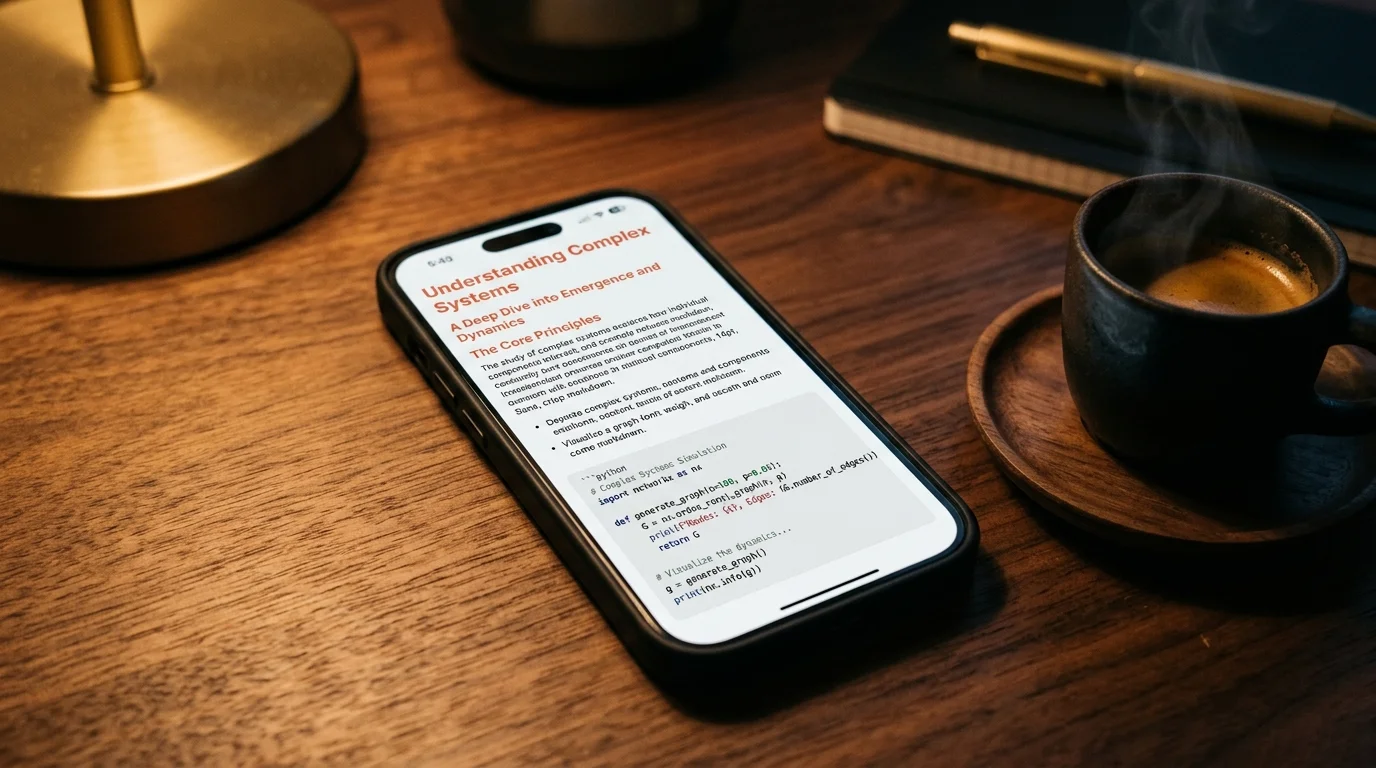


Ready to read your own AI documents?
Open ChatGPT, Claude, Gemini, or any markdown file in the reader built for the way models write.
- ✓Renders code, math & Mermaid out of the box
- ✓Works offline once you've opened a doc
- ✓Free forever for personal reading