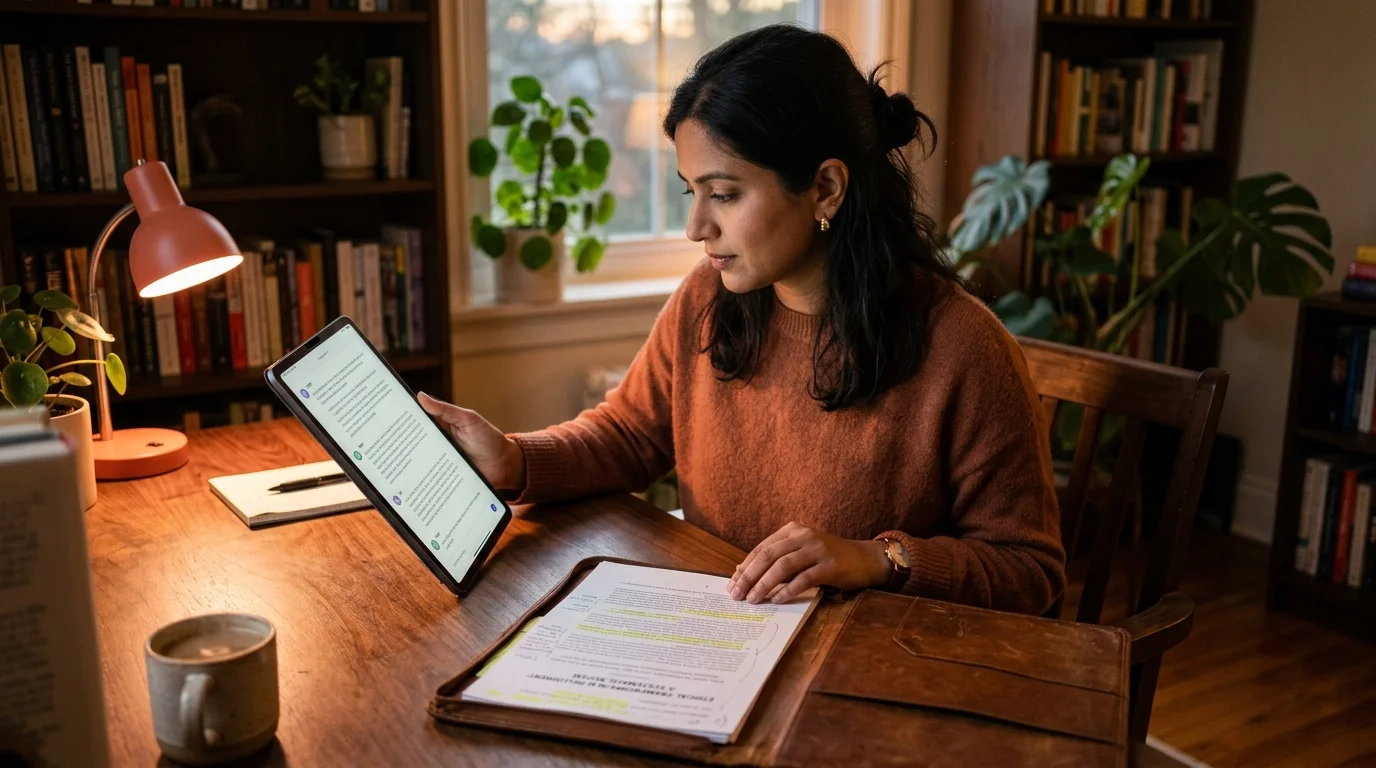
How to Read AI Conversations Alongside a Reference PDF
A two-pane workflow for reading long AI answers next to the source PDF without losing your place, your notes, or your scroll position.
Long AI conversations rarely stand on their own. You ask Claude to summarize a whitepaper, or GPT to translate a contract clause, or Gemini to explain a legal filing, and the answer only makes sense next to the original PDF. If you flip between two apps on the same screen, you lose your place in both within about ninety seconds. The reference PDF and the AI answer are the same document in your head, and your tools should treat them that way. Most people compensate with a lot of scroll gymnastics and a growing sense that the reading session is fighting them.
This guide covers a small workflow that keeps the PDF and the AI answer visible together, keeps your scroll positions independent, and lets you annotate one while reading the other. It works on a laptop, a large tablet, or a desktop with a second monitor, and it scales down to a phone with a bit of patience. The setup takes about five minutes the first time and about ten seconds every time after that. Once it is muscle memory, you stop noticing you are using two tools instead of one.
Why the default split view fails
Most operating systems offer a stock split view. On macOS you drag one window onto another in Mission Control. On iPadOS you use Stage Manager. On Windows you snap two windows to left and right halves. Each of these gives you two panes at roughly fifty percent width, which is almost usable and almost never right.
The AI answer usually needs about forty percent of the horizontal space because it is a single column of prose with some code. A research PDF usually needs about sixty percent because two columns of body text and a figure caption do not compress well. The stock split forces one pane to bleed, either wrapping the PDF columns badly or squeezing the AI code blocks into unreadable slivers. The fix is a resizable divider, not a fixed one, and a reader that reflows the AI markdown to whatever width you give it. Most stock chat interfaces refuse to do this cleanly because they were designed for a single full width column.
That is one reason a dedicated markdown reader beats a generic browser tab for this workflow. Prism MD reflows to any pane width without breaking code blocks or math, which matters when the PDF is stealing sixty percent of the screen. Code stays on one line where it should, math stays inline where it should, and headings do not wrap in ugly places. If you are new to the idea of treating AI output as documents rather than chat, the piece on why AI markdown deserves better typography explains the underlying case in more detail.
The two-pane setup that holds up
The setup is boring, which is why it works. On the left pane you open the source PDF in whatever reader handles annotations well on your platform, typically Preview on macOS, PDF Expert on iPad, or Sumatra on Windows. On the right pane you open the AI conversation as a rendered markdown document, not as the original chat UI. Keep both windows in the same virtual desktop and pin them so a stray keystroke does not shuffle them. Set the PDF pane to about sixty percent width and let the markdown reader take the rest.
The critical detail is that the two panes must scroll independently. Chat interfaces usually anchor to the bottom of the conversation, which fights you every time you scroll up to reread a paragraph. A proper markdown reader locks scroll position where you leave it, so you can read a section of the PDF, cross reference the AI's interpretation, and jump back without losing either place. This one behavior is the difference between a workflow that survives a two hour session and one that collapses after twenty minutes. It sounds small until you have lived without it.
If the AI answer contains code you plan to run, splitting three ways starts to help. The workflow in how to read AI conversations split-screen with your code editor covers the third pane pattern for developers, and it composes cleanly with the PDF pattern here. Reference on the left, answer in the middle, editor on the right. On a single monitor this is tight but workable at 27 inches or above, and on dual monitors it is almost luxurious.
Annotating without breaking the loop
Annotation is where most people give up and go back to a single window. The trick is to decide up front which pane owns the notes. Two panes with two sets of margin notes is a bookkeeping mess, so pick one canonical surface and mirror lightly to the other. If you skip this decision you will end up with half the insight in the PDF and half in the transcript, and neither will survive the week.
For research reading, the PDF is usually the canonical surface because your future self will come back to the PDF, not to a chat transcript that may not exist next quarter. Highlight the PDF, then paste one sentence summaries from the AI answer into the PDF's own annotation layer. If you prefer the reverse, keep the AI answer as the canonical document and drop page number references back to the PDF inside the markdown. Either way, one home, not two. The rule is simpler than the reasoning and it saves hours later. A few habits keep the loop tight enough to survive a long session:
- Highlight in a single color per session so you can tell today's pass from last week's.
- Paste no more than one short quote from the AI per PDF page, or the margin becomes noise.
- Save the annotated PDF with a date suffix so you can diff readings later.
Citation is the twin problem, and it deserves its own home. If you also want to keep the raw AI answer for later reference, the workflow in how to cite AI conversations in research and professional writing covers what to keep, in what format, and how to reference it later without losing traceability. Keeping citation separate from annotation stops the margin from becoming a bibliography, and it stops the bibliography from becoming a scratchpad. The two files can point at each other with a shared identifier such as the PDF filename plus a date. Small discipline, large payoff.
Handling long PDFs and long answers together
PDFs over about forty pages and AI answers over about three thousand words behave differently from short pairs. You cannot hold both in working memory, so you need waypoints. Section headings in the PDF are usually stable, so use them as the anchors. Ask the AI answer to include the source section heading before each paragraph of interpretation, and it becomes trivial to jump the PDF pane to match. This one prompting habit pays back on every long session.
For unusually long AI answers, the speed reading pattern in how to speed read long AI answers without losing the substance pairs well with this workflow. Skim the AI at pace, mark the two or three paragraphs that need the PDF, and only then open the PDF for those specific sections. You save the deep read for the parts that reward it, which is usually a quarter of the answer and half of the PDF. The other three quarters can be scanned without guilt.
Offline reading is the last piece. Research often happens on trains, planes, and in cafes with hostile wifi. Export both the PDF and the AI answer to local files before you leave, since a rendered markdown file plus a PDF sits happily in any cloud folder and opens without a network round trip. This matters more than it sounds like it should, because a broken connection kills momentum faster than a bad answer does. Local first is the safer default even when the network looks fine.
Read AI answers like real documents
Free to start — no credit card.
FAQ
Do I need two monitors for this workflow?
No. A thirteen inch laptop is enough if you resize the panes to roughly sixty forty in favor of the PDF. A second monitor helps for PDFs with figures wider than a single column, and for sessions longer than about an hour, but it is not required. Most of the benefit comes from the independent scroll behavior, not from the extra pixels.
What if the PDF is scanned and not searchable?
Run it through an OCR pass first, either in your PDF reader's built in tool or a small utility like ocrmypdf. Once the text layer exists, you can select passages, quote them into the AI, and get answers that reference the correct pages instead of hallucinating page numbers. Scanned PDFs without OCR turn every quote into a retyping exercise and every AI answer into a guess.
Can I do this on a phone?
Poorly, but yes. Split view on a modern iPhone or Android with a large display works for short PDFs. For anything longer than about ten pages, the friction wins and you should wait until you have a tablet or laptop in front of you. Phones are fine for a first pass at the AI answer alone, then a proper pairing session later.
Does the AI need to see the PDF too?
Not always. If the AI has already summarized the PDF once and you saved the answer, you can read the pair offline without sending the PDF up again on every session. This also keeps sensitive documents off the model provider's servers for the reread pass, which matters for legal, medical, and internal strategy material.
Related reading



Ready to read your own AI documents?
Open ChatGPT, Claude, Gemini, or any markdown file in the reader built for the way models write.
- ✓Renders code, math & Mermaid out of the box
- ✓Works offline once you've opened a doc
- ✓Free forever for personal reading