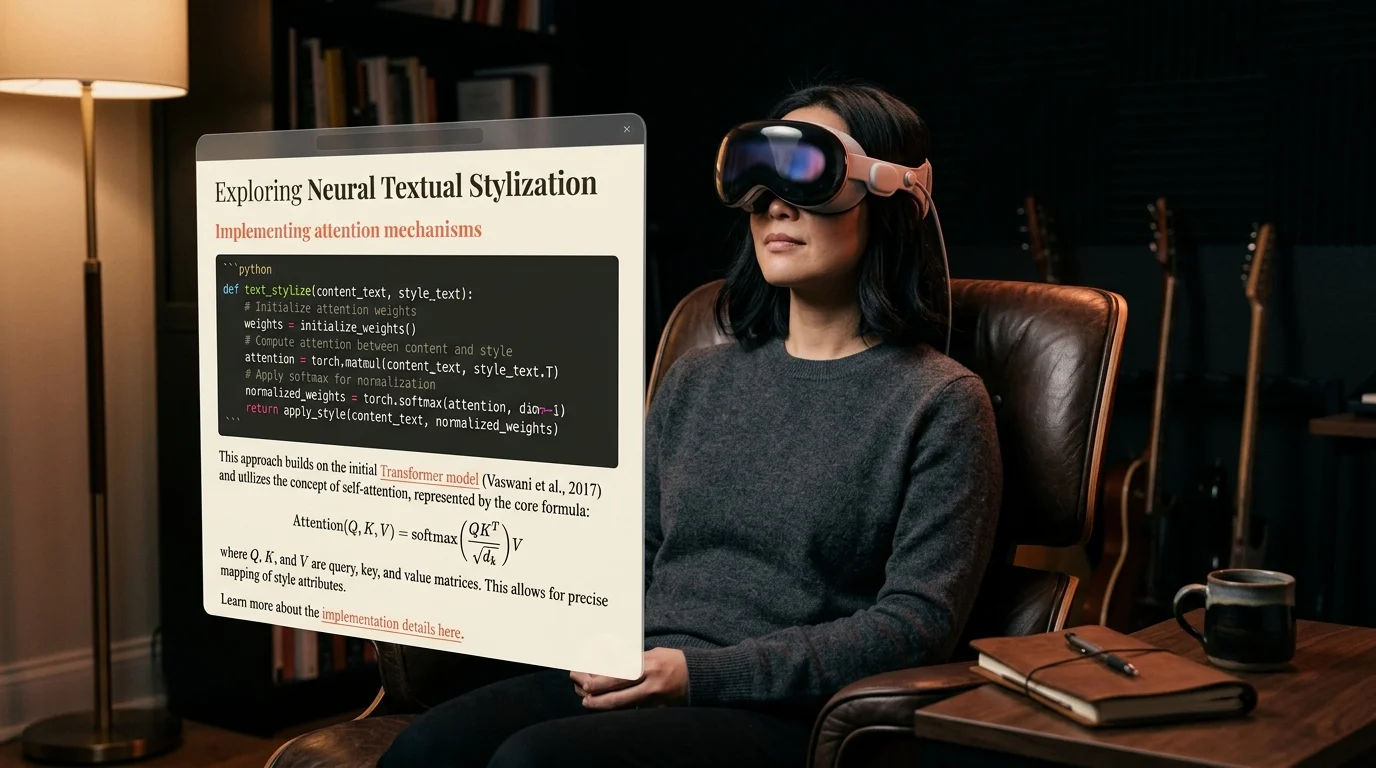
How to Read AI Conversations on Apple Vision Pro
Vision Pro is the largest reading surface ever strapped to a head, but ChatGPT, Claude, and Gemini treat it like a phone. Here is the workflow that fixes it.
Vision Pro mounts a 23 million pixel display six inches from your eyes. ChatGPT, Claude, and Gemini all run in Safari on visionOS, which means they all open at the same shape they hand to a phone. Sidebar on the left, a single 600 pixel column for the answer, and 20 million pixels of letterboxed black around it. You have, in effect, taped an iPhone to the inside of a planetarium.
This is the same problem that shows up on a Mac and on an iPad, except louder. The chat surface assumes you are typing, not reading. On Vision Pro you are almost never typing. You are leaning back in a chair, hands on the armrests, eyes free to move across a wall sized window. The right document for that posture is not a chat. It is a magazine spread. The workflow that follows turns a long AI conversation into exactly that.
Why Vision Pro is the wrong size for the chat sidebar
A Vision Pro Safari window is resizable, but the AI chat apps cap the answer column at roughly 768 pixels regardless of how wide you pull it. Dragging the window to fill your field of view gives you a wider gutter, not a wider line length. The line you read still tops out around 75 characters, the same line you would get on the train. Meanwhile the bottom half of the column hides three quarters of the answer behind a scroll that needs a pinch every paragraph.
The headset's strength is the opposite of this. It can show you 4000 pixel wide editorial columns, side by side panels, and a table of contents floating in your periphery. None of that lives inside a chat sidebar. To get any of it, the conversation has to leave the chat app first.
Export the thread, do not screenshot it
The instinct on visionOS is to take a window snapshot of the answer and pin it in space. Do not do this. A snapshot freezes the line length, kills every code block and inline equation, and gives you a JPEG you cannot search or copy from. The pin survives a restart of the headset and absolutely nothing else.
Export instead. ChatGPT has a Share button that produces a public link and a Settings menu that exports the entire history as JSON. Claude has a Copy markdown affordance on every long answer. Gemini has the share link route covered in How to Export and Read Google Gemini Conversations. In all three cases you end up with a markdown file, which is the right shape for the headset because it can be rendered at any line length, paginated into spreads, and read back by VoiceOver without choking on chat metadata.
Render it once into a real document
Markdown by itself is not a document. It is a recipe for one. To use it on Vision Pro you need a renderer that respects three things the headset amplifies: line length, vertical rhythm, and rendered math. Notion renders markdown but treats every paragraph like a database row. Obsidian assumes you are editing. Typora assumes you are on a laptop. The renderer for the headset needs to do three concrete things:
- Set a line length around 70 characters at the size your eyes prefer at headset depth.
- Render KaTeX math and Mermaid diagrams inline without a build step.
- Open as a PWA so the window behaves like a native visionOS app, not a tab.
Prism MD does all three because it was built for exactly this shape of input. Open the rendered URL once in Safari on Vision Pro, tap the Share menu, choose Add to Home Screen, and the next launch opens the document as a floating window you can throw to the back of the room. The window keeps its position between sessions, so the same document is in the same place tomorrow. The PWA also gets VoiceOver, system text size, and Dynamic Type, none of which work cleanly through the chat sidebar.
Read it like a magazine, not a chat
Once the conversation is a real document, the headset stops being the wrong tool. Pin the floating window at arm's length, tilt your head back, and let the answer sit at the size a print magazine sits at on a coffee table. Scroll with a pinch. Use the table of contents in the gutter to jump between sections of a long Claude thread without losing your place.
If you live in the headset for an hour at a time, the second improvement is to keep a small library of past conversations open as separate windows, one per project. Drop one in the kitchen, one above the couch, one beside your desk. Each one is a real document, not a chat tab, so a quick text search across the library lands on the right paragraph without retyping the question. The workflow for that search is the same one covered in How to Search Across All Your Saved AI Conversations. The combination ends up feeling closer to a private reading room than to a chat. You are not asking the AI anything new. You are rereading what you already paid for, in the room the headset was built to give you.
FAQ
Does Vision Pro have a native ChatGPT app? OpenAI shipped a visionOS ChatGPT app in 2024, but it is still a chat client. It opens at the same column width as the iPad app and does not solve the reading problem. The app works fine for asking a new question with voice dictation. It is the wrong place to reread an old answer that you already saved to your library.
Can I read AI conversations in Reader Mode on visionOS Safari? Reader Mode helps a little on a public share link, but it strips code blocks and breaks KaTeX inline. Anything with math or fenced code comes out unusable on the headset. Renderers designed for AI output handle both formats cleanly. Exporting to markdown first and rendering through one of them beats relying on Reader for any answer longer than a paragraph.
Will EyeSight or Travel Mode affect this? Neither one changes the rendering itself. Travel Mode locks the floating window in space relative to your seat, which proves useful when reading a long answer on a plane. EyeSight only affects what the outside of the headset shows other people in the room. The document stays the same document either way you have those toggles set.
Does this work in a Mac Virtual Display window? Yes, but you lose the floating PWA benefit. If the Mac is mirroring, you are reading the Mac's chat sidebar at headset resolution, which is the same trap one window larger. Render the document on the Mac first, then open it in the Mac browser inside the virtual display. The point is to escape the chat column, not to project it bigger across the room.
Read your AI conversations the way they were meant to look in Vision Pro
Free to start — no credit card.
Related reading

Ready to read your own AI documents?
Open ChatGPT, Claude, Gemini, or any markdown file in the reader built for the way models write.
- ✓Renders code, math & Mermaid out of the box
- ✓Works offline once you've opened a doc
- ✓Free forever for personal reading