How to Find and Read Block Goose AI Chat History
Block's Goose stores every CLI session as JSONL on disk. Here is where to find those transcripts, how to read them cleanly, and how to archive them.
Block's Goose is one of the few open source AI coding agents that treats the terminal as its home. It will edit files, run commands, and work across multi step tasks, and every single turn gets written to a session file on disk. That is a quiet gift once you realize it. You can go back weeks later and reconstruct exactly what the agent did, which commands it fired, and which decisions it almost got right.
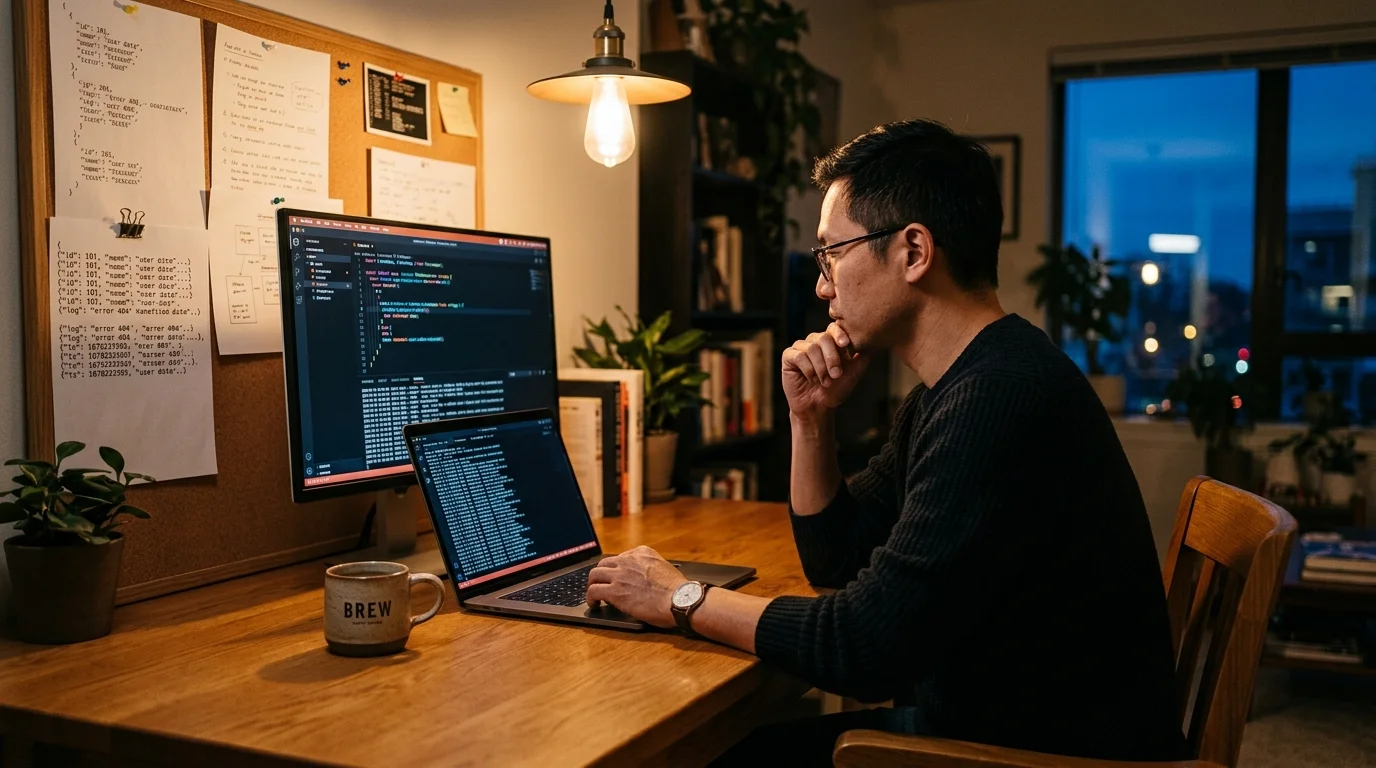
The problem is that Goose stores its sessions as JSONL, not as neat markdown you can scroll through on your phone. If you have ever opened one of those files in a text editor you know the feeling. One long line of escaped quotes, tool calls mixed with assistant replies, and no visible structure. This guide walks through where Goose keeps your transcripts, how to read them in a form that respects your eyes, and how to turn the useful ones into permanent notes.
Where Goose stores your sessions
Goose keeps sessions under a predictable path on every platform. On macOS and Linux you will find them in ~/.local/share/goose/sessions/. On Windows the equivalent lives under %APPDATA%\Block\goose\sessions\. Each session is one JSONL file, named by a short id and the date of the first message. If you ran Goose in the official desktop app the location is the same, since the desktop build wraps the same engine.
Inside each file every line is a JSON object. The important fields are role (user, assistant, or tool), content (the message text or tool payload), and created (a unix timestamp). Tool calls include the full command that was executed and the raw output, which is useful if you want to audit what the agent touched. The newest sessions sit at the bottom of the directory listing when you sort by modified time, so ls -lt is usually enough to find today's work.
Reading JSONL without losing your mind
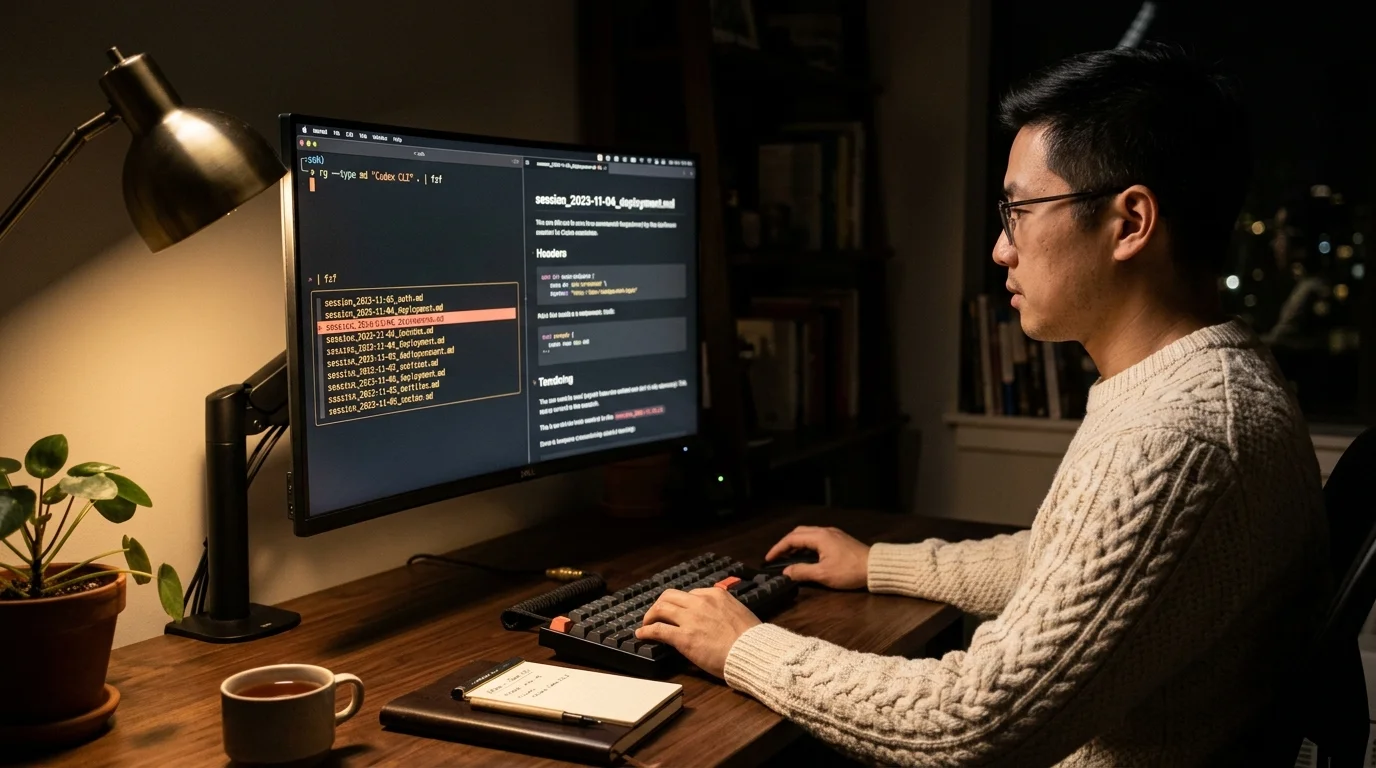
Raw JSONL is not something a human should be forced to read. The quickest fix in a terminal is jq -r '.content' session.jsonl, which flattens each line to its text payload. That strips the metadata and leaves you with the back and forth. It is fine for a quick scan, less fine for a two hour debugging session you want to properly digest.
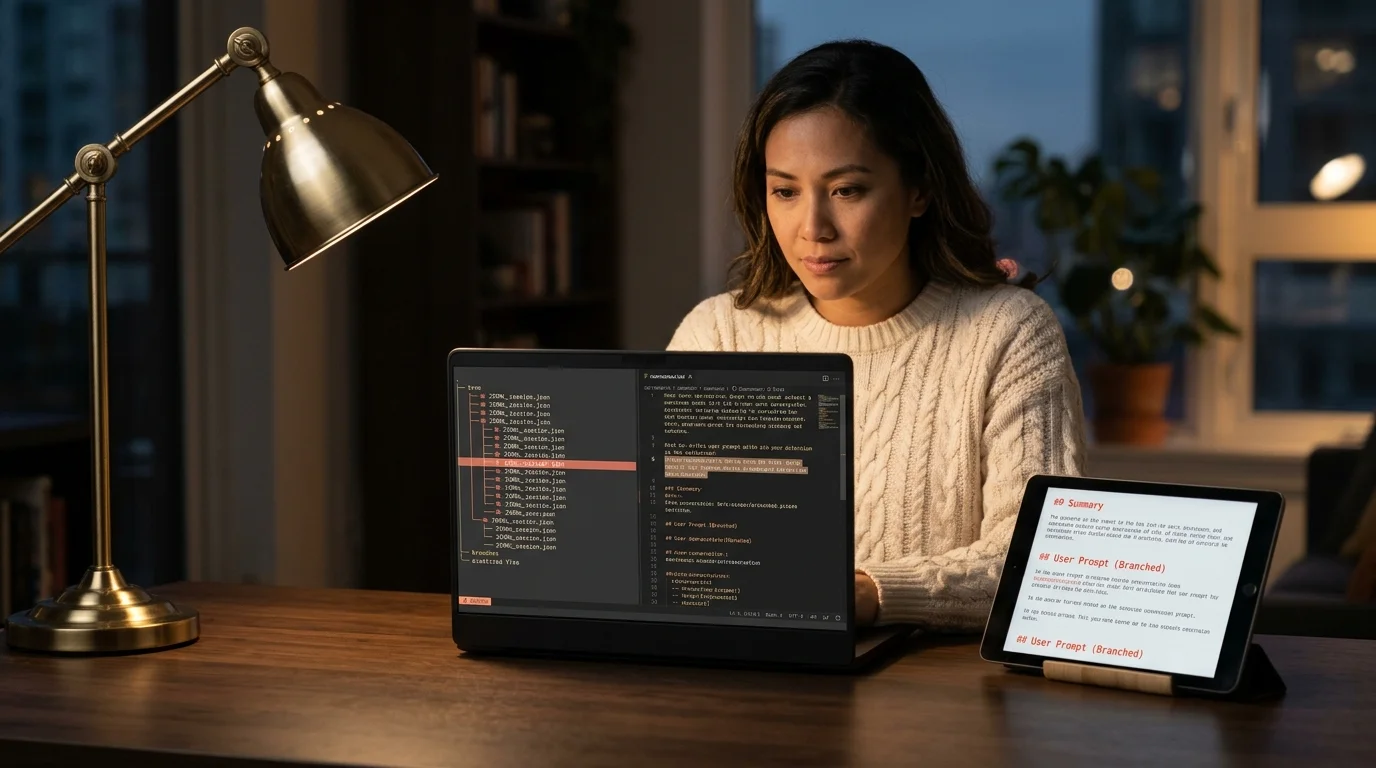
The better move is to render the file as proper markdown. Goose session content is already markdown underneath, which means a dedicated reader lights it up correctly. Prism MD opens JSONL files and renders assistant replies with real code blocks, syntax highlighting, and KaTeX for any math the agent produced. If you prefer to stay in your editor, VS Code with the Markdown Preview Enhanced extension does an acceptable job once you convert the file first. A simple one liner like jq -r 'select(.role=="assistant") | .content' session.jsonl > session.md will give you a clean markdown export in seconds.
Turning a session into a reviewable artifact
Reading is one thing. Keeping the good parts is another. Goose sessions are often ninety percent noise and ten percent genuine insight, usually buried in a tool output or a correction the agent made after you pushed back. The trick is to extract that ten percent while the context is still fresh. For a deeper walkthrough of this pattern see our guide on how to extract action items from AI conversations.
A workflow that holds up over time has four steps. Each one takes less than a minute if the session is small, and the whole thing is still faster than rereading the raw JSONL. Think of it as the equivalent of writing meeting notes right after a call, when the context is still warm. The quality of your archive depends almost entirely on doing this soon rather than later.
- Open the JSONL in a reader that preserves markdown structure.
- Scroll to the final assistant turn, which is usually the summary, and copy the parts that are still true.
- Pull any shell commands into a scratch note so you can re run them later.
- Save the trimmed version with a date stamped filename in your knowledge base.
The result is a short note that compresses the whole session into something you will revisit. If you keep a running archive you can also diff it against future sessions and see how your prompting style evolves. The archive becomes a quiet record of how your taste improves over months of use. We cover the long term storage angle in archive AI conversations long term.
Reading sessions on a phone or tablet
Goose runs on your laptop, but the review often happens somewhere else. On a train, in a cafe, during a walk. The JSONL files are small enough to sync through iCloud Drive, Dropbox, or Syncthing without any clever tooling. Once the file lands on your phone you need a reader that handles markdown, code, and long scrolls without choking. The native Files app will show the raw JSON, which is not what you want.
Prism MD was built for exactly this scenario and runs offline on iOS and Android, which matters because Goose sessions sometimes contain things you would rather not stream through a web service. If you want to compare that approach to the usual suspects we have a side by side in Prism MD vs Obsidian for AI conversations. Obsidian can work, but you have to pre convert the file and keep two copies in sync. Prism MD opens the JSONL directly.
Pitfalls to watch for
A few things trip people up the first time they go hunting for Goose transcripts. If you run goose configure with a non default profile the sessions may land in a profile scoped subdirectory. Running goose through nix or inside a devcontainer will relocate the data directory to wherever your sandbox mounts user data, which is almost never the host path. And if you clear the session with /clear inside a running Goose shell, the file still exists on disk, so nothing is lost even when the agent acts like it has forgotten everything.
Also keep in mind that tool outputs can include secrets. If the agent read a .env file or ran aws sts get-caller-identity, that output is now sitting in plain text inside the JSONL. Before you ship a session to a teammate, run it through a quick redaction pass. We have a short guide on how to redact sensitive info from AI conversations that covers the common patterns.
FAQ
Where does Goose store sessions by default?
On macOS and Linux the path is ~/.local/share/goose/sessions/. On Windows it is %APPDATA%\Block\goose\sessions\. Each file is a JSONL transcript named by session id and date. The directory is created the first time you run the agent, so if it is missing you simply have not started a session yet.
Can I read a Goose session without installing anything?
Yes. Any text editor will open the JSONL, and jq -r '.content' session.jsonl in a terminal gives you a readable stream. The experience is rough but it works in a pinch. For anything longer than a few turns you will want a proper markdown reader so code blocks and headings render correctly.
How do I share a Goose transcript with a teammate? Convert the JSONL to markdown with a short jq filter, review it for secrets, then share the resulting file. Avoid pasting raw JSONL into chat tools since they strip the structure and the result is unreadable. If the transcript is long, consider trimming it to the final decision points before sending, since nobody wants to scroll through a hundred tool calls. A short, focused excerpt gets read; a hundred kilobyte dump does not.
Does the Goose desktop app use the same session format? Yes. The desktop build is a wrapper around the same engine and writes to the same JSONL format in the same user data directory. Any workflow that works for the CLI works for the desktop app. Switching between the two mid project is safe and does not fragment your history.
Open Goose sessions on your phone, offline.
Free to start — no credit card.
Related reading

Ready to read your own AI documents?
Open ChatGPT, Claude, Gemini, or any markdown file in the reader built for the way models write.
- ✓Renders code, math & Mermaid out of the box
- ✓Works offline once you've opened a doc
- ✓Free forever for personal reading