
Prism MD vs Obsidian: Which Is Better for Reading AI Conversations?
A direct comparison of Prism MD and Obsidian for reading ChatGPT, Claude, and Gemini conversations. Setup friction, mobile experience, math rendering, and sharing compared.
The Setup Question
Most people who end up comparing these two tools already use Obsidian for note-taking and wonder if it can handle AI conversation reading too. The short answer is that it can, but it was not built for that. Obsidian is a personal knowledge management tool that works from a local vault of markdown files, and that model is excellent for writing and linking long-form notes over time. To read an AI conversation in Obsidian, you need to export the conversation from the chat app, save it as a markdown file, place it inside your vault folder, and then open it in reading view. That is four steps before you see any text.
Prism MD takes a different approach. You paste the conversation directly or drop a markdown file onto the app, and it renders immediately. There is no vault to configure, no file system to navigate, and no plugin library to set up before the tool works as intended. For occasional reading the Obsidian path is perfectly workable, but for people who read AI output every day the extra steps compound into real friction over time. The difference is most pronounced the hundredth time you do it, not the first.
How Each Tool Renders AI Output
AI assistants generate markdown with specific patterns that go beyond basic bold and italic: long code blocks, LaTeX math expressions, Mermaid diagrams, nested lists, and wide tables. Both tools render standard markdown well, but the specifics matter when you are reading technical output regularly. Obsidian renders LaTeX math natively in reading view, and code blocks get syntax highlighting once you have a compatible theme configured. Mermaid diagrams require a community plugin that works inconsistently across platforms, particularly on Obsidian mobile. Table rendering is solid in reading view but can break in editing mode when tables are especially wide.
Prism MD renders LaTeX math and Mermaid diagrams without any configuration. You paste a conversation containing a sequence diagram or a calculus derivation, and it renders on the first load with no plugin to install. Wide tables render with horizontal scrolling that does not disrupt the surrounding text. Code blocks come with a one-click copy button, which is useful when you want to grab a snippet from an AI conversation and run it immediately. For people whose Claude or Gemini responses regularly include technical diagrams or equations, this difference is meaningful in practice, not only in theory.
Mobile Reading
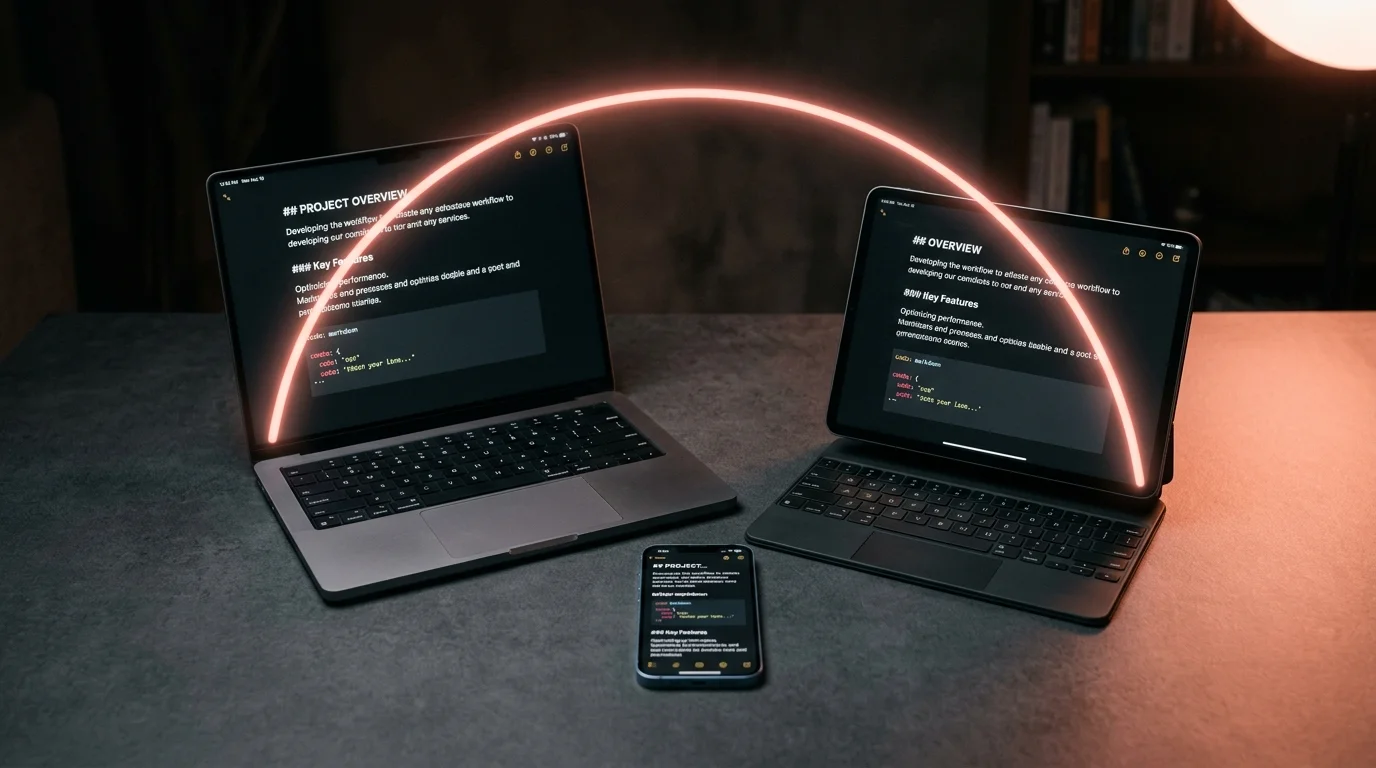
Obsidian has a mobile app that syncs via Obsidian Sync (a paid subscription) or through iCloud and Google Drive with some manual configuration. The app is full-featured but carries the weight of the full desktop product, which includes community plugins that may behave differently on mobile than they do on a Mac or PC. On a small screen, navigating a vault folder structure and managing plugin settings is possible but not a smooth experience. For the specific task of reading an AI conversation on your phone, Prism MD is a browser tab. You open it, paste or load your document, and read immediately. The experience on iPhone and Android mirrors the desktop version because it is a responsive web app, and if your workflow involves finishing a long Claude session at your desk and continuing to read on the commute, Prism MD removes the sync and handoff steps entirely.
Search, Organization, and Sharing
Obsidian's genuine strength is search and long-term organization. Full-text search across an entire vault, backlinks between notes, graph view, and tag hierarchies give you a knowledge structure that Prism MD does not try to replicate. If you want to find a specific conversation from six months ago or trace a concept across dozens of AI sessions, Obsidian's vault model is genuinely better for that job. Prism MD is focused on reading, not archiving. If searching across saved AI conversations is your primary use case, that is a valid reason to stay in Obsidian or use it alongside Prism MD.
Sharing tells a different story. Obsidian is local-first, which means sharing a conversation requires exporting a file, getting it to the recipient, and hoping they can render the markdown properly on their end. Prism MD generates a link for any document you load. When you need to share an AI conversation with your team for a review session, the recipient sees the same rendered view you see, with no app to install and no vault to set up. For teams reviewing AI-generated specs or research summaries together, this eliminates an entire category of formatting problems. The rendered view handles code blocks, math, and diagrams exactly as the original sender sees them.
Which Tool Fits Your Workflow
The choice depends on what role AI conversations play in your daily work. These are not the same tool competing for the same job, so the answer is usually clear once you name what you are trying to do. One is a knowledge vault with a reader built in; the other is a reader with nothing extra. Four questions clarify it faster than a feature comparison table:
- Do you need AI conversations connected to your own notes and writing? Use Obsidian.
- Do you read AI output daily and want zero setup friction? Use Prism MD.
- Do you share rendered documents with people outside your note-taking app? Use Prism MD.
- Are you already deep in the Obsidian ecosystem? The incremental cost of adding AI files to your vault is low.
Many people end up using both tools for different jobs: Prism MD for the active reading session, Obsidian for the notes and excerpts worth keeping permanently. The tools serve genuinely different purposes, and running both adds little overhead if you already have an Obsidian vault configured. Think of Prism MD as your reading surface and Obsidian as your long-term storage layer. For most AI power-users, the daily reading habit belongs in Prism MD and the archival habit belongs in Obsidian.
Frequently Asked Questions
Can Obsidian render Mermaid diagrams from AI conversations? Yes, with the free Mermaid community plugin installed. The plugin works well on desktop but is inconsistent on Obsidian mobile, particularly with complex or nested diagrams. Installing it requires navigating to Community Plugins in Obsidian settings, disabling safe mode, and then searching for and enabling the plugin. The extra configuration step is a one-time cost, but it means Mermaid rendering is not available out of the box when you first open a new device or share your vault with a colleague.
Does Prism MD store my conversations on a server? Prism MD processes your document in the browser. Nothing is stored server-side unless you use the share-link feature, which creates a temporary hosted copy for the recipient. This means you can paste sensitive AI conversations, including those containing proprietary code or confidential specs, without worrying about server-side logging. The browser handles rendering entirely on your device.
Which tool handles long conversations better? Prism MD performs well with long documents because the whole product is built around reading them. Obsidian can be slow with large files in editing mode, though reading view is more performant for extended content. If you regularly work with conversations that run to ten thousand words or more, Prism MD maintains consistent scroll performance without the overhead of a full knowledge management system. Both tools handle typical AI output lengths without issues.
Can I use both tools in the same workflow? Yes, and many people do. The most common pattern is to read and annotate in Prism MD, then save key takeaways into Obsidian for long-term reference. The two tools complement each other rather than competing directly. If you already have an Obsidian vault, there is no reason to abandon it; Prism MD handles the reading session while Obsidian handles the archive.
Read AI conversations with zero setup friction.
Free to start — no credit card.
Related reading


Ready to read your own AI documents?
Open ChatGPT, Claude, Gemini, or any markdown file in the reader built for the way models write.
- ✓Renders code, math & Mermaid out of the box
- ✓Works offline once you've opened a doc
- ✓Free forever for personal reading