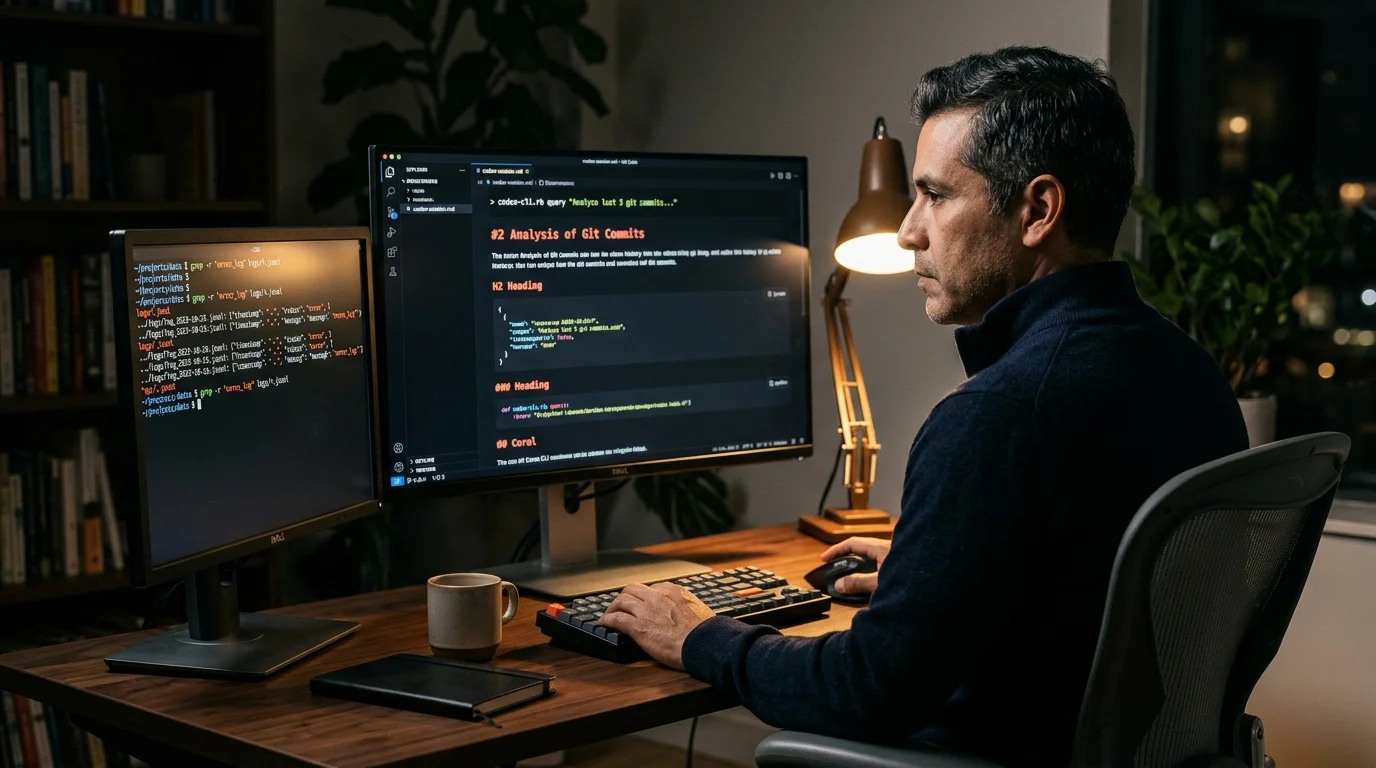
Codex CLI History: The 2026 Guide That Answers Every Question
Where Codex CLI history lives, what the JSONL contains, how to search a year of sessions, how to render transcripts for humans, and how to prune safely.
If you have been using the OpenAI Codex CLI for a few weeks, you already have more history than you realize. Every prompt, every patch, every tool call sits on your disk in a format the CLI designed for replay, not for reading. This guide answers the five questions people ask most about Codex CLI history: where it lives, what the files contain, how to search them, how to render them for human eyes, and how to prune without losing anything you care about. No vague overview, no filler. Only the exact paths and the exact commands you can paste today.
We wrote an earlier reference on the raw file paths and session format that this post builds on. Here the focus is workflow: what to do once you know those paths exist, so your Codex history becomes a useful artifact instead of forgotten clutter in your home directory. The examples assume macOS or Linux with a current Codex CLI install, but every path has a direct Windows equivalent under %USERPROFILE%\.codex. None of this requires uploading your transcripts anywhere.
Where Codex CLI history lives
Codex CLI uses two separate stores, and conflating them is the most common source of confusion. The first is ~/.codex/sessions/, which holds one JSONL file per session, named with the UTC start time and a short random suffix. Each line inside that file is a single event: user turn, assistant reply, shell tool call, patch proposal, or sandbox response. The schema is stable, so you can parse it with any JSON library and reconstruct a full conversation in a few lines of code.
The second store is ~/.codex/history/, a rolling buffer of raw prompts that powers up-arrow recall inside interactive mode. It is text, not JSON, and it does not contain assistant output or tool activity. People sometimes grep this file looking for a lost reply, find nothing, and assume Codex did not persist the session. The reply is almost always in the sessions directory. If you only remember the shape of your question, grep history first to find the timestamp, then open the matching session JSONL.
What a Codex session file contains
Every session JSONL captures enough state to replay the run offline. A typical line includes a role, a content array, a timestamp, the model name, and token counts. Tool calls appear as their own events with the exact arguments Codex passed to the shell, and the responses come back as tool_output events immediately after. That ordering matters: when you render the file, the tool call and its output belong together, not scattered between assistant replies.
Three fields are worth highlighting because they power the best downstream workflows. The model field tells you whether a run used a fast small model or a heavier reasoning one, which explains cost spikes at a glance. The token_count field lets you rank sessions by effort rather than by file size. The metadata.working_directory field records the project root, which is the single most useful key for tagging sessions by product. If you also work with other agents, our note on reading Claude Code chat history covers the parallel conventions.
Searching across weeks of Codex history
Once you accept that the JSONL is data rather than prose, search gets easy. ripgrep handles a year of sessions in well under a second, and because the files are line oriented you get useful context around every hit. The two patterns below cover roughly 90 percent of real searches, and together they replace almost every bespoke search script people end up writing. Memorize them and most of your daily grep work is done.
- Find every session that touched a specific file:
rg -l '"path": "src/billing/stripe.ts"' ~/.codex/sessions - Find every session where you asked about a concept in natural language:
rg -i 'webhook retry' ~/.codex/sessions
For richer queries, render the JSONL to markdown first and index the markdown with any local search tool. The point is that raw JSONL was never the right substrate for human review, and the markdown you render is both grep friendly and reader friendly. Our walkthrough on extracting code blocks from AI conversations shows the parser pattern that makes the rendered output genuinely useful. Pair it with a weekly cron that re-renders the last seven days, and your search index stays current without manual effort.
Rendering history for human eyes
A twenty line Python script is enough to turn a session JSONL into clean markdown. Walk the file in order, emit an H2 for each user turn, quote the assistant reply as markdown, and format tool calls as fenced code blocks with a bash or diff language tag. Prefix each H2 with the ISO timestamp so grep by date works later, and keep the model name and total tokens in the frontmatter. Save one markdown file per session, named with the same timestamp so files sort naturally when you list them.
Prism MD reads those rendered files the way they were meant to be read. Headings get a real type scale, code blocks get proper monospace with horizontal scroll instead of hard wrapping, and any math or Mermaid inside an assistant reply renders as a diagram rather than literal source. The reader runs offline on your device, which matters because Codex sessions regularly contain API keys, internal file paths, and half-formed product decisions. Syncing the markdown folder through iCloud or Syncthing gives you the same history on your phone without exposing the raw JSONL to a cloud service.
Pruning Codex history without losing context
A year of daily Codex use lands near 500 MB on disk, which is nothing for modern drives but worth a quarterly cleanup anyway. Keep the rendered markdown forever and prune the JSONL on a schedule, because the markdown is what you will revisit most often. A good default is to archive JSONL older than 90 days to a compressed tarball and keep the rendered markdown in your normal notes vault. That setup gives you fast grep over recent work and a long tail you can still unpack if you ever need the exact tool call arguments.
FAQ
Where is Codex CLI history on Windows?
Under %USERPROFILE%\.codex\sessions\ for session JSONL and %USERPROFILE%\.codex\history for the prompt buffer. The schema is identical to macOS and Linux.
Can I disable Codex history entirely?
Yes. Pass the ephemeral flag at startup or set the matching config key, and Codex skips the write to the sessions directory. The prompt history buffer is a separate setting and persists unless you clear it manually.
Does Codex CLI history sync across machines?
Not by default. The files are local only. If you want cross device access, sync the rendered markdown folder rather than the raw JSONL, since the JSONL contains absolute paths that will not match on another machine.
How large do session files get?
A heavy coding day produces roughly 200 KB to 2 MB per session. Image pastes inflate individual files, so prune base64 payloads first if you plan to grep in bulk.
Read your Codex CLI history the way it was meant to be read.
Free to start — no credit card.
Related reading
Ready to read your own AI documents?
Open ChatGPT, Claude, Gemini, or any markdown file in the reader built for the way models write.
- ✓Renders code, math & Mermaid out of the box
- ✓Works offline once you've opened a doc
- ✓Free forever for personal reading