Codex Chat History: Quick File Paths and How to Read Sessions (2026)
Where Codex CLI saves chat history on macOS, Linux, and Windows, how to open a session file in sixty seconds, and the fastest way to search and export JSONL.
If you have been using Codex CLI for more than a week, you already have a pile of sessions on disk that you cannot find. The chats scroll past, the terminal closes, and the next time you want to recover an answer you dig through shell history instead of the transcript. The good news is Codex writes every session to a predictable path as JSONL. The better news is you can open that file in a reader in about sixty seconds. This is the short answer version. For the long walkthrough with jq pipelines and advanced grep patterns, read the full Codex CLI history guide.
Where Codex Saves Chat History on Each OS
Codex uses one directory on every platform, which keeps this part simple. On macOS the sessions live at ~/.codex/sessions/. On Linux the path is identical, ~/.codex/sessions/, because Codex follows the XDG base directory convention when $XDG_DATA_HOME is set, falling back to the home directory otherwise. On Windows the path resolves to C:\Users\<you>\.codex\sessions\ under PowerShell, and the same directory shows up as /mnt/c/Users/<you>/.codex/sessions/ from inside WSL. Every conversation gets its own JSONL file named with a UUID and a timestamp. Open the directory in your terminal and you will see one line per message, which is what makes these files easy to parse and feed into a markdown reader. The cheat sheet below covers the three common environments at a glance so you can jump straight to the right path without re-reading the paragraph.
- macOS:
~/.codex/sessions/ - Linux:
~/.codex/sessions/(respects$XDG_DATA_HOMEwhen set) - Windows:
C:\Users\<you>\.codex\sessions\or/mnt/c/Users/<you>/.codex/sessions/from WSL
How to Open a Codex Session File Right Now
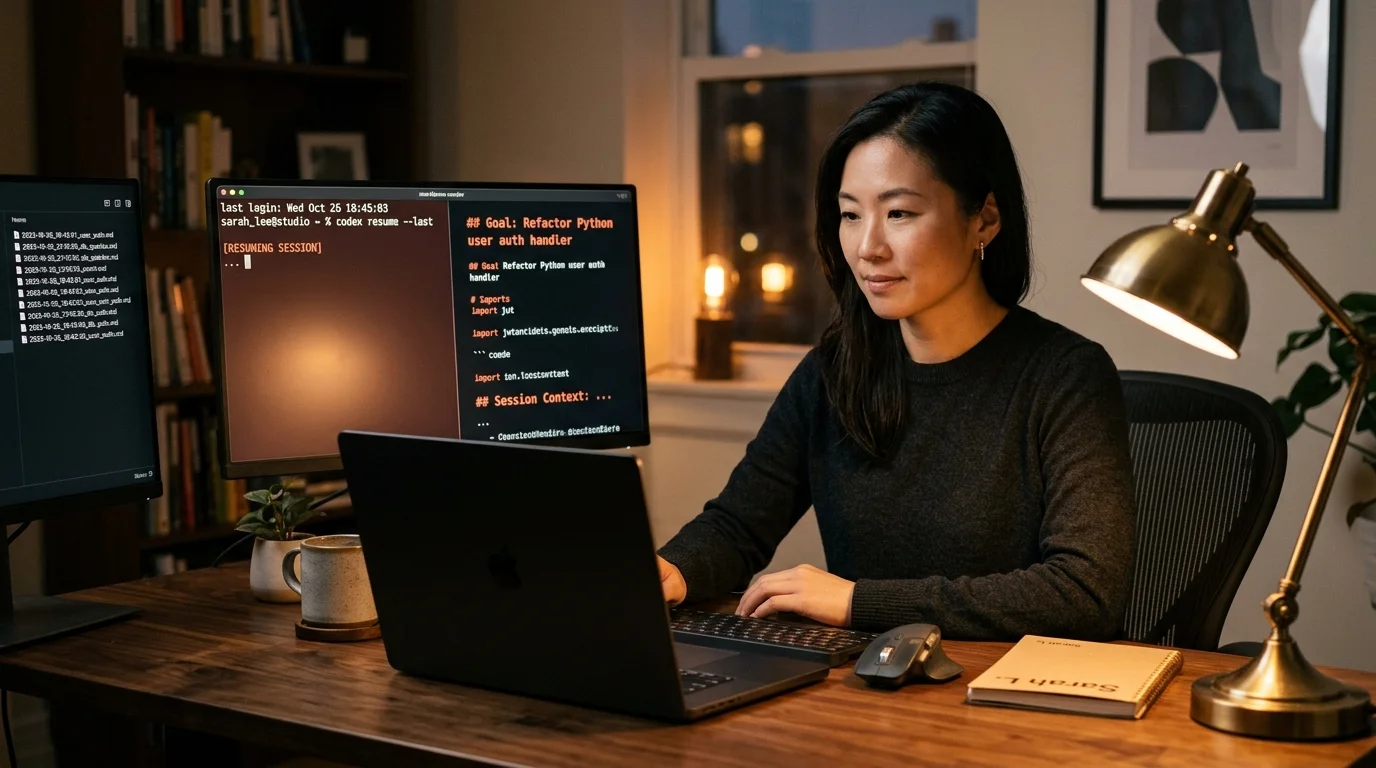
The fastest path is to list the directory, grab the newest file, and pipe it through cat. On macOS or Linux that looks like ls -lt ~/.codex/sessions/ | head, then cat ~/.codex/sessions/<filename>.jsonl. The raw output is messy because every line is a JSON object with role, content, and tool metadata. If you want to read it, pipe it through jq: jq -r '.content' ~/.codex/sessions/<filename>.jsonl will strip the shell to the message bodies alone. On Windows the equivalent is Get-Content $HOME\.codex\sessions\<filename>.jsonl | ConvertFrom-Json. You now have a readable version in the terminal, which is enough to resume a thought or quote an earlier answer. The same JSONL-per-session pattern shows up in other agent CLIs, as covered in our opencode history writeup.
Reading JSONL in a Proper Reader in Sixty Seconds
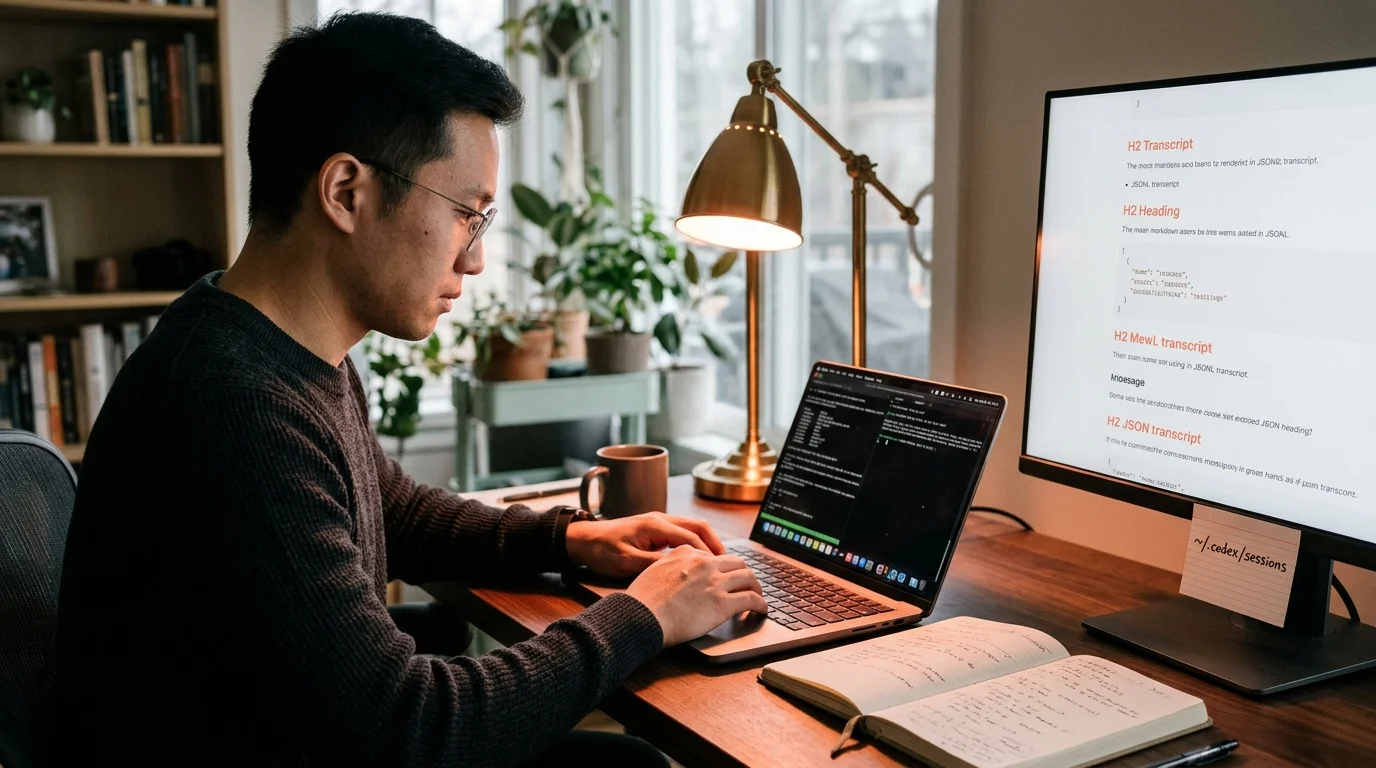
Terminal cat works for a glance, but if you want to sit down and read a long Codex session you need a document view. The whole point of a session transcript is that it includes code blocks, tables, and sometimes math. Those break in a scrolling terminal. The fastest workflow is to drag the JSONL into Prism MD, which parses the role structure, renders the markdown, and gives you a scroll position you can leave and come back to. Compare that to opening the file in a code editor, which treats every message as one long string on one line, and the gap is obvious. If you want the context on why file-first readers beat chat UIs for long sessions, see our Qwen conversations guide which covers the same pattern for a different provider.
Grepping and Searching Across Sessions
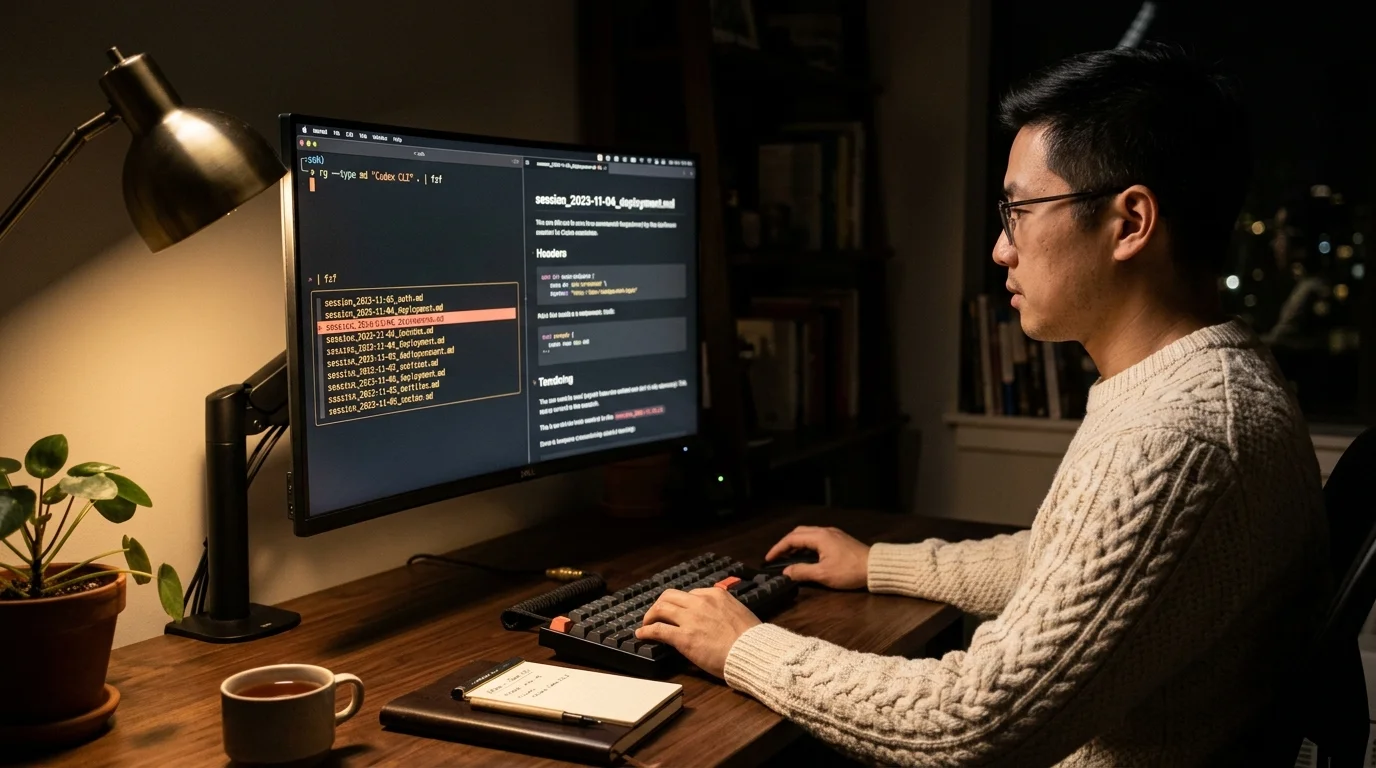
Once you have more than a handful of sessions, the real problem becomes search. The directory is small text, so plain grep -r "deployment timeout" ~/.codex/sessions/ works and is often the fastest answer. For structured search, jq with a filter is more precise: jq -r 'select(.content | contains("deployment timeout")) | .content' ~/.codex/sessions/*.jsonl. If you prefer ripgrep, which is faster on large directories, use rg "deployment timeout" ~/.codex/sessions/. For users who want a GUI, dragging the whole folder into a reader and searching the archive from one input field removes the need to remember any of these commands. Pick the workflow that matches how often you need to go back. For a comparable approach with Simon Willison's SQLite-backed tool, see our llm CLI history guide.
Keeping Codex History From Growing Forever
Codex does not rotate or compress old sessions. If you use the CLI daily, the folder will grow until you clean it up or move it. The practical pattern is to archive quarterly: move everything older than ninety days into ~/.codex/sessions-archive/<quarter>/, which gets the folder down to a size where listing it is fast again. A one-liner that works on macOS and Linux: find ~/.codex/sessions -type f -mtime +90 -exec mv {} ~/.codex/sessions-archive/ \;. If you want long-term keepers, export the useful threads to markdown and store them in a notes app or git repo. The team at Simon Willison's weblog has a good writeup of why keeping prompts in version control pays off over time.
FAQ
Where is Codex CLI history stored?
In ~/.codex/sessions/ on macOS, Linux, and Windows, with one JSONL file per conversation. Each file is named with a UUID and a timestamp, which keeps the names unique even across machines. The folder is created the first time you run Codex. If the directory is missing, run any Codex command once and it will reappear with a fresh session file inside.
Can I open a Codex JSONL file in VS Code?
Yes, but each message appears as one long line and the formatting breaks for code blocks, tables, and math. For reading rather than editing, a markdown reader renders the content correctly. For editing, pipe through jq first to pretty-print. The combination of jq -r for role extraction and a document reader for scroll position gives you both an editable and a readable copy of the same session.
How do I export a Codex session to markdown?
Pipe the JSONL through jq to extract the content fields, concatenate the results, and save as .md. The one-liner is jq -r '"## " + .role + "\n\n" + .content + "\n"' ~/.codex/sessions/<file>.jsonl > session.md. For a drag-and-drop version, open the JSONL in Prism MD and use the export menu. The markdown version is portable to any editor or notes app and survives Codex upgrades that might reshape the raw JSONL schema.
Does Codex sync chat history across machines? No. The sessions directory is local only. If you want cross-device access, store the folder in a Dropbox or iCloud synced directory, or push an exported markdown archive to a private git repo. Prism MD syncs its reading library across devices once the files are imported, which is the simplest path for reading sessions on a phone or tablet when you are away from your desk.
Codex CLI gives you clean JSONL files, which is better than most AI tools, but the raw format is not readable on its own. A document view turns the same files into something you can scan, search, and quote from in seconds. Prism MD was built for this exact job: drop in a session file and get back a typeset markdown document that works on your phone, offline, and across every AI tool you use. If you spend any real time in Codex, the sixty seconds you spend importing a session file pays itself back the first time you need to find an answer from last week.
Open your Codex sessions as clean, searchable markdown
Free to start — no credit card.
Related reading
Ready to read your own AI documents?
Open ChatGPT, Claude, Gemini, or any markdown file in the reader built for the way models write.
- ✓Renders code, math & Mermaid out of the box
- ✓Works offline once you've opened a doc
- ✓Free forever for personal reading