
How to Read T3.chat Conversations as Real Documents
Export T3.chat threads to markdown and read them as proper documents with syntax highlighting, model bylines, and a durable archive that outlives the app.
T3.chat is one of the fastest AI chat clients in the wild. Theo Browne built it around a simple pitch: pick any model, get answers in milliseconds, keep your history in the cloud. That speed is addictive, and heavy users end up with hundreds of long, mixed-model threads that live inside a single web app. Reading those threads inside T3.chat itself is fine for the newest message. It falls apart the moment you want to review, cite, or share something from three weeks ago.
The problem is not T3.chat. The problem is that any chat surface, no matter how fast, is a stream. Streams are good for typing into. They are bad for rereading, annotating, or handing to someone else. If you are getting serious value from T3.chat, you need a second surface for the archive. A real markdown reader is that second surface, and the round trip is easier than most people expect.
Why T3.chat threads deserve a second home
Every serious T3.chat user I know has run into the same three walls. Search works, but it drops you into a chat scroll instead of a document. Long code blocks force horizontal scrolling on anything smaller than a desktop. And when you switch models mid-thread, which is the whole point of T3.chat, the visual break between a GPT answer and a Claude answer is almost invisible. Those three friction points compound the longer a thread lives, and by month three you have a searchable pile you no longer want to open.
Reading the same thread as a real markdown document fixes all three at once. If you already care enough to pay for the T3 subscription, you care enough to read the output properly. A markdown reader gives you the specific pieces that T3.chat cannot provide inside its chat surface. See our related guide on reading Claude conversations for the same argument applied to a single-model workflow.
What a reader gives you that the chat UI cannot
The reader adds three concrete affordances that a chat stream will never match. Each one is small on its own, but together they change how you relate to your own history. This is the difference between an archive you dread opening and a library you revisit weekly. The list below is the short version, and every item shows up on the first thread you export.
- A proper table of contents so you can jump between sections instead of scrolling.
- Code blocks that wrap on mobile and get real syntax highlighting on desktop.
- A clear byline on every answer so you can see exactly which model said what.
Exporting a T3.chat thread
T3.chat stores your history in a Convex-backed cloud, and the UI lets you copy any message or an entire thread to the clipboard as markdown. That is your export path. Open the thread you want, hit the three-dot menu on the thread header, and pick Copy as Markdown. Paste it into a plain text file with a .md extension. Give the file a descriptive name, because you will thank yourself later when you have forty of these.
If you want to script it, T3.chat exposes each thread at a stable URL. You can pull the raw markdown with a small helper, or you can rely on the manual copy path for now. The manual path is honestly fine for the first fifty threads. Automate only when you feel the friction, not before. The same principle applies to any AI chat export, which we covered in the ChatGPT export guide.
Reading the exported thread properly
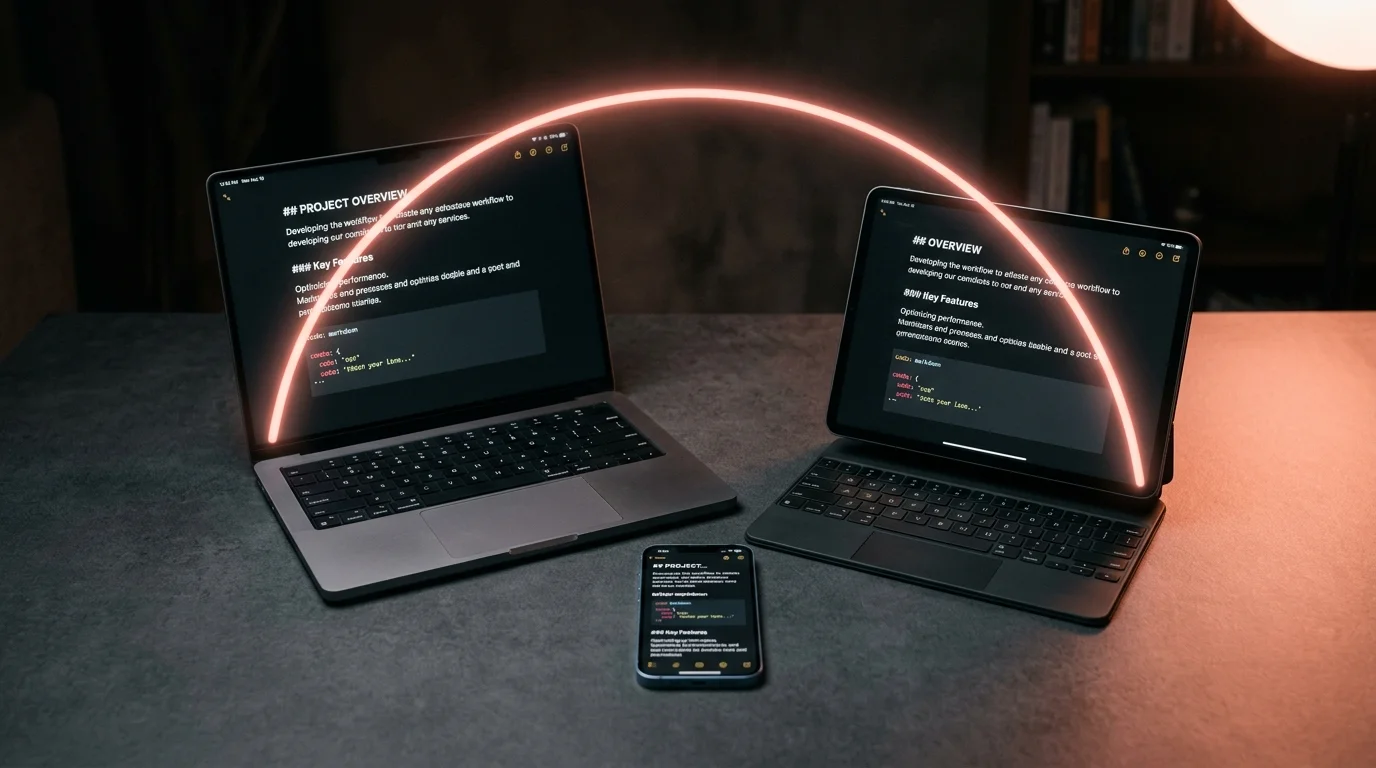
Once the markdown file lives on your disk, open it in a reader that treats it like a document instead of a source file. Prism MD renders your T3.chat exports with the typography they deserve: proper heading hierarchy, wrapped code blocks, KaTeX for any math the model produced, and a soft coral accent that keeps the eye moving down the page. On mobile, the same file becomes a comfortable one-column read, which matters more than people admit. The reader is where the archive stops being a pile of files and starts being a library.
The multi-model quirk of T3.chat is handled the same way any multi-speaker markdown is handled: use a bold label at the top of each answer. When you paste from T3.chat, the export already includes the model name in a small header above each response. A good reader treats that header as a heading and gives it real weight. That single visual change is what turns a mixed GPT plus Claude plus Grok thread from soup into a readable conversation.
Building a T3.chat archive that survives
Speed-first tools have a habit of pivoting. Convex could change pricing. T3.chat could add a paywall on old threads. Your archive should not depend on the vendor being around in five years. Keep the raw markdown files in a folder synced to iCloud, Dropbox, or a private Git repo. That folder is the archive, and the reader on top of it is disposable.
Version control is not overkill here. Committing your exports to Git gives you a full history of every edit and every added note. It also makes it trivial to grep across every T3.chat thread you have ever kept, which becomes a superpower once the archive crosses a hundred files. Our guide on version controlling AI conversations walks through the minimal setup.
FAQ
Can I export every T3.chat thread at once? Not through the official UI as of late 2026. You can copy threads one at a time from the thread menu. If you have hundreds, a small Playwright script that walks the sidebar and copies each thread in turn is the practical option. Keep the script simple and rerun it monthly so the archive stays close to current.
Does Prism MD render the T3.chat model labels correctly? Yes. The pasted export uses standard markdown headings for each model turn, and Prism MD treats those as proper H3 headings with clear visual weight. Nothing custom is required on your side. If you want a different label style, a small CSS tweak in your reader covers it.
What about the artifacts and generated images from T3.chat? Images copy as standard markdown image tags with the T3.chat CDN URL. Prism MD renders them inline without any extra work. If you want them to survive a T3.chat outage, download the images separately and rewrite the paths to local files. See our multimodal AI conversations guide for the exact pattern.
Is this workflow specific to T3.chat? No. The same export plus reader plus archive loop works for any AI chat surface that can produce markdown, which is most of them. T3.chat happens to make the export step easy because Theo built it that way from day one. Any client that ships a clean copy-as-markdown action gets the same treatment.
Read your T3.chat threads the way they were meant to be read.
Free to start — no credit card.
Related reading


Ready to read your own AI documents?
Open ChatGPT, Claude, Gemini, or any markdown file in the reader built for the way models write.
- ✓Renders code, math & Mermaid out of the box
- ✓Works offline once you've opened a doc
- ✓Free forever for personal reading