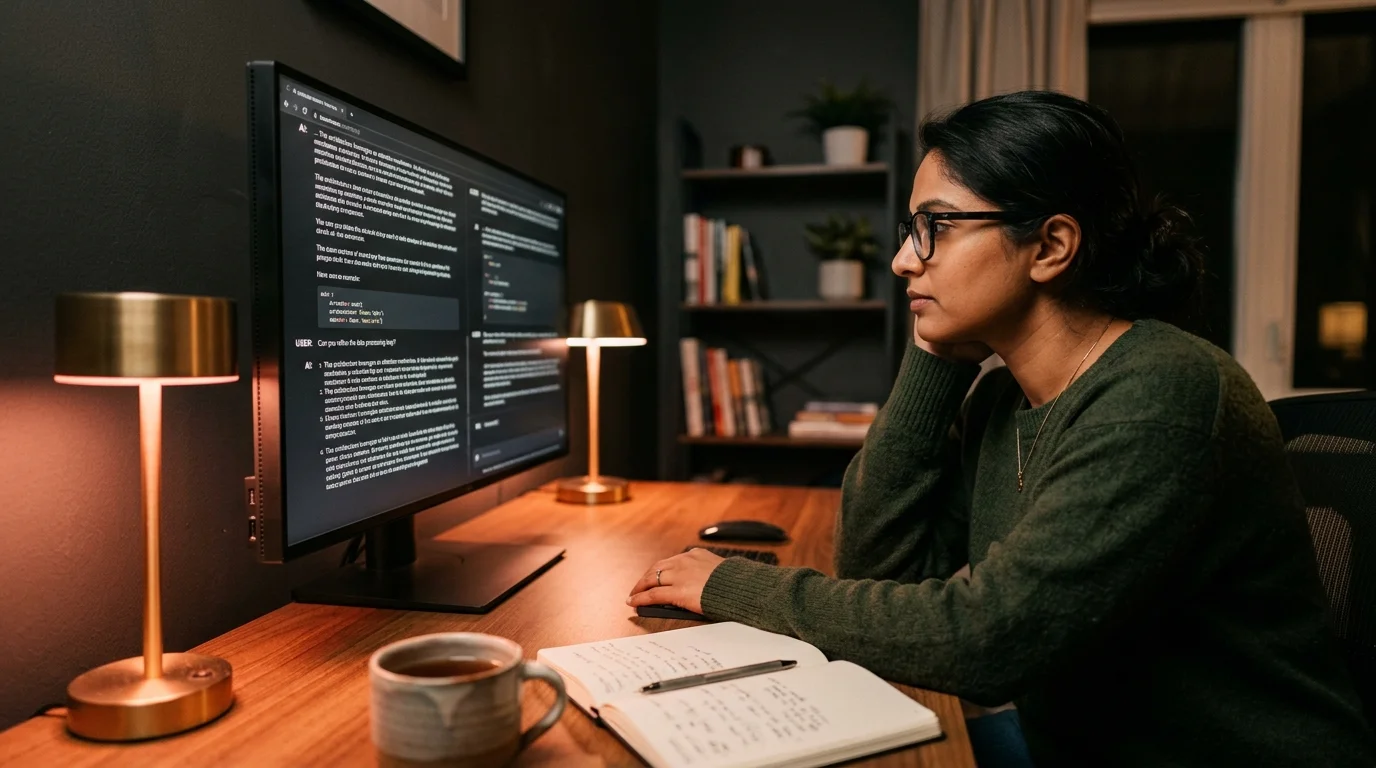
How to Read OpenRouter Chat History as Real Documents
OpenRouter unifies dozens of AI models behind one key, but the chat sidebar is not a reader. Here is how to export threads and read them properly.
OpenRouter is where a lot of people end up once they get tired of paying for four different chat subscriptions. One API key, dozens of models, a single unified chat UI at openrouter.ai/chat. It works well for testing, comparing, and running heavy prompts through whichever model happens to be cheapest that week. The problem shows up later, when you want to go back and reread an answer that took ten minutes to generate and thirty seconds to lose in the sidebar. The archive story is where OpenRouter falls apart, not the generation story.
The OpenRouter chat interface stores your history in the browser and behind a scrollable sidebar. That is fine for quick lookups on things you touched yesterday. It stops being fine the moment you have a 12,000-word Claude Opus answer with nested code blocks, a Kimi K2 transcript that spans three sessions, and a DeepSeek reasoning trace you want to study line by line. The sidebar is not a reader. It is a chat log, and chat logs are built to be scrolled past, not returned to.
Why the built-in view falls apart on long answers
Chat UIs are optimized for the last message. Everything above the input box is treated as scrollback, so the reading experience degrades in direct proportion to how long the answer is. Line length is dictated by the sidebar width, code blocks wrap awkwardly on anything narrower than a desktop monitor, and there is no persistent table of contents when a single answer runs past ten screens. If the answer contains Mermaid diagrams or KaTeX math, the built-in renderer handles the common cases and quietly mangles the rest. You end up scrolling by feel instead of by structure, which is fine for two paragraphs and painful for two thousand words.
The other issue is that OpenRouter chats are model-agnostic on the way in but model-specific on the way out. A conversation that pinballs between GPT-5, Claude Sonnet 4.6, and Grok-4 produces three different formatting dialects inside one thread. Headings from one model come out as bold text from another, lists collapse, and callouts vanish somewhere in the round trip. You end up rereading the same content with three different visual grammars, which is exhausting on anything longer than a few paragraphs. The chat window flattens all of it, so the model differences show up as visual noise rather than as useful signal.
Exporting your OpenRouter history cleanly
OpenRouter does not yet ship a one-click export button. The chat data lives in your browser under indexedDB, and the public API returns generation records per key rather than full threaded conversations. There are two reliable paths depending on how deep you want to go, and both produce markdown files you can archive anywhere. Neither path takes long once you have done it once, and both are worth the setup time if you rely on OpenRouter for real work.
The simple path is the built-in copy button on each message, which preserves the underlying markdown including fenced code blocks and headings. Paste the messages you care about into a single .md file, one message per section, with a short header noting the model and timestamp. This takes about ninety seconds per conversation and gets you a clean document you can open anywhere. It is not glamorous, but for the two or three threads a week you truly need to keep, it is faster than any script you could write.
The deeper path uses the OpenRouter generations endpoint and a small script that stitches request and response bodies into a markdown file per thread. If you already keep an archive of AI conversations, this fits into the same workflow you would use for long Claude conversations or ChatGPT projects. Save the resulting files with the model name and date in the filename so you can find them later without opening every one. A hundred threads is manageable with good filenames and unmanageable without them.
What a proper reader adds
Once you have the markdown out of the browser, the goal is to read it the way you would read a real document. That means fixed line length, a real typographic hierarchy, working code blocks with syntax highlighting, and math and diagrams that render correctly instead of turning into a wall of dollar signs and pipe characters. It also means bookmarks, a table of contents, and search that spans every conversation you have ever saved. Chat UIs give you none of this because they were never meant to.
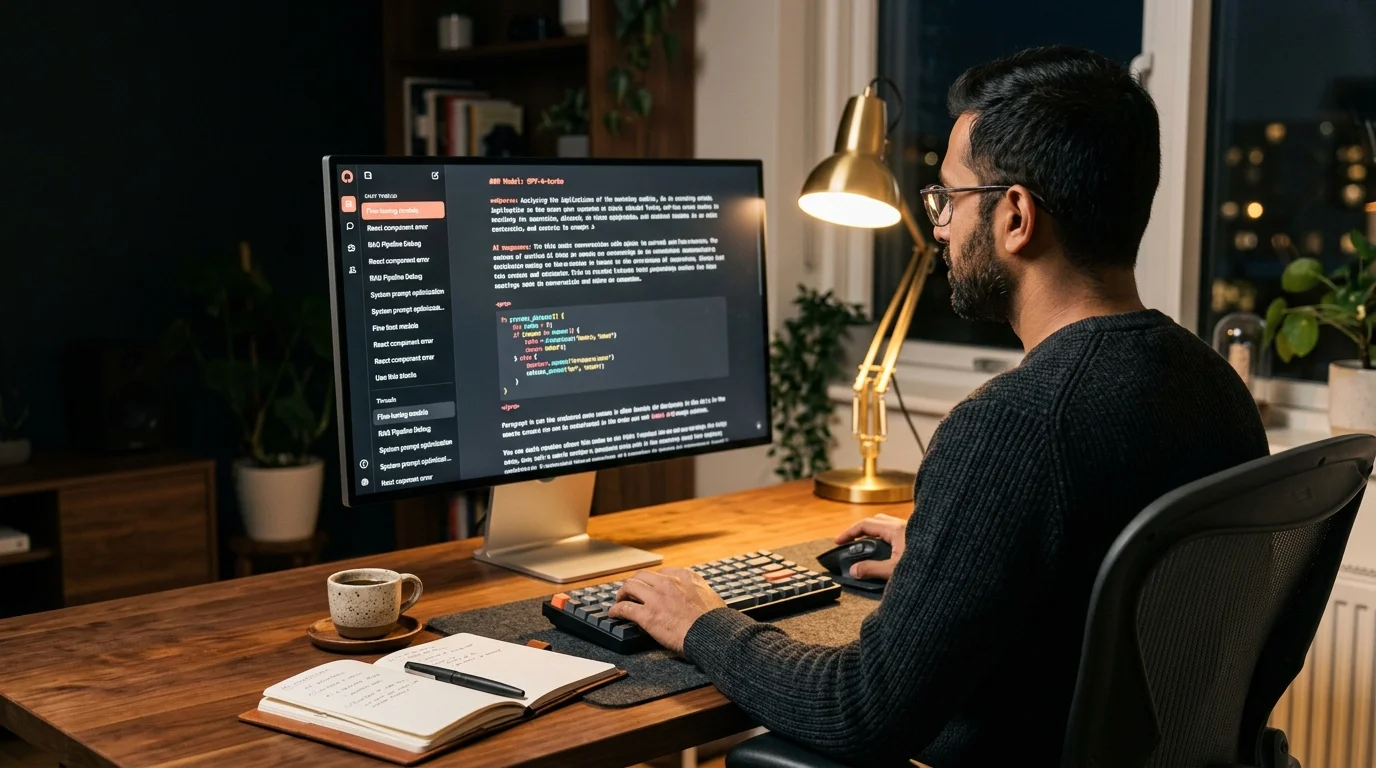
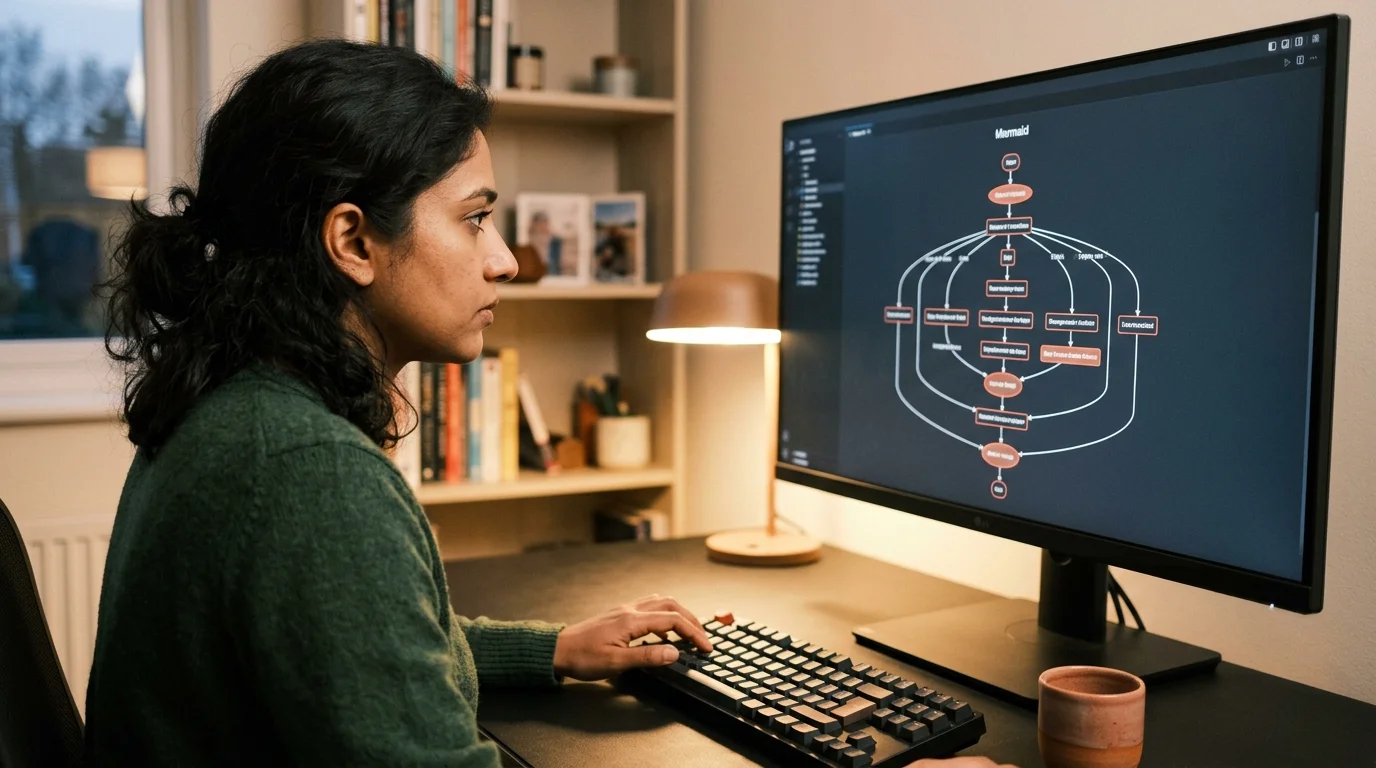
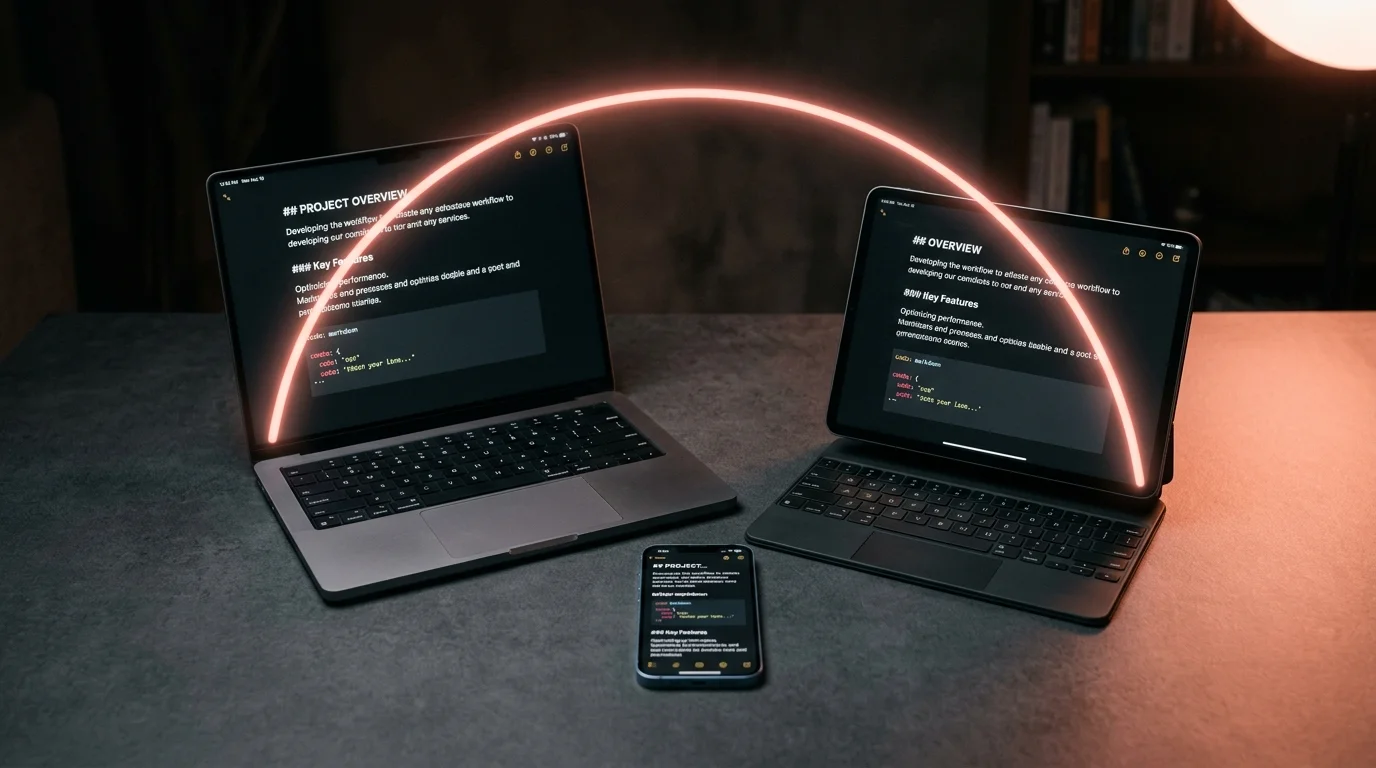
Prism MD was built for exactly this shape of file, and the OpenRouter export drops in cleanly. You paste the markdown in and it becomes something you can study. Long answers get an auto-generated outline, code blocks stay legible on phone screens, and math renders through KaTeX. If your OpenRouter thread contained Mermaid, it renders instead of showing raw text, so the diagram is a diagram again. The reading experience stops being a fight with a chat UI and starts being a fight with the ideas in the answer.
Below is a short checklist for building a durable OpenRouter archive that survives across model swaps and browser resets. Treat it as the minimum, not the ceiling. Once you have the folder structure in place, adding a new thread each week is a two-minute habit rather than a project. The habit is the whole point, because the archive only pays off if it exists when you need it.
- Export each thread as a single .md file with model, date, and a short topic in the filename.
- Keep one folder per project so answers from different work streams do not blur together.
- Reread long answers in a dedicated markdown reader instead of the source chat UI.
- Tag or star the two or three passages inside each answer you truly want to come back to.
Comparing OpenRouter reading to other AI sources
The failure mode is the same across most AI chat products, and OpenRouter is not special in this regard. The interface is optimized for producing new answers, not for rereading old ones, so the archive experience is an afterthought at best. This is why people who spend real time inside these tools eventually build the same workflow of export, archive, and read somewhere else. You can see the same pattern in how careful users handle Perplexity answers and Claude artifacts. OpenRouter fits the same shape, with the added wrinkle that a single account spans many providers at once.
The upside is that a unified archive across models is more useful than a single-provider archive. You can compare how two models handled the same prompt, which is much easier once both answers are sitting in the same reader with the same typography and the same line length. Diffing model outputs by eye becomes possible once the visual noise is gone. That is the setup where side-by-side reading finally stops being annoying and starts being informative.
FAQ
Does OpenRouter store my chat history on their servers? Chat history inside the openrouter.ai/chat UI is stored client-side in your browser using indexedDB. The API keeps generation records for billing and analytics, which you can see in your account dashboard, but the threaded conversation view itself is local to whichever browser you used. Clearing your browser data will wipe the chat sidebar. This is why an external archive matters if you care about anything you generated more than a week ago.
Can I export multiple OpenRouter threads at once? Not through the official UI, which handles one message at a time via the copy button. You can script bulk export against the generations endpoint if you want a full archive of everything a given key has produced. For a handful of important threads, copying message by message is faster than writing the script. For a hundred threads a month, the script is the only sane choice.
Will exported OpenRouter chats keep their code blocks and math intact? Yes, if you copy from the message-level copy button, which preserves the underlying markdown including fenced code and inline math. Screenshot exports lose all of it because a screenshot is a picture, not text. If you script the export against the API, you get the raw model output as it was returned, which is the cleanest possible source. Either text-based path gives you code and math that will still render properly a year from now.
How do I keep answers from different models organized in one archive?
Filename convention plus folders is the workflow that survives. Something like 2026-09-15-gpt5-refactor-notes.md inside a project folder makes both the model and the topic obvious at a glance. Add a short tag prefix if you want to group by client or by topic instead of by date. Any convention beats no convention, and the one you will keep using is the one that takes no thought to apply.
Read your OpenRouter exports properly
Free to start — no credit card.
Related reading
Ready to read your own AI documents?
Open ChatGPT, Claude, Gemini, or any markdown file in the reader built for the way models write.
- ✓Renders code, math & Mermaid out of the box
- ✓Works offline once you've opened a doc
- ✓Free forever for personal reading