How to Read Perplexity Comet Browser AI Conversations Outside the Sidebar
Comet's AI sidebar is convenient but terrible for archiving. Here's how to export, store, and actually read your Perplexity Comet threads as real documents.
The Comet browser puts a Perplexity assistant directly into every tab. It answers questions about the page you're on, summarizes long articles, and can act on your behalf across sites. That sidebar is convenient in the moment. It is a terrible place to keep anything you want to reread, share, or reference later.
The transcript lives inside the browser profile. It scrolls off screen the moment you close the tab. Search across your Comet history is limited to the current session unless you're on a plan that syncs. Export is buried, and even when you find it, the output is a raw JSON dump that no human wants to open in a text editor. If you use Comet for research, coding help, or shopping comparisons, you need a real reader for those transcripts.
Why the Comet sidebar is not enough
Sidebars are built for glancing, not reading. The Comet panel is roughly 400 pixels wide, wraps aggressively, and shrinks code blocks into a horizontal-scroll strip that hides half the content. Long answers with tables, math, or nested lists become unreadable inside that column. You end up copying the reply into a Google Doc, losing the formatting, and giving up on the archive entirely.
The sidebar also treats every conversation as ephemeral. Comet does not surface a proper history browser the way ChatGPT or Claude do. If you switch profiles, clear cookies, or move to a second device, the transcript is gone. For anyone using Comet as a research tool, that is a slow-motion data loss problem. The best fix is to export early and often, then read the results in a tool built for long-form markdown.
Getting the transcript out of Comet
Comet stores conversations in the Perplexity account tied to the browser. If you open perplexity.ai in a regular tab and sign in with the same account, most Comet conversations show up in your thread history. From there you can copy the shareable link, open the thread, and grab the full markdown via the three-dot menu. The export is cleaner than the sidebar suggests, but it still needs work to be readable in any serious way.
For conversations that never synced, the fallback is manual. Open the Comet sidebar, scroll to the top of the thread, and select everything. Paste into a plain text file with a .md extension. Comet preserves the markdown structure in its clipboard payload, so headings, code fences, and links survive. What does not survive is the sidebar's inline citations, which become numeric footnotes you have to reconnect by hand. Save the file, then move on to reading it in a proper tool.
Reading the export in a proper markdown reader
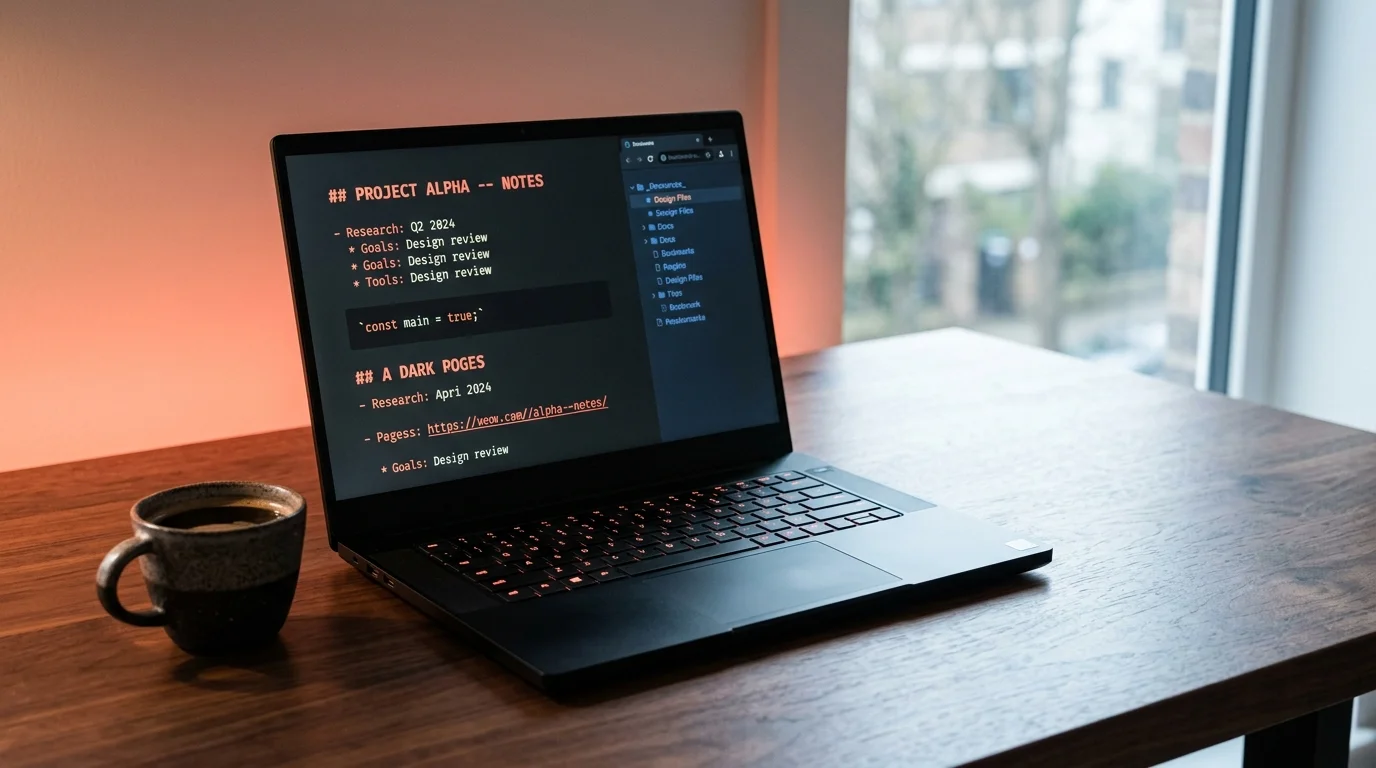
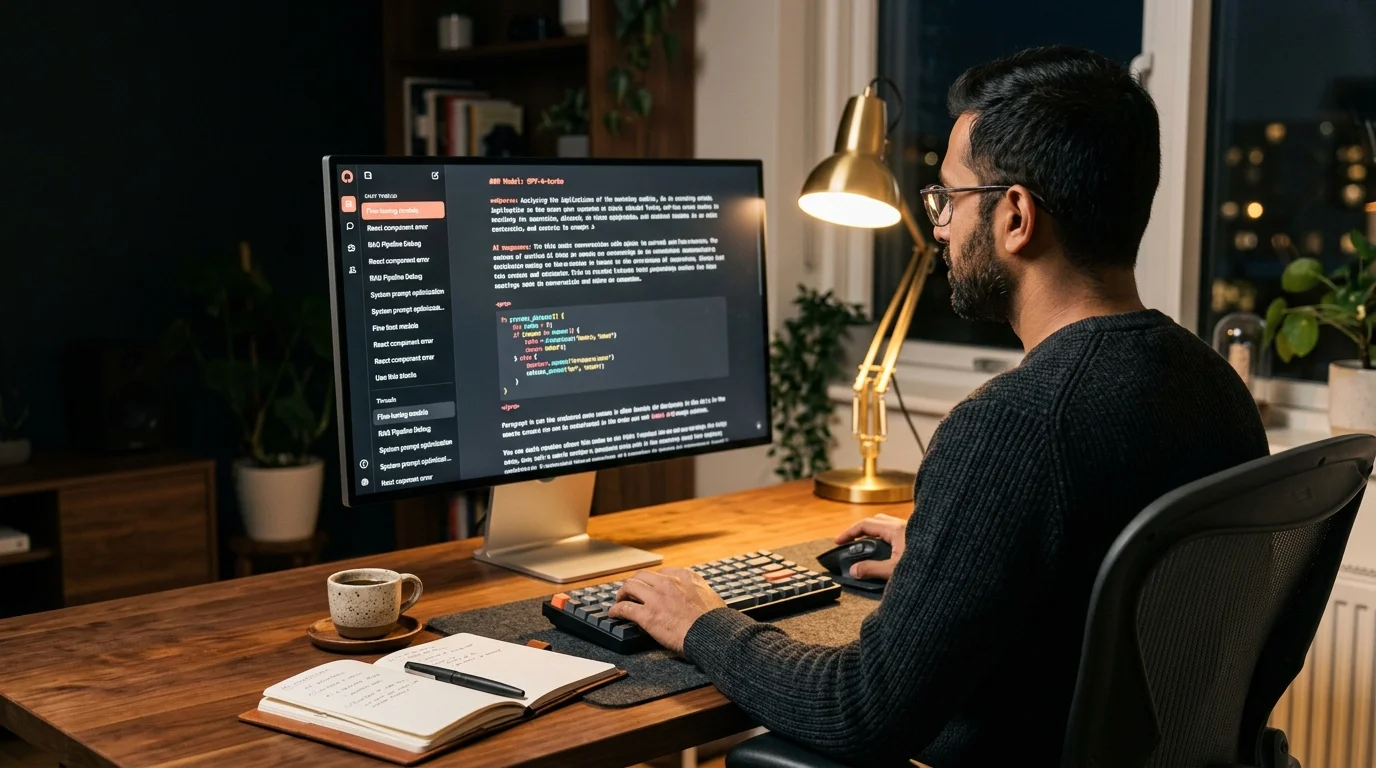
This is where a purpose-built tool matters. Prism MD opens .md files with typography tuned for AI output: generous line height, a comfortable measure around 70 characters, monospace code blocks that finally breathe, and KaTeX math that renders inline instead of collapsing into raw LaTeX. Drop a Comet export into it and the thread stops feeling like a chat log. It reads like a document you would happily print.
A good reader also handles the two things Comet sidebars botch: long code blocks and dense reasoning. When Comet returns a full React component or a shell script, you want it in a fixed-width column with copy buttons, not a horizontally-scrolling strip. When it walks you through a multi-step analysis, you want paragraph breaks and heading hierarchy, not a wall of bulleted fragments. If you've hit that wall before, the long-code-block guide covers the specific patterns that break most viewers. The same reader should work identically on your laptop, tablet, and phone.
Building a Comet reading workflow that lasts
The workflow that scales is simple. Export any thread you'd want to reread within 24 hours of the conversation. Store the .md files in a single folder synced across devices, either through iCloud, Dropbox, or a git repo. Open them in a reader that keeps typography consistent whether you're on a laptop, a tablet, or a phone. Do a ten-minute weekly pass to prune the throwaway threads and star the keepers.
The minimum viable setup below covers the essentials without much ceremony. It works whether you export ten threads a month or a hundred. The specific tools matter less than the discipline of using the same folder, same naming convention, and same reader every time. Consistency is what makes the archive searchable a year from now, when you've forgotten the exact wording of a thread but remember the topic.
- One synced folder called
ai-conversations, with subfolders per project. - Consistent filename format:
YYYY-MM-DD-topic-slug.md, so chronological sort works. - A markdown reader on every device you use, so the reading experience is identical.
- A weekly pass to delete throwaway threads and star the keepers.
For teams and heavier users, version control with git turns the folder into a searchable, diff-able archive. You can see when an AI answer changed between regenerations, which is surprisingly useful for engineering work. If you are already doing this for Claude or ChatGPT exports, adding Comet is a drop-in step. Comet is not the only browser trying this pattern either. Arc Search, Dia, and Brave Leo all put AI into the chrome of the browser, and each stores conversations differently. Comet is currently the most useful for long research sessions because it inherits Perplexity's citation quality and its Pro-tier model routing, but that advantage is only real if you keep the outputs. The best markdown reader roundup walks through what to look for if Prism MD is not your first pick.
FAQ
Does Comet automatically save my conversations to my Perplexity account? Most conversations sync if you are signed in to the same account, but sidebar-only threads on incognito or unauthenticated windows do not. Check perplexity.ai/library after each session if you want to be sure a thread was captured. Anything that shows up there can be exported cleanly. Anything missing has to be copy-pasted out of the sidebar before you close the tab.
Can I export a Comet conversation as markdown directly? Yes, via the shareable thread page on perplexity.ai. The sidebar itself has no dedicated export button as of this writing, so the perplexity.ai route is more reliable than copy-paste for anything longer than a few turns. Open the thread on the web, use the three-dot menu, and choose the markdown option. Save the file with a descriptive slug and today's date.
What happens to inline citations when I export? Citations become numeric footnotes with URLs at the bottom of the export. Most markdown readers render them as clickable links, but the visual pairing with the source sentence is lost in translation. If citation fidelity matters, keep the original perplexity.ai URL alongside the markdown file. That way you can always jump back to the live thread when you need to verify a quote.
Is there a way to search across all my Comet conversations at once? Not inside Comet itself. Once your exports are in a folder, any full-text search tool works: ripgrep, macOS Spotlight, Obsidian's search, or the built-in search in your markdown reader. This is the main reason to standardize on one folder and one filename format from day one. Search only pays off when the archive is consistent.
Stop losing your best AI research to closed tabs.
Free to start — no credit card.
Related reading


Ready to read your own AI documents?
Open ChatGPT, Claude, Gemini, or any markdown file in the reader built for the way models write.
- ✓Renders code, math & Mermaid out of the box
- ✓Works offline once you've opened a doc
- ✓Free forever for personal reading