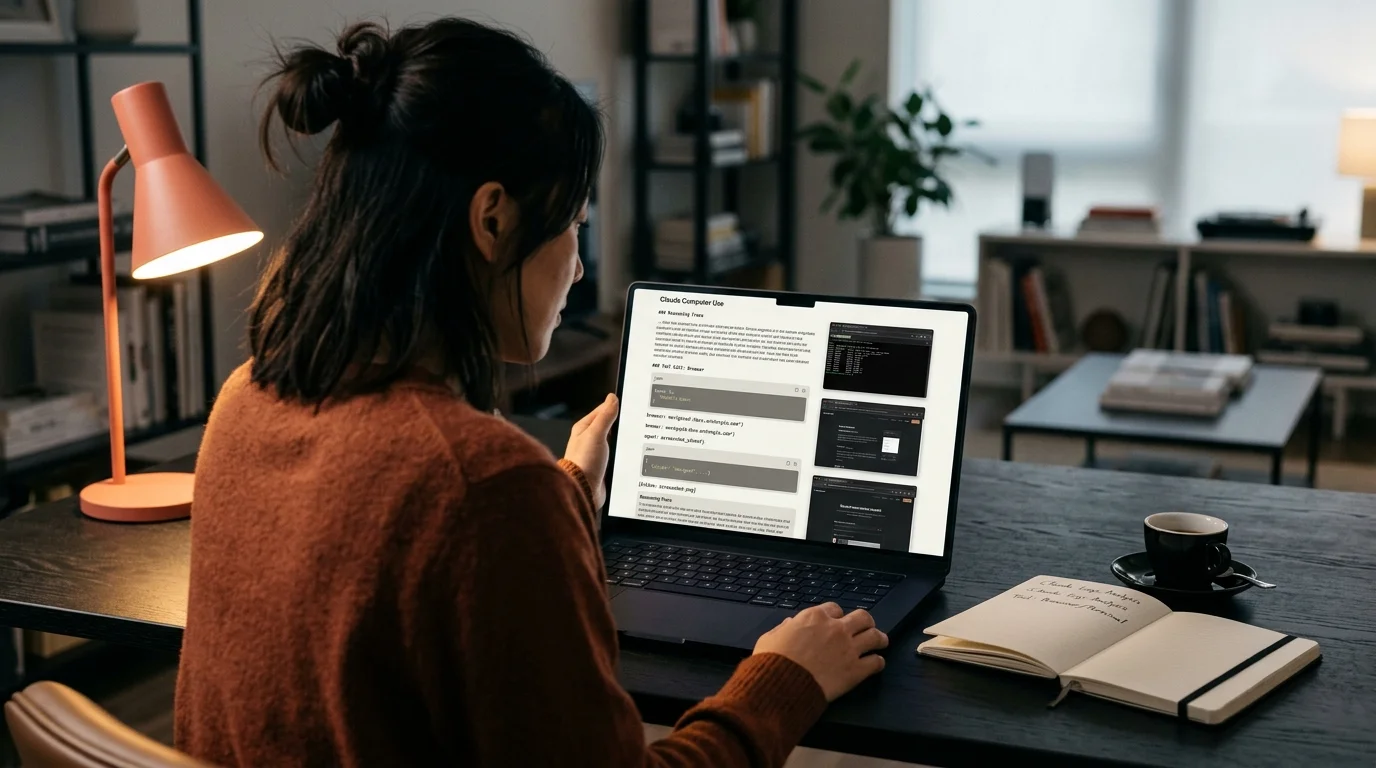
Read Claude Computer Use Transcripts Without Losing the Screenshots
Claude Computer Use sessions mix reasoning, tool calls, and screenshots. Here is how to export and read the full transcript without losing a step.
Claude Computer Use is different from a normal chat. The model narrates its plan, calls tools, takes a screenshot, reasons about the pixels, calls another tool, and eventually finishes the job. When you paste that transcript into a plain markdown reader you get a wall of JSON, base64 image blobs, and disconnected prose that reads like a stack trace. Reading it properly means keeping the reasoning, the tool calls, and the screenshots visible in the same flow, not scattered across three tabs. Most teams learn this the hard way after their first agent run goes sideways and nobody can reconstruct what happened.
This guide covers how to export a Claude Computer Use session, what the transcript contains, and how to render it so a human can review the run without missing a step. The workflow assumes you are auditing your own agent runs, building a training dataset, or writing up a session for a teammate. It also assumes you care about reproducibility, because a Computer Use bug you cannot re-read is a bug you cannot fix. The tools mentioned here are what we reach for after a year of watching these transcripts stack up.
What is inside a Computer Use transcript
A single session is a sequence of message turns. Each assistant turn can hold a text block, a tool_use block for the computer, bash, or str_replace_editor tools, and the tool_result that comes back with a screenshot encoded as base64. The screenshot is the load bearing part of the record. Without it, sentences like "I can see the settings menu is now open" refer to nothing. Losing the images turns the transcript into a script for a play with no stage directions.
Anthropic exposes the full turn history through the Messages API, and most orchestration frameworks like the Anthropic SDK, LangGraph, and the reference computer-use-demo container save the raw JSON to disk. That JSON is the source of truth for a run. The pretty rendering you see in a demo UI is a projection over it, and different demo UIs project differently, so two people can watch the same run and remember different things. Always start from the JSON when you review, and treat the UI as a convenience. The practical reading unit is the turn pair: one assistant turn and the tool_result that answers it. Read them together or the causal chain falls apart.
Get the raw transcript out cleanly
The reference demo saves each session under ~/.anthropic/logs/ as JSONL, and the Docker image ships a small viewer next to it. If you are using the Bedrock or Vertex variant, the trace lives in your cloud provider's log store, and you have to reassemble the turns yourself. Either way, the goal is one JSON file per session with the message list intact and screenshots inline as data URIs, not stripped or hosted elsewhere. Hosting screenshots on a separate CDN sounds efficient right up until the CDN link expires and your audit trail turns into a row of broken image icons. Keep the bytes with the transcript, even if it doubles the file size.
A short conversion script can flatten the JSON into markdown, embed screenshots as , and label each tool call with its input arguments. If you have never written that script, aim for a structure that a human can skim without opening a JSON viewer. The shape that reads best in practice is straightforward, and it stays readable across sessions of wildly different length. Once you have written the converter once, every future session takes 10 seconds to prepare:
- Header block with session id, model, and start time.
- One H3 per turn with the role, the wall clock timestamp, and the token count.
- Reasoning text as normal paragraphs.
- Tool calls as fenced code blocks tagged
json, showing name and input. - Tool results as
for images and fenced blocks for stdout.
Keep the ordering exactly as the API returned it. Resist the urge to collapse consecutive tool calls into a single block, because the model's next reasoning step usually references the specific screenshot that came back one turn earlier. If you drop the ordering, you also drop your ability to blame a specific step for a downstream error. Preserve the token counts too, because they are the cheapest signal you have for when the model started to drift.
Render it in a reader that respects the shape
Once you have clean markdown, you need a reader that will not choke on 200 inline base64 images or 4000 line code blocks. Notion re-uploads embedded images and rewrites URLs, which is fine for a note but bad for an audit trail. Obsidian handles data URIs but its default theme wraps code aggressively and the screenshots end up half height. A dedicated markdown reader for AI output tends to fare better, and if you want the head to head we wrote up Prism MD vs Obsidian for AI conversations. The difference shows up most on sessions past the 30 minute mark, where scroll performance stops being cosmetic.
Two things matter more than any theme choice. First, monospace font quality inside the tool_use blocks, since you will be reading JSON inputs for hours on a busy day. Our notes on the best monospace fonts for AI code blocks go deeper on that specific problem. Second, sane line length, because Computer Use reasoning paragraphs are dense and the model writes long sentences. If your reader stretches text to 140 columns your eyes will slide off the page, which is why we care about optimal line length for reading AI markdown. Screenshots deserve a full width lane and a click to zoom, not a thumbnail buried between paragraphs. Add a caption slot below each image with the tool name and step number, so you can point at "step 14" in a review call and everyone finds the same frame.
Review flow that finds real bugs
Reading top to bottom works for a first pass. On the second pass, invert the direction. Start from the final action the agent took, walk backward one turn at a time, and ask why that action was the right response to the previous screenshot. This is how you catch the class of failure where the model hallucinated the state of the screen. If step 22 clicks a Save button that never existed, you want the reasoning trail that got there, not the polite summary at the end.
Once you have a habit of reading backward, run a short structured pass on top of it. The four checks below are the ones that catch the most bugs per minute of review, and they scale from a five minute smoke test to a full audit. Print them, tape them to the monitor, or wire them into a reviewer prompt if you are automating the review itself. Treat this list as the floor, not the ceiling, and add project specific checks as you learn the failure modes of your own agent:
- Confirm the initial screenshot matches the task prompt.
- For each tool_use, verify the arguments could only have come from a real screen element visible in the previous screenshot.
- Flag any turn where the reasoning text describes UI that is not present in the last image.
- Track token usage per turn. Sharp jumps often correlate with the model getting lost.
Pair this with a way to extract action items from AI conversations if the session was an assistive agent rather than a pure demo. Fixes and follow ups tend to hide inside reasoning paragraphs, not the tool calls, and they are easy to miss on a linear read. Keep a scratchpad open while you review, and copy the exact step number next to each note so the fix ticket points at a real frame. That single habit has saved us more debugging hours than any tool choice.
FAQ
Why not watch the video recording of the run?
Video shows the screen, not the model's reasoning. You need both channels to know whether the agent succeeded by luck or by inference. The transcript is what the model thought, frame by frame, and that is the part you can improve with a better prompt or a better tool spec. Video is a nice sanity check on top, but it does not replace the text record.
Can I share a Computer Use transcript publicly?
Only after you scrub it. Screenshots often contain email addresses, session tokens visible in a browser tab, or internal URLs. See the note on redacting sensitive info from AI conversations before you post anything, because base64 images do not hide from OCR. A single missed screenshot can leak a bearer token that never rotates.
How long can a Computer Use transcript get?
A 45 minute session can produce a 60 to 120 megabyte JSON file, most of it screenshot bytes. Split by session, never concatenate, and keep the raw JSON archived even after you convert to markdown. Storage is cheap, re-running an agent to reproduce a lost session is not. Cold storage on S3 Glacier or B2 works fine for anything older than a month.
Do I need Claude Opus to read these transcripts?
You need Opus, Sonnet, or Haiku to generate them, depending on the task. You do not need Claude at all to read them. A good markdown reader, a monospace font you like, and a coffee are enough. If you want AI help summarizing a long transcript, a cheap model is fine for the summary pass.
Read your Computer Use transcripts the way they were meant to be read.
Free to start — no credit card.
Related reading

Ready to read your own AI documents?
Open ChatGPT, Claude, Gemini, or any markdown file in the reader built for the way models write.
- ✓Renders code, math & Mermaid out of the box
- ✓Works offline once you've opened a doc
- ✓Free forever for personal reading