
Claude Code Resume: Pick Up Any Past Session in Seconds
How claude --resume finds, previews, and restores any past Claude Code session, with UUID shortcuts, cross-directory flags, and reader tips.
Claude Code ships a terminal AI pairing session that keeps growing as you work. The problem most people hit by week two is simple: they lose the thread. A good debug session from Tuesday is buried under a dozen scratch chats from Friday, and typing claude opens a fresh prompt. The fix is claude --resume, and once you know how it stores sessions, picking up any past chat takes about four seconds. This guide walks through resume end to end, including the edge cases that catch new users.
Most devs find out about resume by accident, usually after rebuilding context in a new session for twenty minutes before realising the old one was still on disk. The CLI does not advertise the flag loudly, and the first time you run it the picker UI is not intuitive. Covered below: where sessions live, how to resume by UUID or picker, directory scoping, reading transcripts outside the terminal, and the token cost. If you also live in the OpenAI stack, our earlier Codex CLI resume guide covers the same workflow for that tool, and the file layout rhymes.
Where Claude Code Stores Sessions
Every Claude Code session lands in ~/.claude/projects/<slug>/, where the slug is a kebab-cased version of your current working directory. Inside each folder sits a stack of JSONL files, one per session, named by UUID. Each line is a single turn, role tagged, with the full tool calls and file diffs attached. Nothing gets written to a central index, so the project folder is the source of truth. If you move a repo, the slug changes and new sessions land in a new folder, but the old one stays put until you delete it.
You can confirm this by running ls ~/.claude/projects/ right now. The output lists every repo you have ever opened Claude Code in. The newest JSONL in each folder is almost always the one you want to resume next. A fresh session for a working directory you have never used before will create the project folder on first turn, which is why some repos show up with only a single file. For deeper plumbing on the related tool, see our Claude Code file-paths explainer.
Running Claude Code Resume
The cleanest way to pick up an old chat is to run claude --resume from the same working directory where the original session lived. Claude Code scans the matching project folder, lists the last ten or so sessions with their first-message previews, and lets you arrow-key to the one you want. Hit enter and the model boots back with the full conversation loaded into context, including any file reads and tool outputs from the earlier run. The picker sorts newest first, so the session you were on yesterday is usually the top row.
If you know the exact session ID, claude --resume <uuid> skips the picker entirely. The UUID is the filename without the .jsonl. This form is handy when you have the ID from a Slack link, a notes file, or a teammate's handoff and want to drop straight in. It also scripts well: you can pipe ls -t against the project folder to grab the most recent UUID and resume non-interactively. Three resume patterns cover almost every real workflow, and they match different habits rather than different capabilities:
claude --resumefrom the repo root, when you want the picker and have been away from the project for a day or two.claude --resume <uuid>when you already have the session ID in hand.claude --resume --project <slug>when you need to pull a session from a different working directory without moving the shell.
Resuming From a Different Directory
Resume is directory-scoped by default, which trips people up on day one. If you started a session inside ~/code/api and then try to resume from ~/, Claude Code shows you the wrong project's sessions, or none at all. Two ways out. Either cd back into the original repo before running resume, or pass --project with the slug of the folder you want. The slug is visible in ~/.claude/projects/ and matches the source directory with slashes converted to dashes, so ~/code/api becomes -Users-you-code-api on macOS.
A nice side effect: you can resume a session for a repo that no longer exists on disk. The JSONL file does not care if the original folder is gone. You still get the full transcript in context, but you cannot run new tool calls that reach for missing files. This makes resume viable even after a rebase-and-nuke cycle or a drive migration, provided you kept ~/.claude/projects/ intact. Back that folder up if you care about long-term session continuity, since Claude Code itself does not sync it between machines.
Reading the Transcript Outside the Terminal
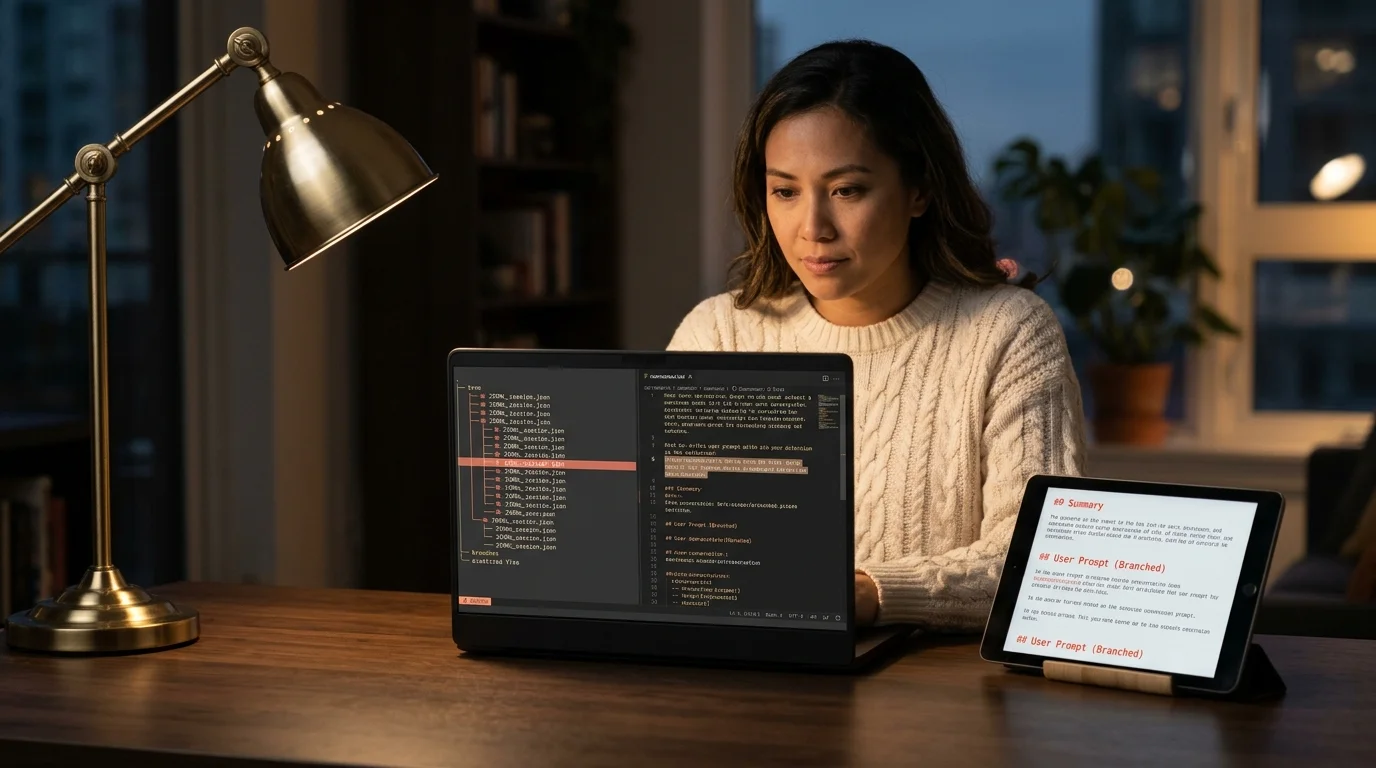
Terminal scrollback is fine for a short session. For anything over an hour of work it becomes a mess, with tool calls, file reads, and model reasoning all wrapping unpredictably. The JSONL files are plain text, so any markdown reader that understands them makes the chat readable again. Prism MD parses the raw JSONL and renders it as a clean threaded transcript with code blocks, file diffs, and tool outputs laid out the way the model produced them. Mermaid diagrams render inline, and KaTeX math blocks that Claude sometimes emits get proper layout instead of raw TeX.
The workflow we use daily looks like this: open Prism MD, point it at ~/.claude/projects/, pick a session, and read on mobile while away from the desk. It is much faster than scrolling 400 lines of terminal history to find the one Bash command that worked. The reader also keeps per-session bookmarks, which matters once you have a few hundred stored chats. For the archive side of the same problem, our guide to Claude Code's archive command covers the /archive flow for sessions you want to retire without deleting, and the companion piece on finding archived chats walks through recovery.
FAQ
Does claude --resume consume more tokens than a fresh session? Yes, and the gap grows with session length. When you resume, Claude Code replays the stored transcript into context before the next turn runs, so a two-hour pairing session can eat most of the input window before you type anything. Prompt caching softens the bill when you resume the same session back-to-back, but it does not erase the cost on a cold open. If you only need the last few turns, consider forking a new session and pasting in the specific context you need instead of resuming the whole thing.
Can I share a resumed session with a teammate?
Not directly through the CLI. Share the JSONL file and have them drop it into their own ~/.claude/projects/<slug>/ folder, then run resume against the matching UUID. The transcript loads, but tool calls that reference local files will not work on their machine without the matching repo state. For read-only sharing, exporting to markdown via a reader is usually the smoother path, since the receiver does not need Claude Code installed at all.
What happens if two sessions have the same UUID?
UUIDs are generated per session and collisions are effectively impossible in practice. If --resume <uuid> is ambiguous across different project folders, Claude Code errors out and shows you the matching paths rather than guessing. Delete or rename the duplicate and retry, or use --project to disambiguate. In the rare case you restored a backup into a live folder, expect to see the same ID twice and clean up before resuming.
Is there a GUI version of resume?
Not from Anthropic as of writing. The official Claude Code docs describe the CLI flow only, and the roadmap has not committed to a native browser. Third-party markdown readers like Prism MD give you a browse-and-pick UI against the stored JSONL files, which is the closest thing to a GUI session browser today. If you prefer a terminal UI, piping the picker through fzf against ls -t also works and is scriptable.
Read Claude Code sessions outside the terminal
Free to start — no credit card.
Related reading


Ready to read your own AI documents?
Open ChatGPT, Claude, Gemini, or any markdown file in the reader built for the way models write.
- ✓Renders code, math & Mermaid out of the box
- ✓Works offline once you've opened a doc
- ✓Free forever for personal reading