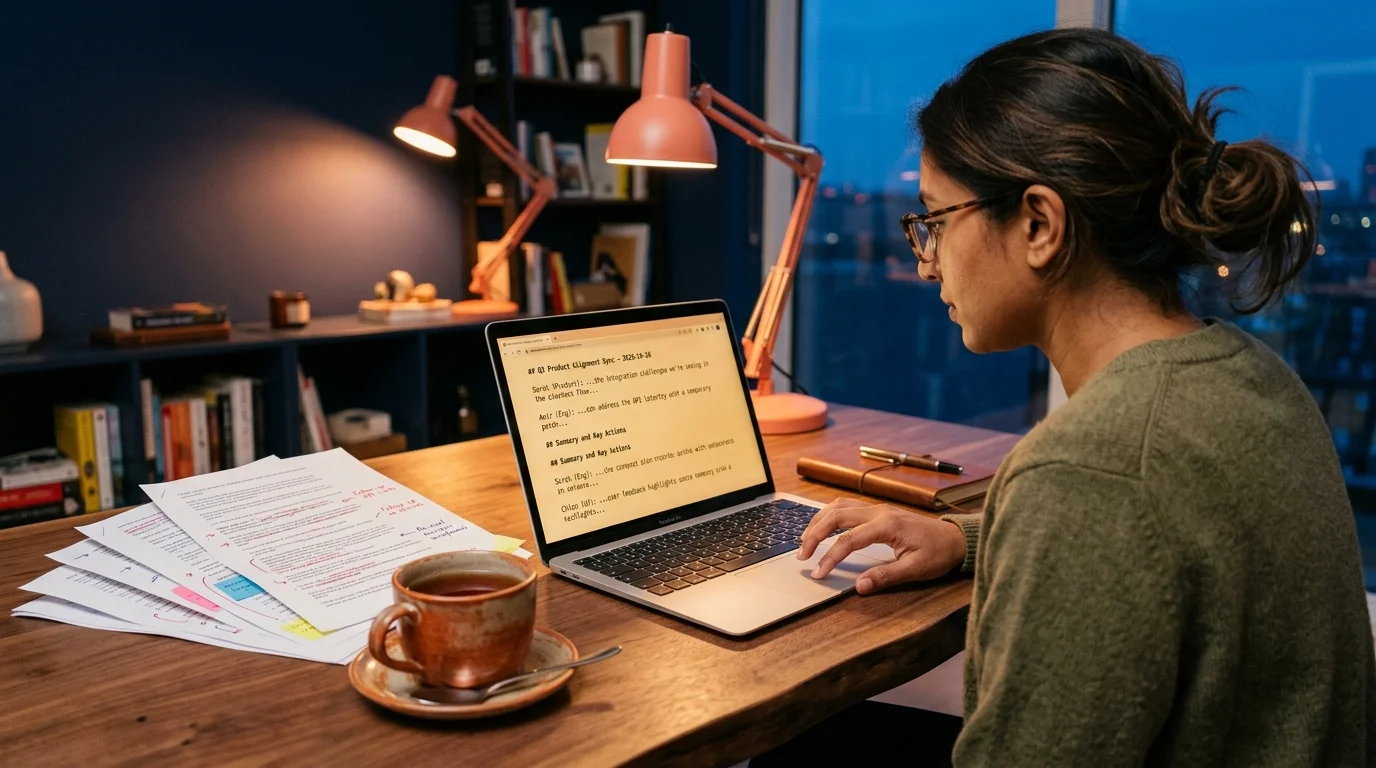
How to Read AI Meeting Transcripts From Granola, Otter, and Fireflies
Export AI meeting transcripts from Granola, Otter, and Fireflies as clean markdown, then reread them without fighting the in-app viewer.
AI meeting notes look great inside the app that made them. Then you close the tab, and the transcript from your Monday planning call becomes impossible to find again. Granola, Otter, and Fireflies each store your notes in their own web view, with their own search, their own export quirks, and their own idea of what a "document" is. If you want to reread a transcript six weeks later, you need to get it out of that app and into a reader that treats it like a real document. This guide covers the practical export path for each of the three most common AI meeting tools, and how to read the output without fighting the format.
Why AI Meeting Notes Belong in a Real Reader
Meeting transcripts are long. A one-hour call with three participants produces roughly 8,000 to 12,000 words once the AI adds speaker labels, timestamps, and a summary block. That length breaks most in-app readers, which were designed for skimming a highlight reel, not for rereading the full conversation in bed on your phone. The in-app view also hides the transcript behind a collapsible section by default, which means you lose scroll context every time you expand a chapter.
The other problem is markdown fidelity. Granola exports beautiful nested outlines. Otter exports speaker-labeled paragraphs with timestamps. Fireflies exports summary bullets plus a full transcript block. All three use markdown headings, bold speaker names, and inline links, which means a proper markdown reader renders them cleanly while a plain-text viewer flattens the structure. If you already treat long Claude threads as documents, your meeting notes deserve the same respect.
Exporting From Granola
Granola stores every meeting as a rich note with a raw transcript attached underneath. Open the meeting, click the three-dot menu in the top right, then choose Export as Markdown. Granola writes a single .md file with the summary at the top and the transcript collapsed below a heading called Transcript. The speaker labels come through as bold text, and any timestamps you added manually stay in place. The file is safe to drop into any git-backed notes folder without additional cleanup.
Two small gotchas. First, Granola sometimes wraps the summary in a callout block using their custom syntax, which renders as a plain blockquote in most readers. That is fine, no data loss, only slightly less pretty on the page. Second, if you attached files during the meeting, Granola exports the filenames but not the files themselves, so keep the originals somewhere you can find them. A synced folder next to the markdown works well as a durable long-term home.
Exporting From Otter
Otter's export lives under the same menu but is split into three formats. Pick Markdown if you want speaker labels and timestamps together, TXT if you want the raw transcript without any structure, or PDF if you plan to print. For a rereading workflow, always pick Markdown. The output has a predictable shape you can rely on across every meeting.
- Each speaker turn starts with the speaker name in bold, followed by a timestamp in square brackets
- Paragraphs are separated by blank lines rather than hard line breaks
- Summary bullets from Otter's AI live above the transcript under a heading called Summary
- Action items get their own heading, formatted as an unchecked task list
Otter's markdown is clean, but the AI summary sometimes hallucinates action items that nobody said aloud. Reread the raw transcript before you trust the summary, especially for calls where you plan to bill hours or send a follow-up email. This is the same discipline you already use when comparing answers across ChatGPT, Claude, and Gemini. The transcript is the source of truth; the summary is a helpful sketch on top of it.
Exporting From Fireflies
Fireflies has the messiest export story of the three. The web app offers a Copy Notes button that dumps rich text to your clipboard, which loses formatting the moment you paste anywhere except Word or Google Docs. To get markdown, you have to open the meeting, click Share, and choose the Notion or Slack export. Both output markdown that you can then save as a .md file. It is a two-step dance, and it is annoying, and there is currently no better way inside the free tier.
The upside is Fireflies produces the most detailed AI summary of the three. Themes, decisions, questions, and a chapter-by-chapter breakdown all come through in the export. If you run a lot of client calls and need a searchable archive, the Fireflies markdown is worth the extra clicks. Save each meeting as YYYY-MM-DD-client-topic.md and you have a clean folder you can search with ripgrep in one command. The naming convention pays for itself the first time a client references a decision from four months ago.
Reading the Files Without Fighting the Format
Once you have the markdown files, you need a reader that handles long documents, wide code blocks, and mobile screens without collapsing. Notion works if you paste the file into a page, but the mobile reader is slow and the search is scoped per workspace. Obsidian handles the files well on desktop but the mobile app charges per month for sync. A dedicated markdown reader like Prism MD is built for exactly this case, with typography tuned for long-form reading and offline sync across devices.
The workflow that sticks for most people is simple. Export to markdown once, drop the file into a synced folder, and open it in the reader when you need it. No re-exporting, no re-uploading, no "wait, which version is current." The source file is the source of truth, and the reader is a lens on top of it. If you already use this pattern for AI-generated PRDs on mobile, meeting transcripts slot into the same folder without any new tooling.
Frequently Asked Questions
Can I export a Granola transcript without the AI summary? Yes. In the export menu, uncheck "Include summary" before you export. The output will be transcript only, ready to reread without the AI's interpretation on top. This is the format you want when you plan to write your own summary from the raw source. It also produces the smallest file size, which matters if you sync hundreds of meetings across devices.
Does Otter export speaker names correctly if I did not label them during the call? Otter guesses speaker identities from voice patterns and often gets the first speaker right and the rest labeled as Speaker 2 and Speaker 3. Edit the labels inside Otter before you export, or the markdown will carry the wrong names forever. Fixing labels after export is possible but tedious across dozens of meetings. The five minutes you spend labeling inside the app saves an hour of find-and-replace later.
Is there a way to batch export all my Fireflies meetings at once? Not from the web app. Fireflies offers a bulk export via their API on paid plans, but individual users have to export one meeting at a time from the UI. A weekly export ritual on Friday afternoon keeps the archive current without turning into a chore. Pair it with a synced folder and the whole backlog stays reachable from any device.
Which of the three has the best markdown for long-term archiving? Granola. The output is cleanest, the transcript stays intact, and there is no rich-text intermediate step. Otter is a close second and wins on speaker-label quality. Fireflies wins on summary detail but loses on export friction, which becomes painful once you archive more than a handful of meetings.
Read your meeting transcripts the way they were meant to be read.
Free to start — no credit card.
Related reading

How to Read ChatGPT Voice Mode Transcripts as Real Documents
7 min read · chatgpt · voice-mode
How to Read LangGraph, CrewAI, and AutoGen Multi-Agent Transcripts
7 min read · multi-agent · langgraph
How to Read AI Reasoning Traces From o1, DeepSeek R1, and Claude Extended Thinking
7 min read · reasoning-models · o1
Ready to read your own AI documents?
Open ChatGPT, Claude, Gemini, or any markdown file in the reader built for the way models write.
- ✓Renders code, math & Mermaid out of the box
- ✓Works offline once you've opened a doc
- ✓Free forever for personal reading